





How to Buy a MediaGo Agency Account and Get Approved to Run Native Ads
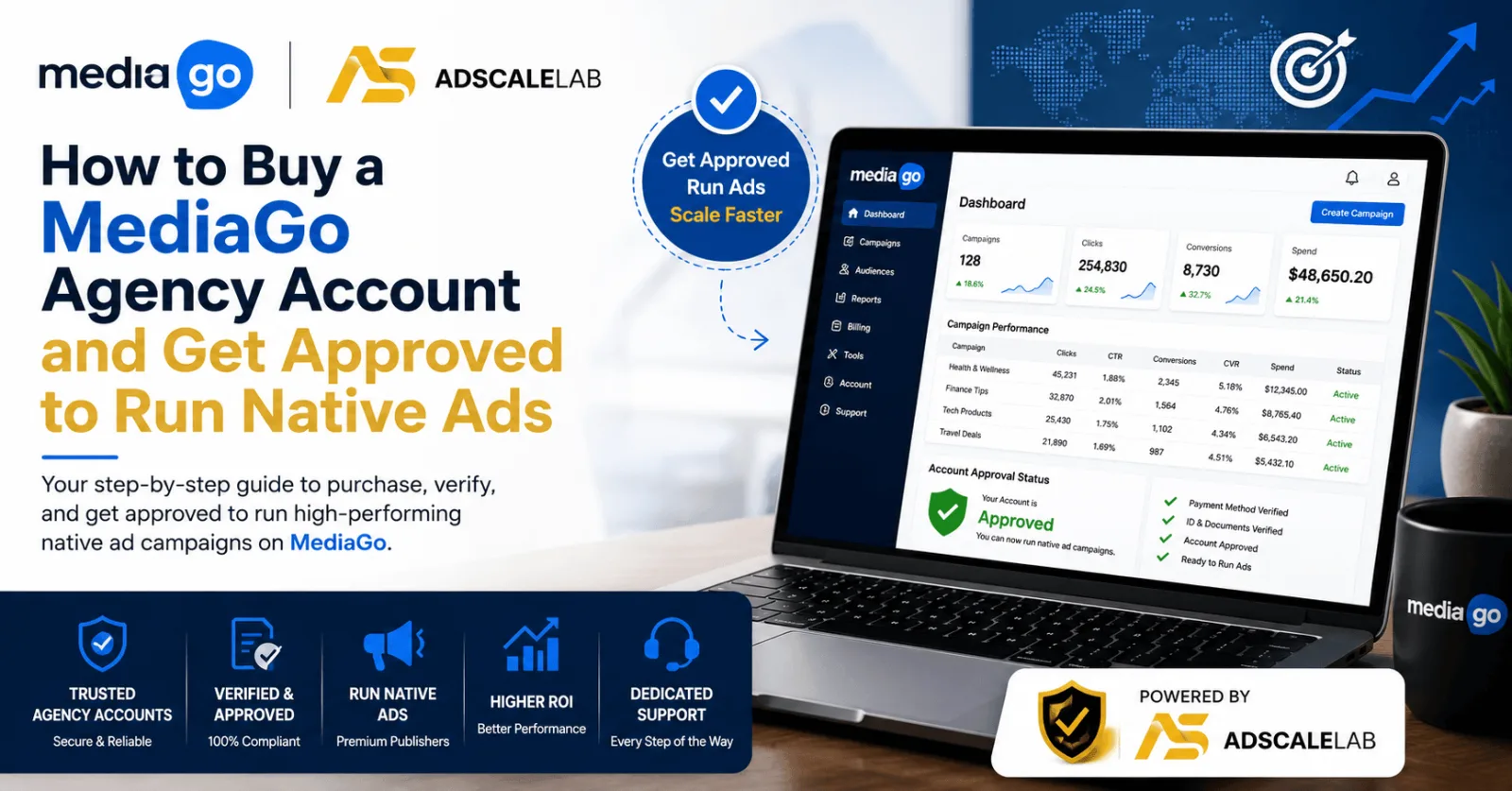
If you have been running ads on Google or Meta and watching your costs climb, native advertising is worth a serious look. MediaGo is one of the bigger native ad platforms, and it places your ads inside real news and content sites where people are already reading. That means less of the banner blindness you get elsewhere, and a fresh pool of traffic that most advertisers are not fighting over as hard. This guide walks you through what a MediaGo agency account is, how approval works, and how to buy one through AdScaleLab.
What a MediaGo agency account is
A MediaGo agency account is an ad account set up through an agency relationship instead of a plain self signup. The benefit is standing. Agency accounts tend to get smoother approvals and let you spend at a real scale sooner, while a brand new self serve account can sit under tight limits or extra review early on. For media buyers and affiliates who want to run native traffic without the usual friction, that head start matters.
Why buyers pick native and MediaGo
Native ads work differently from search and social. Instead of chasing a keyword or interrupting a feed, your ad shows up as a suggested article next to real content. People who click are often curious and higher intent, which is why direct response advertisers like it for offers in areas like insurance, finance, health, and ecommerce. MediaGo also reaches a lot of premium publisher inventory, so there is room to test widely and then scale what works.
How approval works
Here is the part most people ask about. When you buy through AdScaleLab, the approval flow is simple and you are not left guessing.
First, you give us the details the account needs when you place the order. That is your destination URL, an account nickname, your traffic type, and the country you want to target. The country field is a dropdown, so you just pick the market you are going after.
Next comes the URL pre approval step. Before the account is handed to you, your landing page is checked and approved. This is on purpose, and it protects you. It means you are not launching on an account that was never going to pass review in the first place. If something on the page is a problem, you find out before you have paid to run traffic, not after.
So what actually gets checked? Native platforms care a lot about the page behind the ad. In plain terms, the review looks at whether your landing page is real and honest. That means working pages, a clear privacy policy and contact info, claims that are not misleading, and content that is not in a banned category. The page a reviewer sees needs to be the same page a real visitor sees.
Common reasons a page gets rejected
Most rejections come down to a handful of things. Cloaking, which is showing the reviewer one page and users another, is the fastest way to get turned down. Misleading or exaggerated claims, especially in health and finance, are another. So are restricted or prohibited categories, and thin or broken landing pages that do not look like a real business. Clean up those, and approval is usually straightforward. For a deeper look at the URL step, see our guide on MediaGo safe URL pre approval.
How to buy a MediaGo account on AdScaleLab
The process in the dashboard is quick. Sign up with your email, company name, and Telegram handle, then set a password. Pick MediaGo from the buy flow. Enter your destination URL, a nickname, your traffic type, and your target country. Choose how many accounts you want. Pay in USDT on the TRC20 network, either from your wallet or from your reserve balance if you have funds there. The dashboard shows you the exact wallet address and amount, and you confirm with your transaction hash. Once your payment is verified and your URL passes pre approval, the account is delivered with its login details right inside your dashboard.
Topping up and going live
When you are ready to add spend, open the account in your dashboard and top it up. Enter the amount, pay the USDT shown, and confirm with your transaction hash. If a network ever gets paused, you can request to close the account and get the unused balance refunded to your reserve. From there you build your campaign, test creative, and scale what performs.
Getting started
A MediaGo agency account gives you a clean way into native traffic without the slow start. Fast setup, USDT topups, URL pre approval that saves you from bad launches, and one dashboard to manage it all. If native is where you want to grow, this is a simple place to begin.
Ready to run native? Sign up, pick MediaGo, and get your account set up.
Frequently Asked Questions
Can you buy a MediaGo agency account?
Yes. A MediaGo agency account is set up through an agency relationship, which gives you stronger standing and the ability to spend sooner than a fresh self serve account. AdScaleLab delivers MediaGo agency accounts with the login details in your dashboard.
How does MediaGo approval work?
When you order, you give your destination URL, nickname, traffic type, and target country. Your URL is pre approved before the account is delivered. The review checks that your landing page is real, honest, functional, and not in a banned category.
Why do native ad accounts get rejected?
The usual reasons are cloaking, misleading claims, restricted content, and thin or broken landing pages. Keeping your site genuine and compliant is the best way to pass.
How do I top up my MediaGo account?
Open the account in your dashboard, enter the amount, pay the USDT shown on the TRC20 network, and confirm with your transaction hash.
How long does setup take?
Setup times are listed on our pricing page. Once payment is verified and your URL passes pre approval, the account is delivered to your dashboard.
Agency ad accounts, without the wait.
Buy and top up Google, Meta, native, and more from one dashboard.
Get started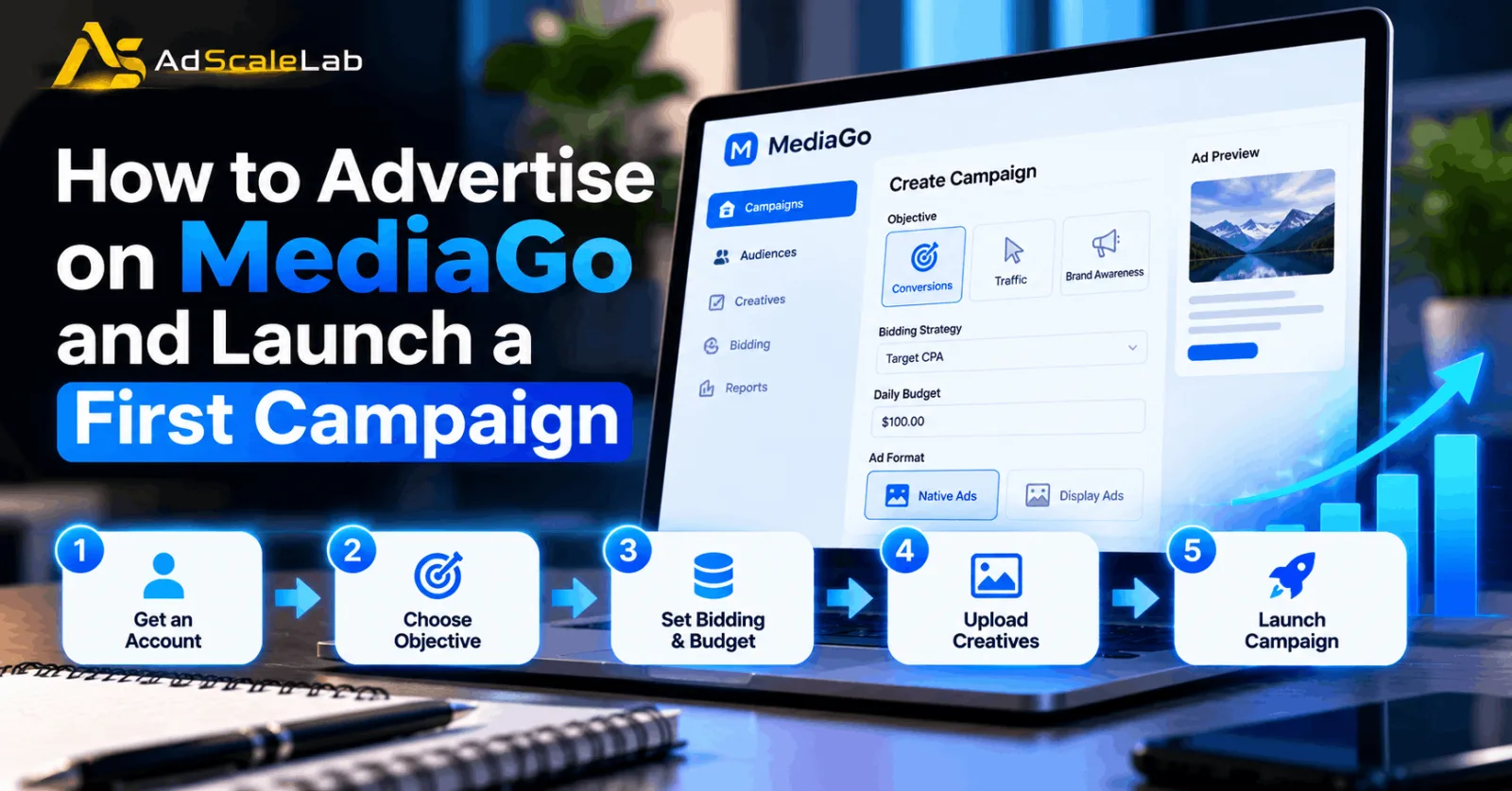
No comments yet. Be the first to comment.
Comments are open to registered AdScaleLab clients.
Sign in to comment