






Added New Feature: URL Approval Button For Ad Account Opening
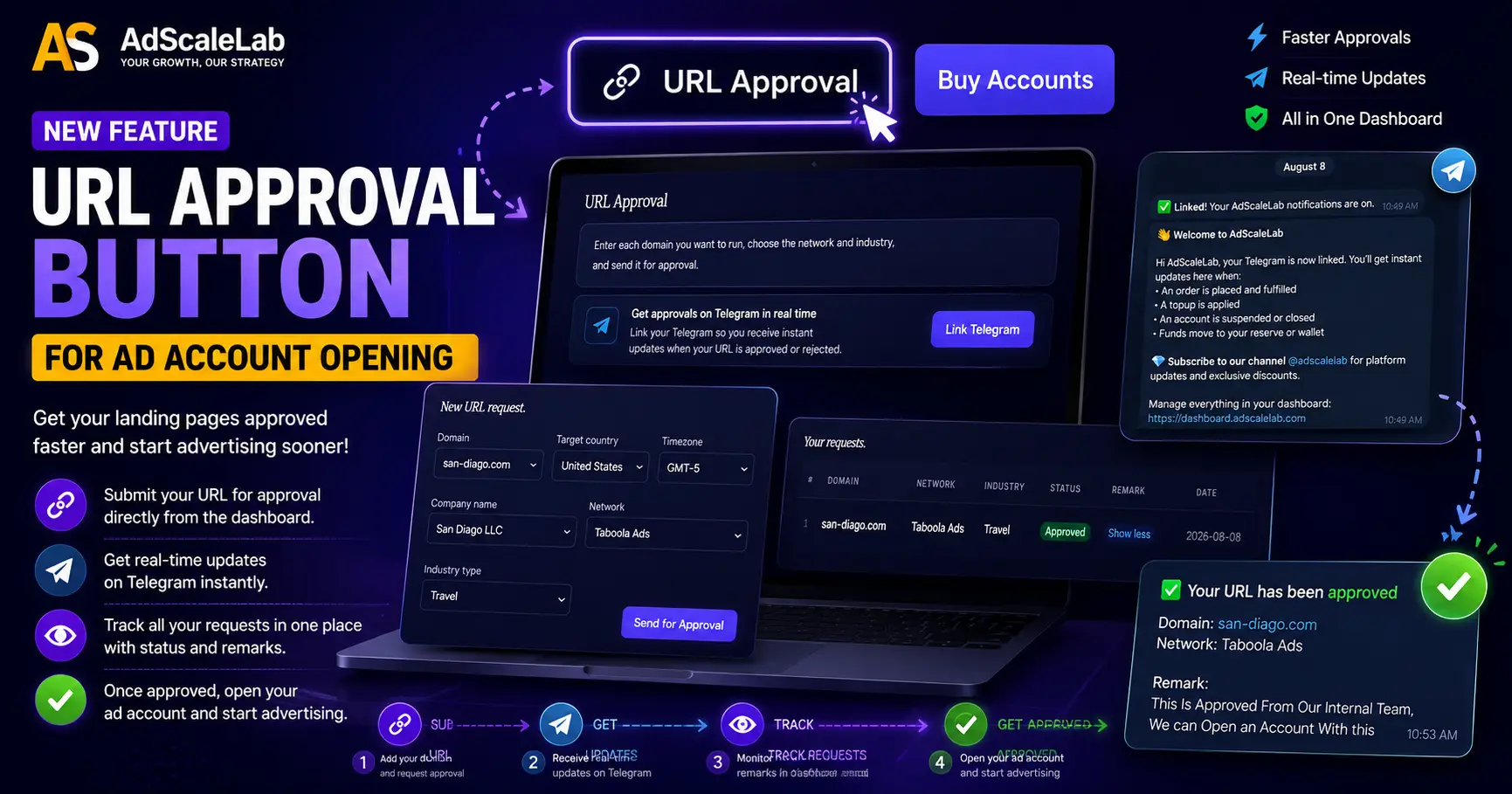
What URL Approval Is
URL Approval is a new tool inside your dashboard. It lets you submit the website links you want to advertise, and our team reviews each one and marks it approved or rejected before you launch. Think of it as a quick pre-check. Instead of building a whole campaign, uploading creatives, and then finding out the page does not pass, you learn the answer up front.
This matters because most account problems do not start with the ad. They start with the landing page. A page that breaks a network rule, loads slowly, hides its contact details, or pushes a claim the network does not allow can get your whole account flagged. Pre-approving the URL first removes a big part of that risk.
Where to Find It
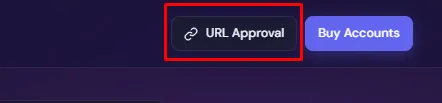
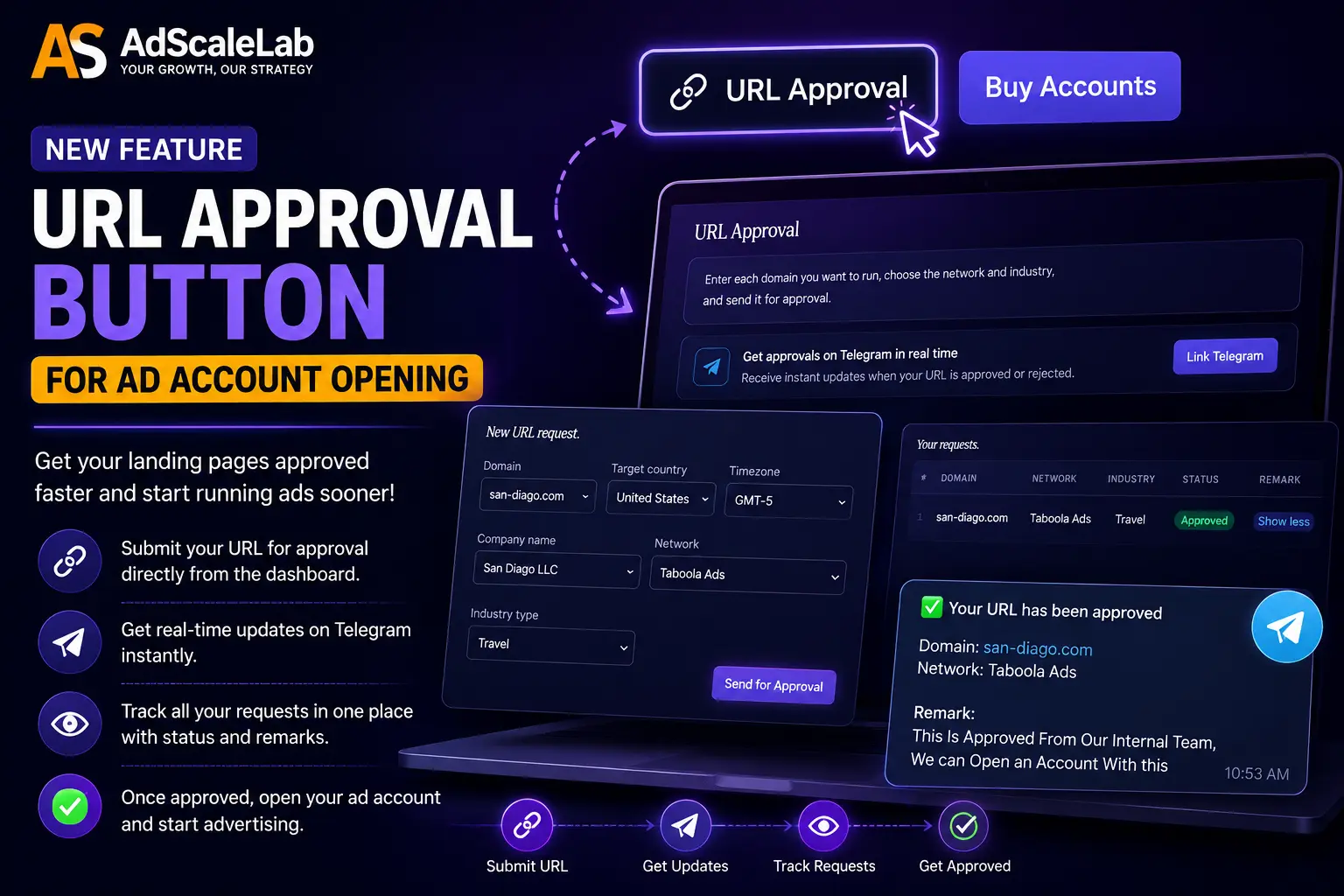
Log in to your dashboard as normal. Look at the top bar and you will see a button named URL Approval. Click it and you land on the URL Approval page. This is where you add pages, send them for review, and track every request you have made.
How to Submit a URL, Step by Step
- Open the URL Approval page from the top bar.
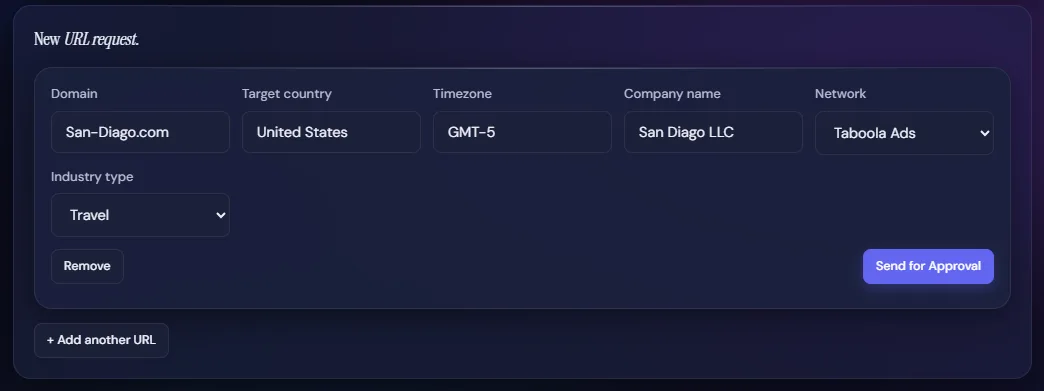
- Add a row for the page you want to run. You can add more than one row if you have several pages to check at once.
- Fill in the details. Each row asks for a few things so we can review it properly:
- Domain - the exact page or website you plan to advertise.
- Network - which platform you want to run it on (Taboola, MediaGo, Bing, and so on).
- Industry type - the category your offer falls under, such as Ecom, Finance Service, or Real Estate.
- Company - the business name behind the page.
- Country and Timezone - where you are targeting and operating from.
- Click Send for Approval. The request goes to our review team right away.
Once you send it, the page shows up in your requests list with a status. You do not have to email anyone or wait for a reply in chat. Everything is tracked on the page.
Reading Your Request Status
Every request you send shows a coloured status so you always know where it stands:
- Pending review We have received it and it is in the queue.
- Under review Our team is actively checking it.
- Approved The page passed. You are clear to run it.
- Rejected The page did not pass. A short remark tells you why, so you can fix it and try again.
When a decision is made you can read the remark right on the page. If the remark is long, click Show more to read the full note, and Show less to close it again.

Get Notified on Telegram
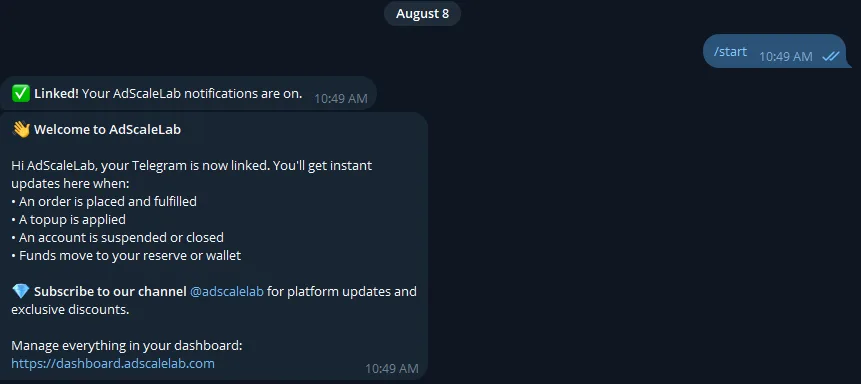
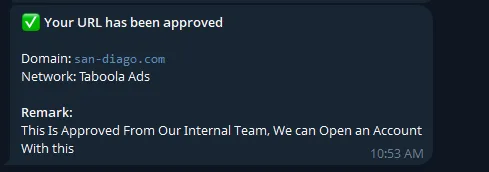
You do not have to keep the page open and wait. On the URL Approval page you will see a Link Telegram card. Link your Telegram once, and from then on you get a message the moment a page is approved or rejected. It is the fastest way to hear back, and you only have to set it up a single time. Once it is linked, the card goes away.
Pre-Approval Works Across All Our Networks
URL Approval is not tied to one platform. You can pre-approve pages for every network we currently offer on AdScaleLab:
- Google Ads
- Bing Ads
- Meta Ads
- Taboola Ads
- Outbrain Ads
- MediaGo Ads
- Snapchat Ads
- Pinterest Ads
- MI Ads
We are always adding more networks to the platform, and popular requests like TikTok and Twitter/X style placements are on our roadmap. When a new network goes live, URL Approval covers it too, so your workflow stays the same no matter where you scale next.
Each network has its own view on what a landing page should look like. A page that is fine on native traffic like Taboola or MediaGo may need small changes for search traffic on Bing, or for social traffic on Snapchat. Because you pick the network when you submit, we review your page against the right set of rules for that specific platform. That is why we ask you to choose the network on every request rather than approving a page once for everything.
A Few Tips to Get Approved Faster
- Send the real page, not a placeholder or a page still under construction. We review what your visitors will actually see.
- Make sure the page has clear contact details and a visible privacy policy. Missing these is one of the most common reasons a page is held back.
- Match the industry type to your real offer. If it is a finance offer, mark it Finance Service, not Other. It helps us review it correctly the first time.
- Fix and resend. If a page is rejected, read the remark, make the change, and submit it again. There is no limit on trying again.
Why We Built This
Our goal is simple. We want your accounts to last, and we want you to spend on traffic that actually runs. Guessing whether a page will pass costs you time and sometimes a whole account. Checking it first costs you a couple of minutes. URL Approval puts that check in your own hands, on your own schedule, for every network you use.
If you have any trouble finding the tool or filling out a request, reach out to our team and we will walk you through it. Start with one page, get a feel for it, and soon it will be a normal part of how you launch.
Agency ad accounts, without the wait.
Buy and top up Google, Meta, native, and more from one dashboard.
Get started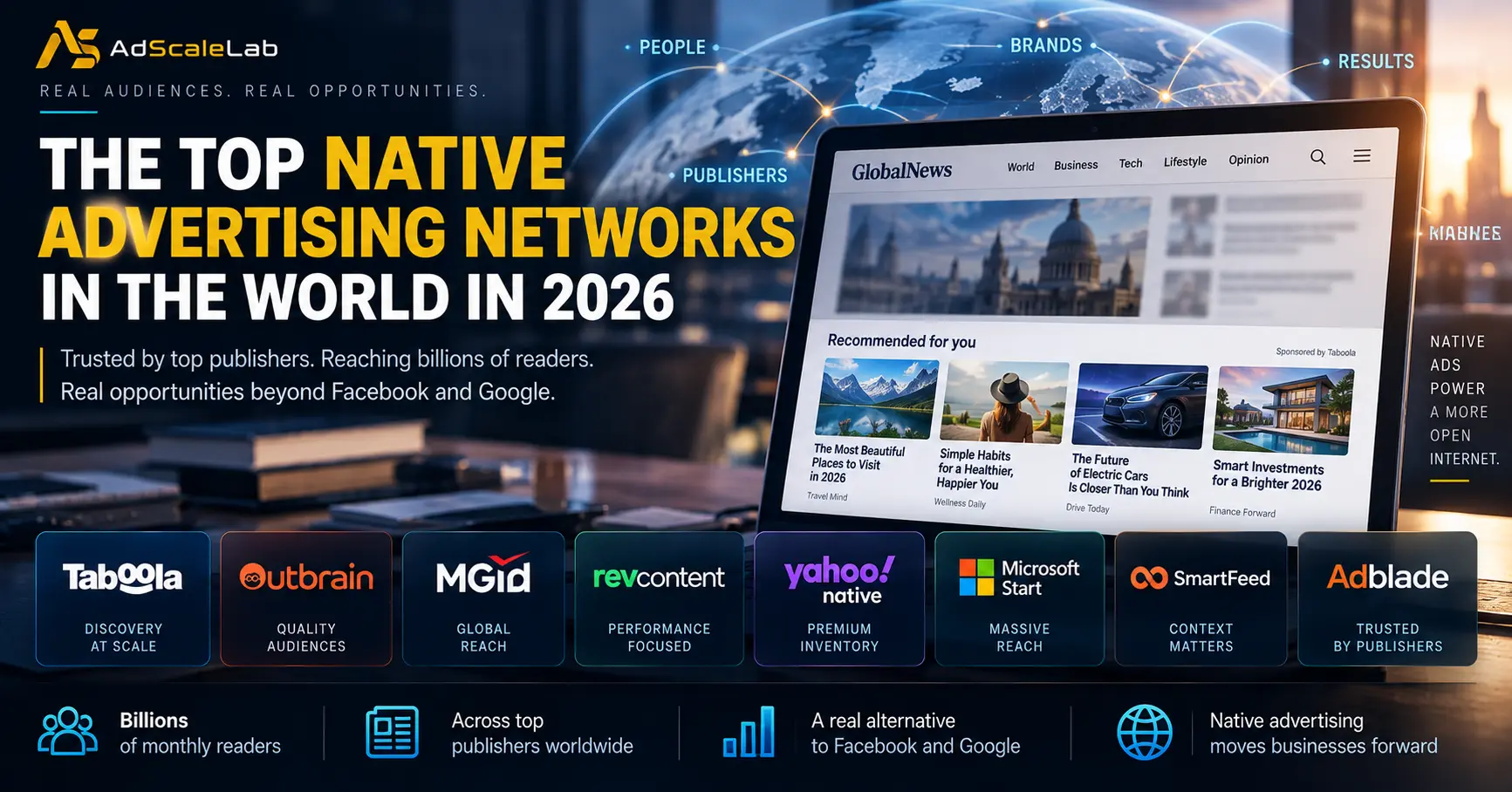
No comments yet. Be the first to comment.
Comments are open to registered AdScaleLab clients.
Sign in to comment