






How to Fix Meta Agency Account Spending Limits When Ads Stop Spending
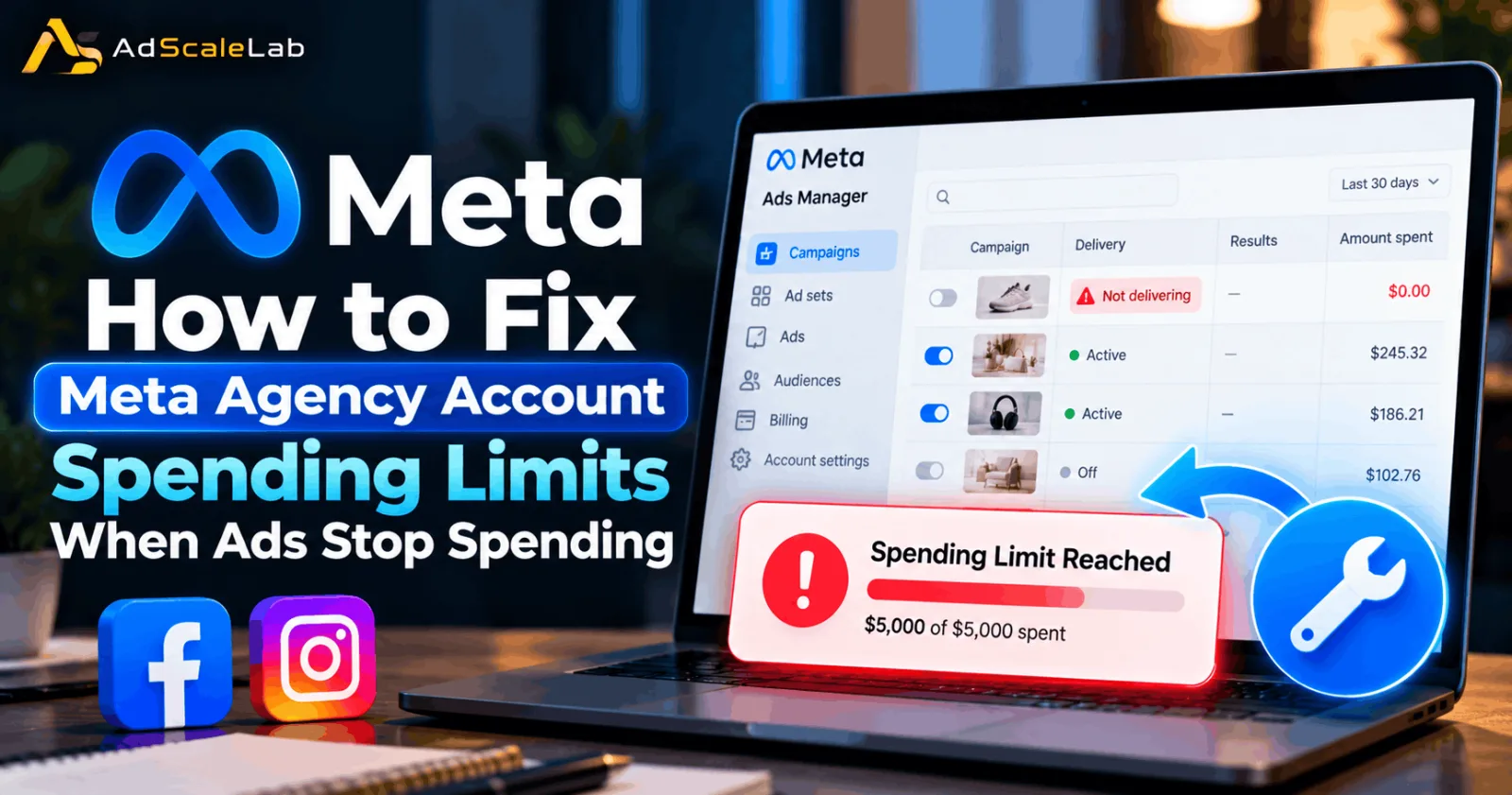
Meta agency account spending limit problems can stop advertising campaigns from spending their budget, even when the ads appear active in Meta Ads Manager. For agencies and media buyers, this can become a serious issue because a campaign may stop delivering impressions, miss its targets and affect a client's results. However, a spending limit is not always the reason behind the problem. Failed payments, account restrictions, narrow audiences, low bid limits and ads waiting for approval can also prevent campaigns from spending normally.
The first step is to identify where the problem comes from instead of changing campaign settings without checking the cause. Meta Ads Manager provides delivery information that can help advertisers understand whether the issue is at the account, campaign, ad set or individual ad level. This guide explains the main reasons Meta agency accounts stop spending and what advertisers can do to troubleshoot them.
What Is A Meta Agency Account Spending Limit?
A Meta agency account spending limit is a limit that controls how much an advertising account can spend. Once an account reaches its configured spending limit, advertising delivery can stop until the limit is increased, removed or reset, depending on the account's settings. However, advertisers should not confuse an account spending limit with a daily campaign budget. A campaign budget controls how much a campaign or ad set is intended to spend over a particular period. An account spending limit works at the account level and can affect multiple campaigns at once.
For example, an agency may manage several campaigns for an online store. If the account reaches its spending limit, all affected campaigns may stop spending even if their individual budgets still have money available. This is why checking the account's spending settings is important when several campaigns suddenly stop delivering together. Agency account arrangements can differ depending on the provider, billing setup and account configuration. Advertisers should confirm which spending controls they can manage themselves and which require help from their agency account provider.
Why Meta Agency Account Ads Stop Spending
There is no single reason why Meta ads stop spending. Sometimes the account has reached its limit, while in other cases the account is working normally but a campaign cannot enter enough advertising auctions. The pattern of the problem can help narrow down the cause. If every campaign stops spending at approximately the same time, check billing, account-level spending limits and restrictions first. If only one campaign or ad set has stopped, investigate its budget, audience, schedule, bid strategy and delivery status.
Meta's advertising guidance encourages advertisers to review delivery information at different levels instead of relying only on the overall campaign status. A campaign can appear active while an ad set or individual ad underneath it is not ready to deliver. This makes the Delivery column a useful starting point before changing anything.
Step 1: Check Whether Your Meta Agency Account Has Reached Its Spending Limit
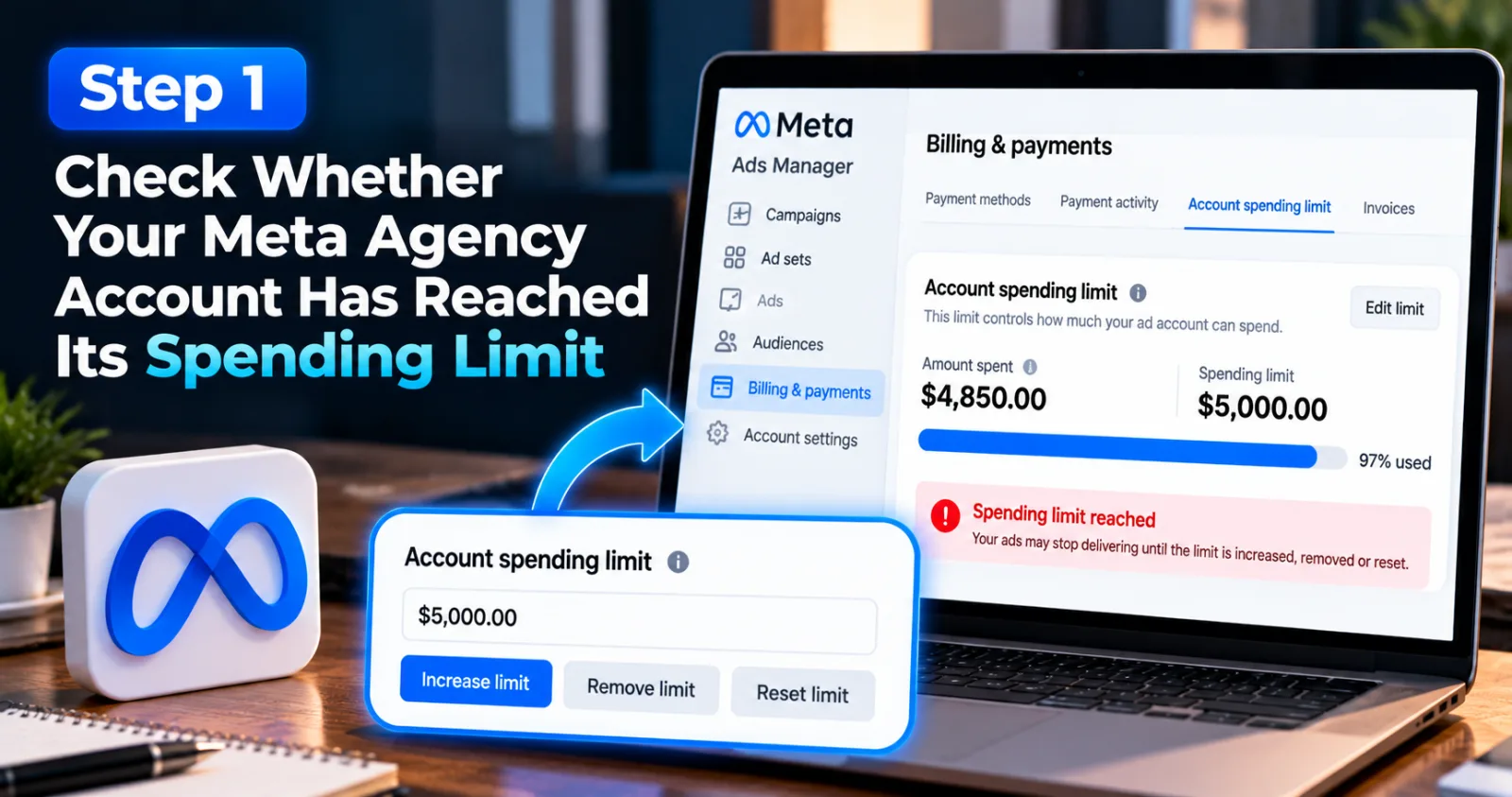
The first thing to check is the account spending limit. This is especially important when several campaigns stop spending at once. Open Meta Ads Manager and review the account's billing and payment settings. Look for the configured spending limit and compare it with the account's total spend. If the limit has been reached, you may have found the reason for the interruption.
The next action depends on how the account is managed. If you control the spending limit, review whether it should be increased, removed or reset. Make sure the change fits the client's approved budget and your agency's financial controls. If the account belongs to an agency provider and you cannot edit this setting, contact the provider and ask them to confirm the current limit and available options.
Do not increase a limit simply to make the campaign spend again. First confirm that the spending is expected, the client has approved the budget and there is no separate billing or account restriction.
Step 2: Check Meta Agency Account Billing And Payment Failures
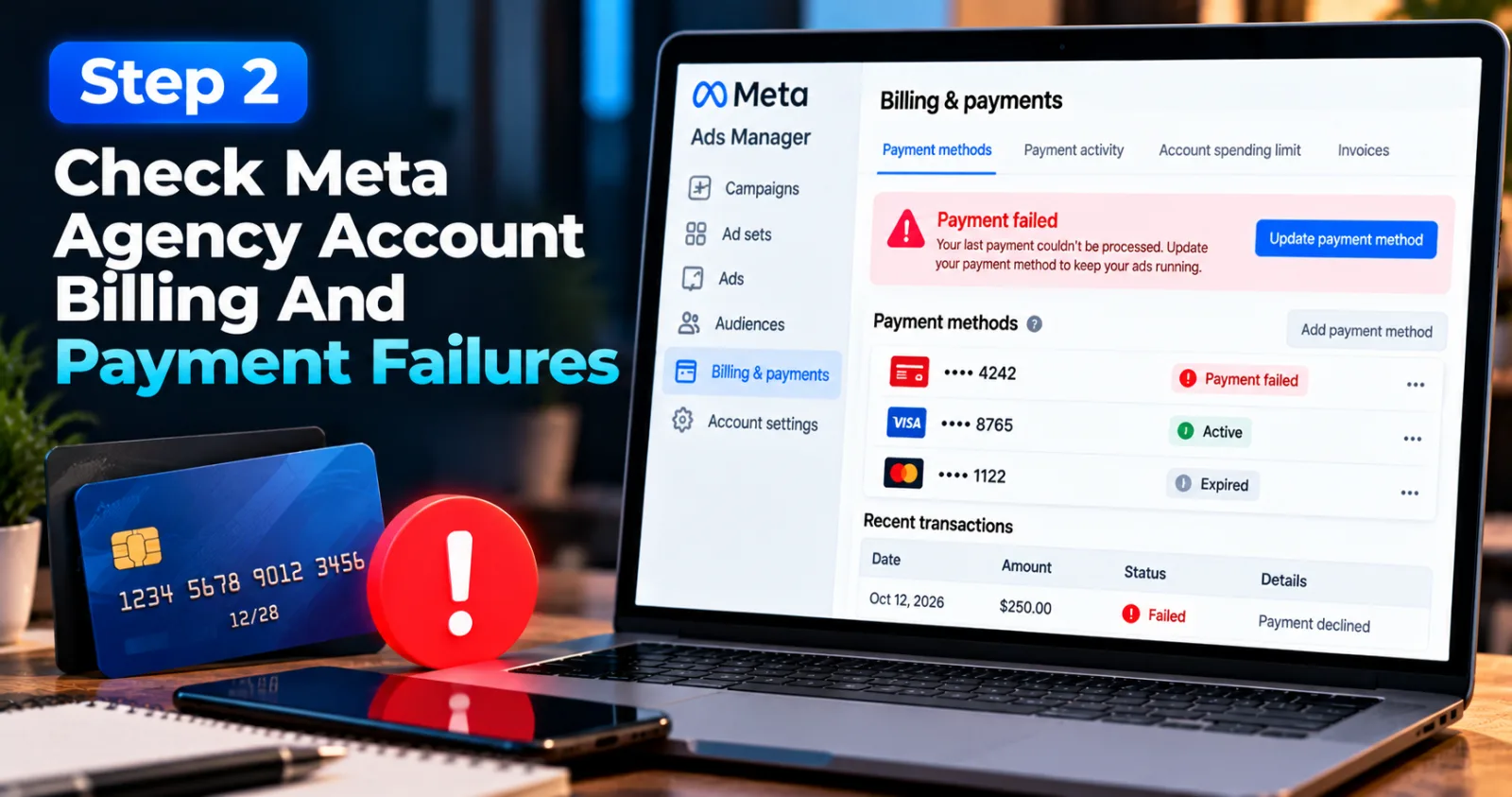
A payment problem can stop ads even when the account has not reached its spending limit. A card may have expired, a payment may have been declined, or an outstanding balance may need attention.
Open the Billing and payments section of Meta's advertising tools and review recent transactions. Check for failed charges, unpaid balances, payment warnings or requests to update the payment method. If a payment has failed, follow the instructions shown in the account and confirm that the payment method is valid.
For agency accounts, the payment arrangement may be managed by the agency or its account provider. In that situation, the advertiser may not have permission to update the payment details directly. Contact the responsible account manager and request confirmation that billing is working normally. Avoid repeatedly adding new payment methods without understanding the reason for the failure. Resolve the actual billing issue first, then return to Ads Manager to check whether delivery resumes.
Step 3: Review The Delivery Status In Meta Ads Manager
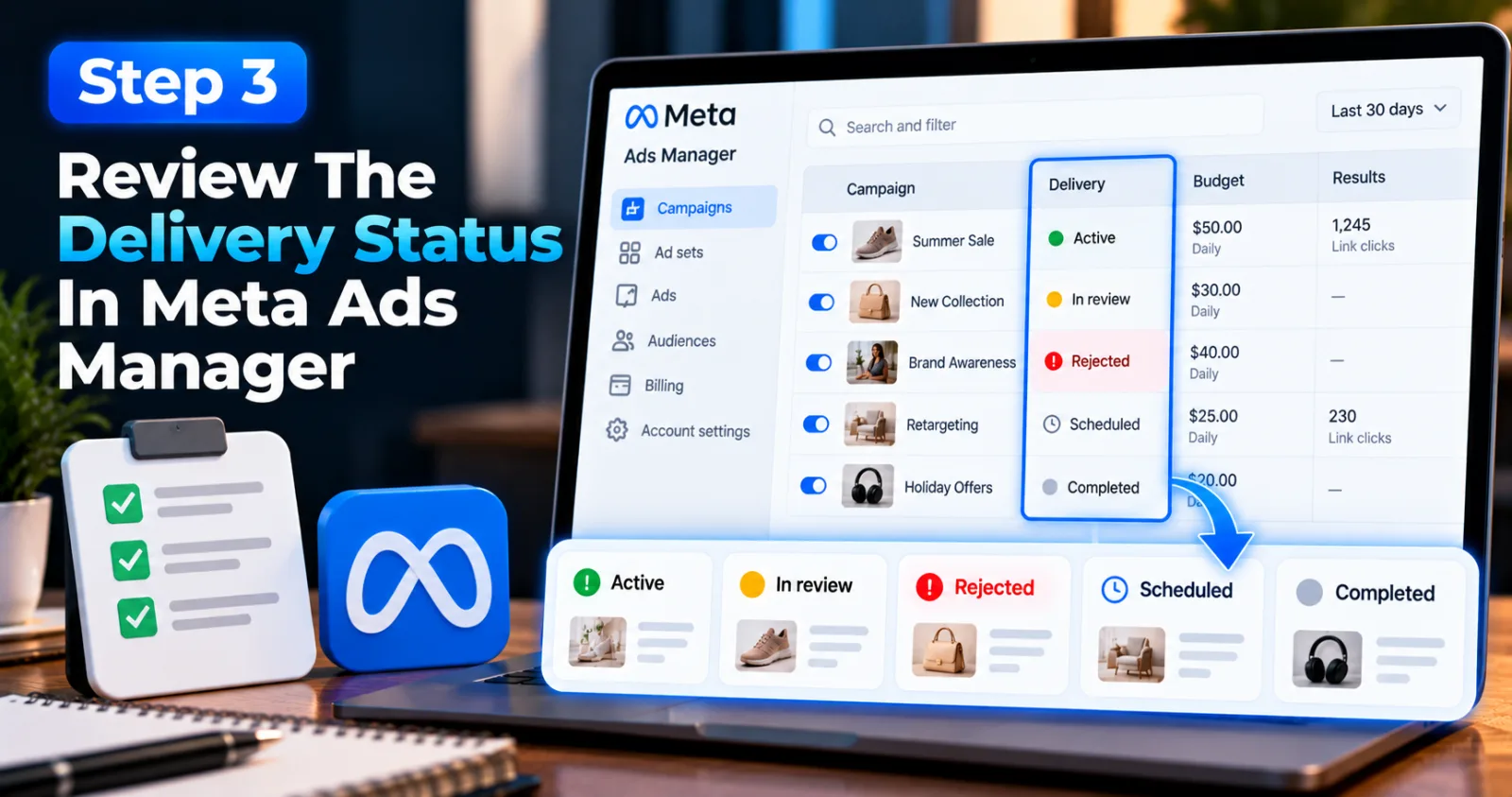
If the spending limit and payment settings look normal, check the Delivery column. This can help you identify problems that are specific to a campaign, ad set or ad.
An ad marked as In review may not be ready to deliver. A rejected ad needs attention because it has not passed the applicable advertising review. A scheduled ad set may have a start date in the future, while a completed campaign may have reached its end date. Other warnings may point to account restrictions or delivery limitations.
Check each level separately. Start with the campaign, open the relevant ad set and then inspect the individual ad. Read the explanation attached to any warning instead of assuming the campaign's Active status means everything is working. If the problem involves a policy rejection or account restriction, follow the review or appeal process available in the account. Do not keep duplicating rejected ads or creating replacement accounts to bypass a restriction. First understand what triggered the issue and resolve it through the proper process.
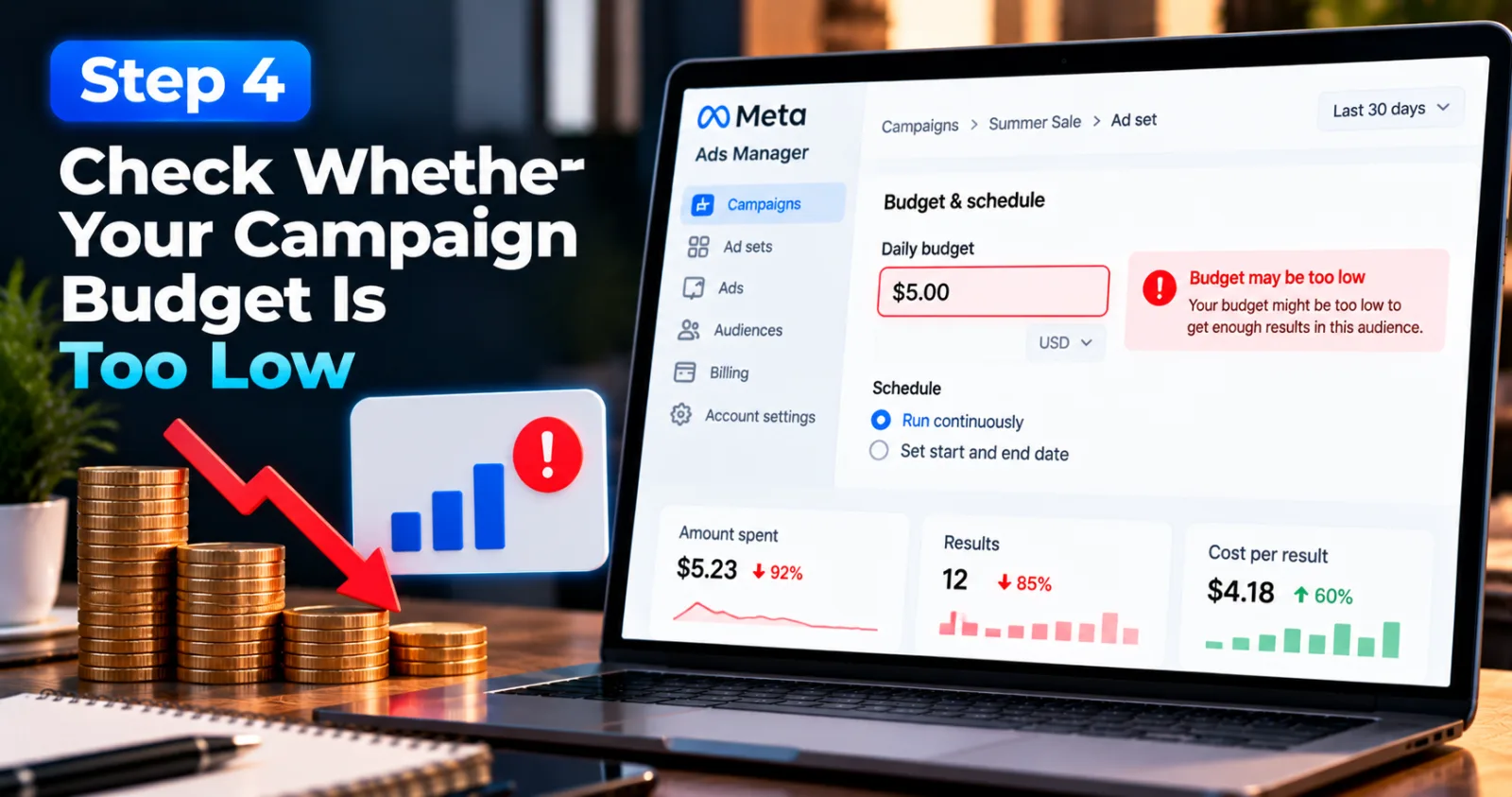
Step 4: Check Whether Your Campaign Budget Is Too Low
Sometimes the account is healthy, but the campaign has a budget that makes it difficult to compete in the advertising auction. This can lead to very low spending or limited delivery, particularly when the campaign is trying to reach a competitive audience or generate expensive conversions.
Review the campaign and ad set budgets, along with the selected performance goal. Compare the available budget with your recent cost per result and the number of conversions the campaign is expected to generate. If your goal is purchases or qualified leads, a very small budget may not provide enough opportunities to gather useful results.
Make changes carefully. Increasing a budget can help in some cases, but it will not fix a payment failure, reached account limit, rejected ad or account restriction. Confirm that the problem is genuinely related to the budget before making changes.
Step 5: Review Bid Caps And Cost Controls
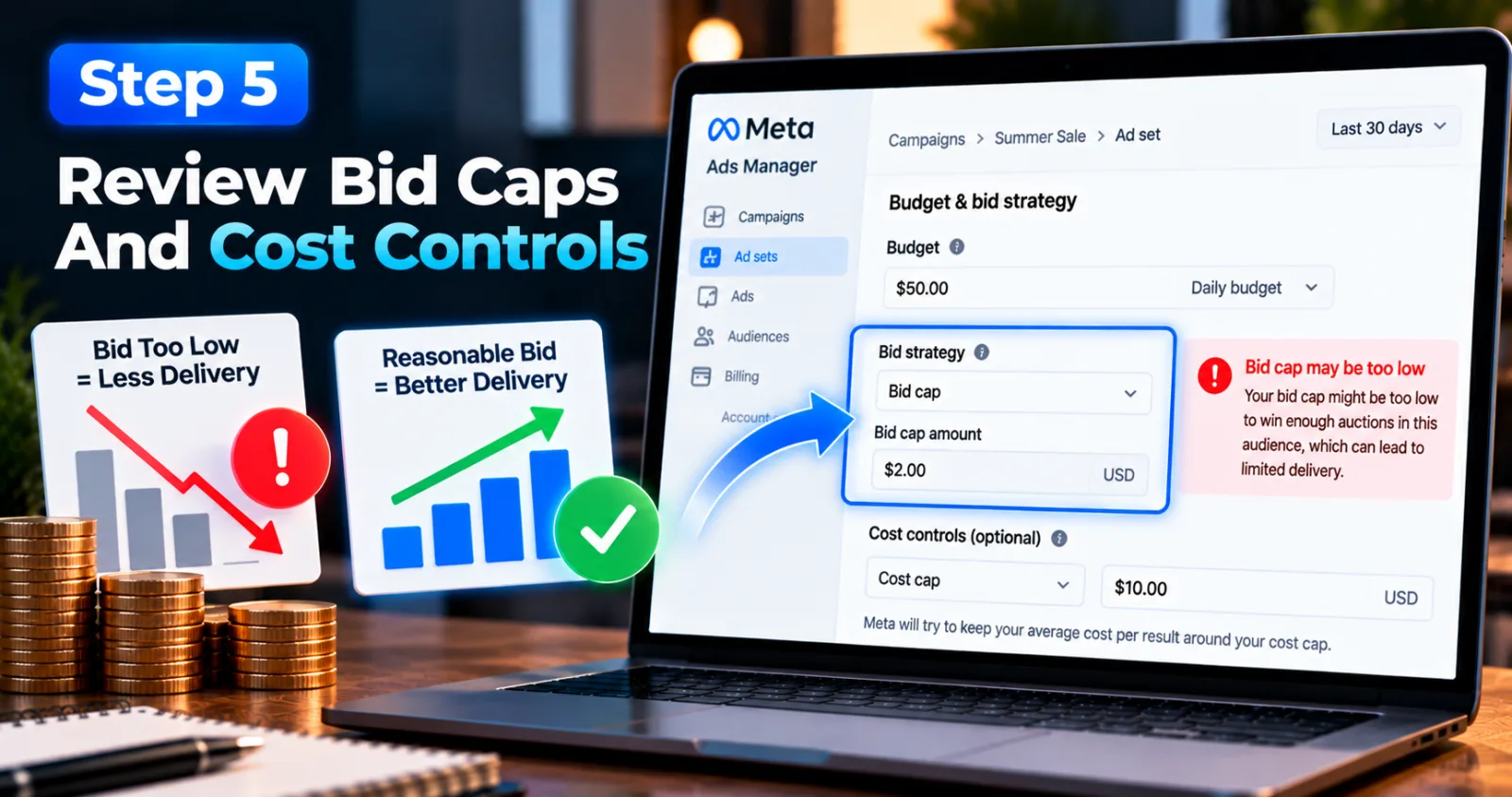
Bid caps and cost controls can also prevent a Meta agency account from spending its available budget. These settings influence how the advertising system competes for opportunities to show an ad.
For example, a campaign using a restrictive bid cap may struggle to win auctions if the cap is too low for the audience and market conditions. The campaign can remain active, but delivery may be limited because the system cannot find enough suitable opportunities within the set limit.
Review the bid strategy and compare it with recent campaign performance. If the cap appears too restrictive, test a reasonable adjustment based on the campaign's target cost and the client's financial goals. Avoid removing every control without considering the risk of higher costs. A campaign that spends more is not automatically a successful campaign. The goal is to achieve the required results at a cost the business can afford, not simply to use the entire budget.
Step 6: Check Your Audience Size And Targeting Settings
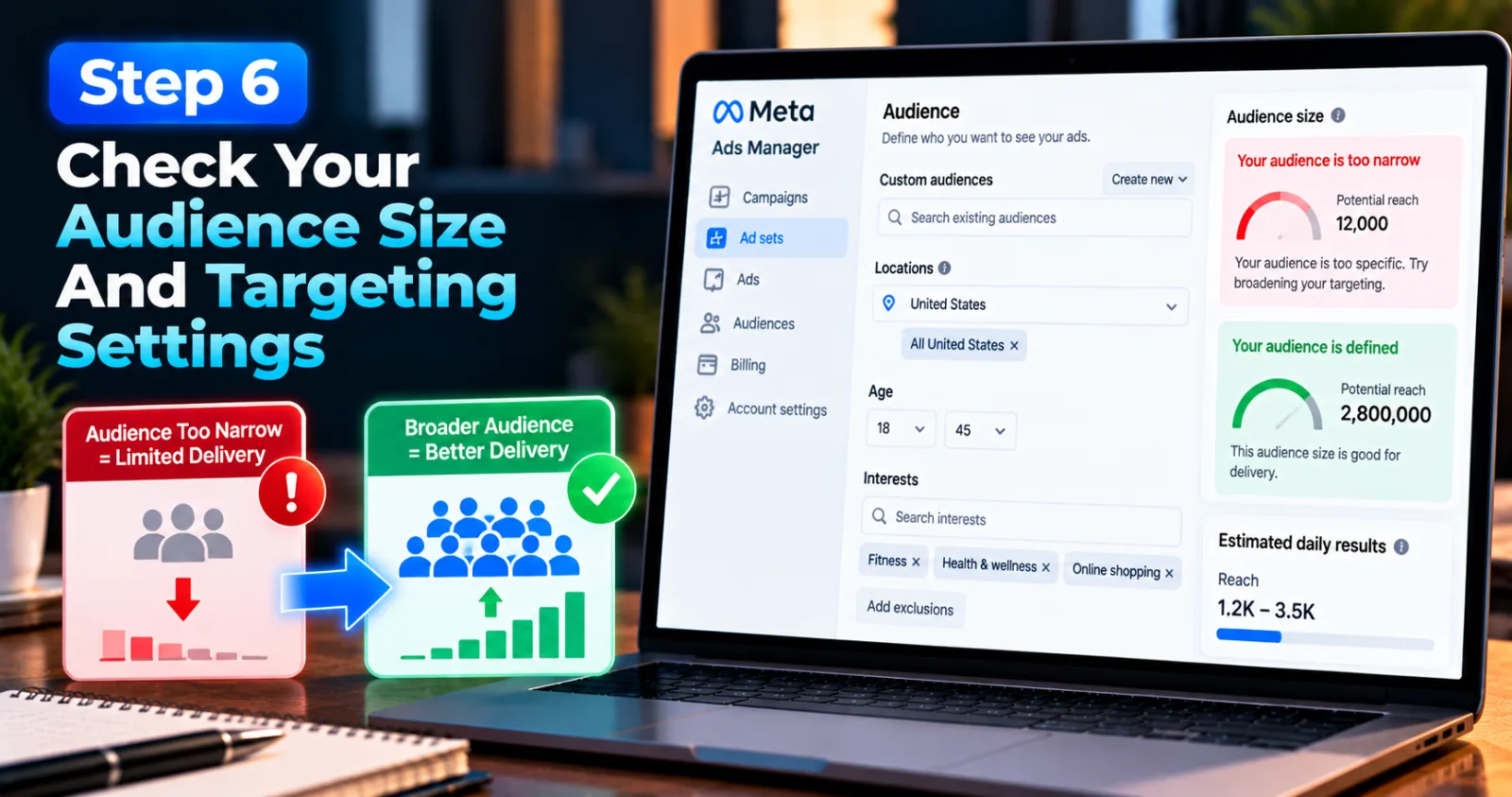
A narrow audience can make it harder for a campaign to deliver. This can happen when advertisers combine several interest restrictions, small custom audiences, location limits and exclusions.
Review the audience settings and estimated audience size in the affected ad set. Check whether the targeting is so restrictive that the campaign has few people to reach. Also look for overlapping audiences across multiple ad sets, as this may create unnecessary competition between campaigns managed by the same advertiser. If the audience is too small, consider widening selected targeting settings or testing a broader audience. Make changes based on the campaign objective and customer profile rather than removing useful targeting restrictions at random.
If your campaigns are spending but producing weak results, that is a different problem from having no spend at all. In that case, review creative performance, audience quality and the landing page before deciding whether to change the targeting.
Step 7: Check The Learning Phase And Conversion Tracking
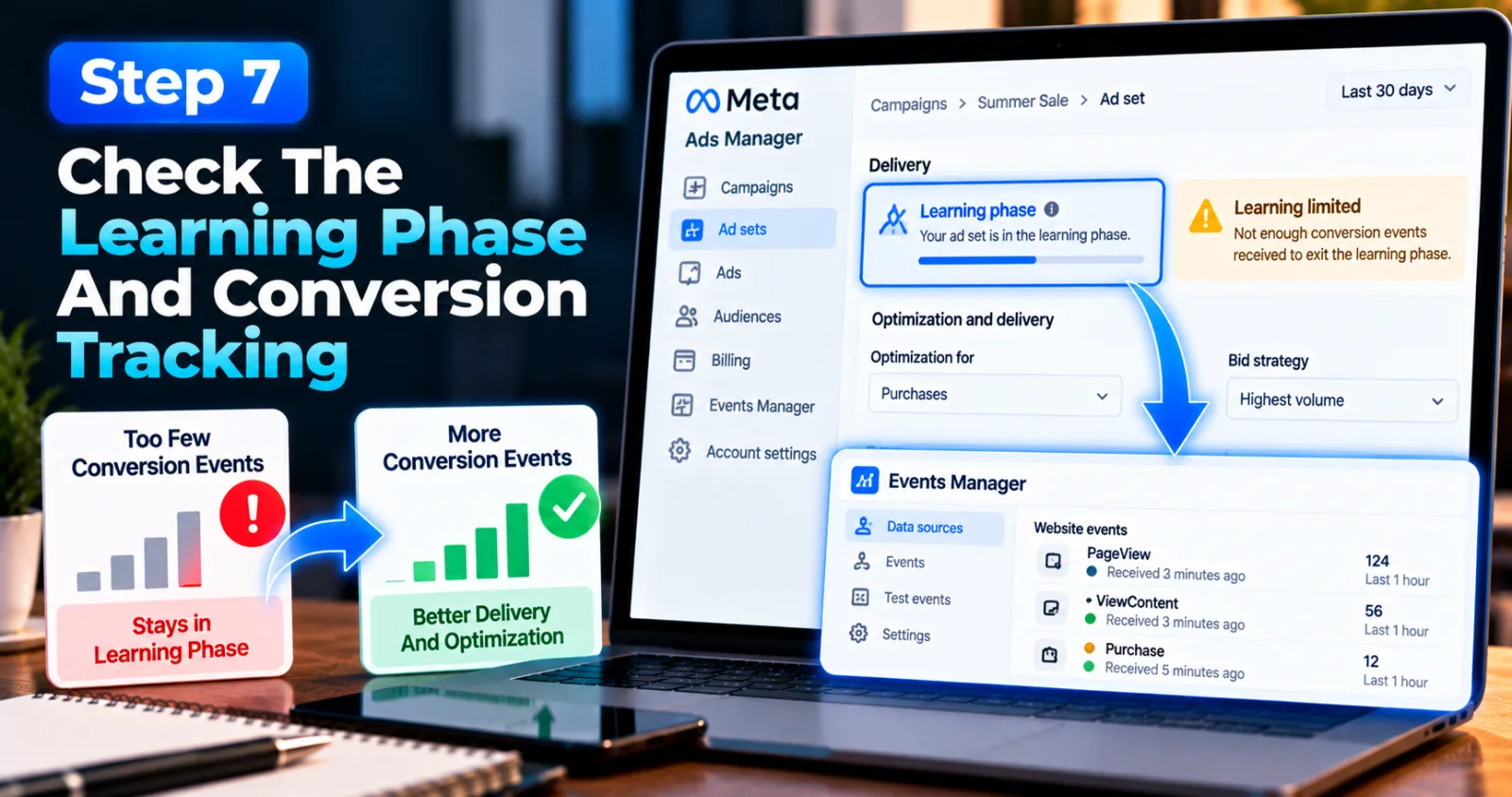
Meta uses campaign performance signals to help optimize delivery. If an ad set receives too few optimization events, it may remain in the learning phase or display a Learning limited status.
For example, an advertiser optimizing for purchases may have very few purchases available for the system to learn from. A small budget, narrow audience or strict bid control can make the situation more difficult. Incorrect conversion tracking can also prevent the system from receiving the signals it needs.
Review the optimization event selected for the campaign and confirm that the Pixel or Conversions API is recording the intended events. You can use Meta Events Manager and its testing tools to investigate whether events are being received correctly. Avoid making repeated major edits every few hours. Significant changes can affect the learning process, and constant adjustments make it harder to understand which change improved or reduced delivery. Fix tracking problems first, make necessary adjustments and give the campaign time to produce useful data.
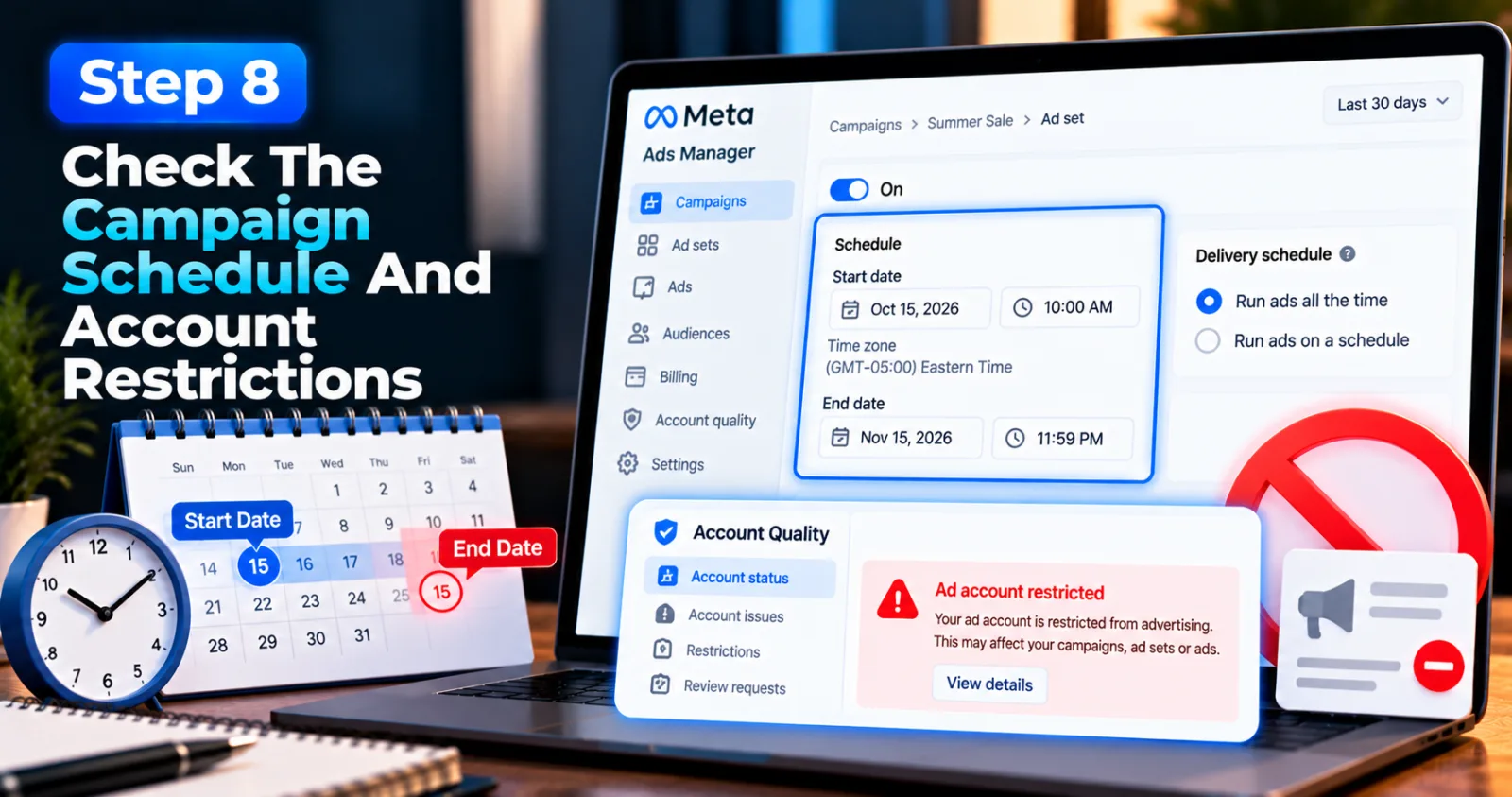
Step 8: Check The Campaign Schedule And Account Restrictions
A campaign may not spend because its start date has not arrived, its end date has passed or its delivery schedule does not match the intended launch time. Time-zone differences can also cause confusion when campaigns are scheduled across different markets.
Review the start date, end date and schedule in the ad set. Confirm that the campaign, ad set and ad are switched on and that no automated rule has paused them. You should also check the account's status and any restrictions affecting the advertising account, business portfolio or connected assets. A restriction may prevent delivery even when the campaign settings appear correct.
If the account is restricted, use Meta's Account Quality or the relevant account support process to understand the issue. If an agency provider controls the account, ask them to confirm whether the restriction applies to the ad account itself or to another connected asset.
How To Prevent Future Meta Agency Account Spending Problems
The best way to avoid repeated delivery interruptions is to monitor account health before launching important campaigns. Agencies should review spending limits, payment status, campaign schedules and account restrictions as part of their normal account checks. It is also useful to track the account's total spending alongside individual campaign budgets. A campaign can have enough budget to continue running while the overall account is close to its spending limit. Checking both levels can help agencies spot a problem before it interrupts delivery.
For teams managing multiple clients, clear communication with the account provider is important. Confirm who can change spending limits, who handles payment failures and who is responsible for account restrictions. Keep a record of important changes so that another team member can understand what happened if delivery stops.
If you are already dealing with a disabled or restricted Meta account, our guide on why Meta ad accounts get disabled and what can bring them back provides additional context. For account setup and operational questions, see AdScaleLab's Meta ad agency account process guide.
Final Thoughts On Meta Agency Account Spending Limits
A Meta agency account spending limit is only one of several reasons ads may stop spending. Failed payments, campaign settings, restrictive bids, narrow audiences, review delays and account restrictions can create similar symptoms, so the right solution depends on finding the actual cause.
Start by checking the account's spending limit and billing status. Then review the Delivery column at campaign, ad set and ad level before changing budgets or targeting. If the issue comes from a restriction or payment arrangement managed by an agency provider, contact the responsible account manager rather than making repeated changes that may not solve the problem. A careful troubleshooting process can help advertisers restore delivery more efficiently, avoid unnecessary changes and protect the budget they have been trusted to manage.
Agency ad accounts, without the wait.
Buy and top up Google, Meta, native, and more from one dashboard.
Get started

No comments yet. Be the first to comment.
Comments are open to registered AdScaleLab clients.
Sign in to comment