






How to Diagnose Zero-Traffic Problems In MediaGo Campaigns
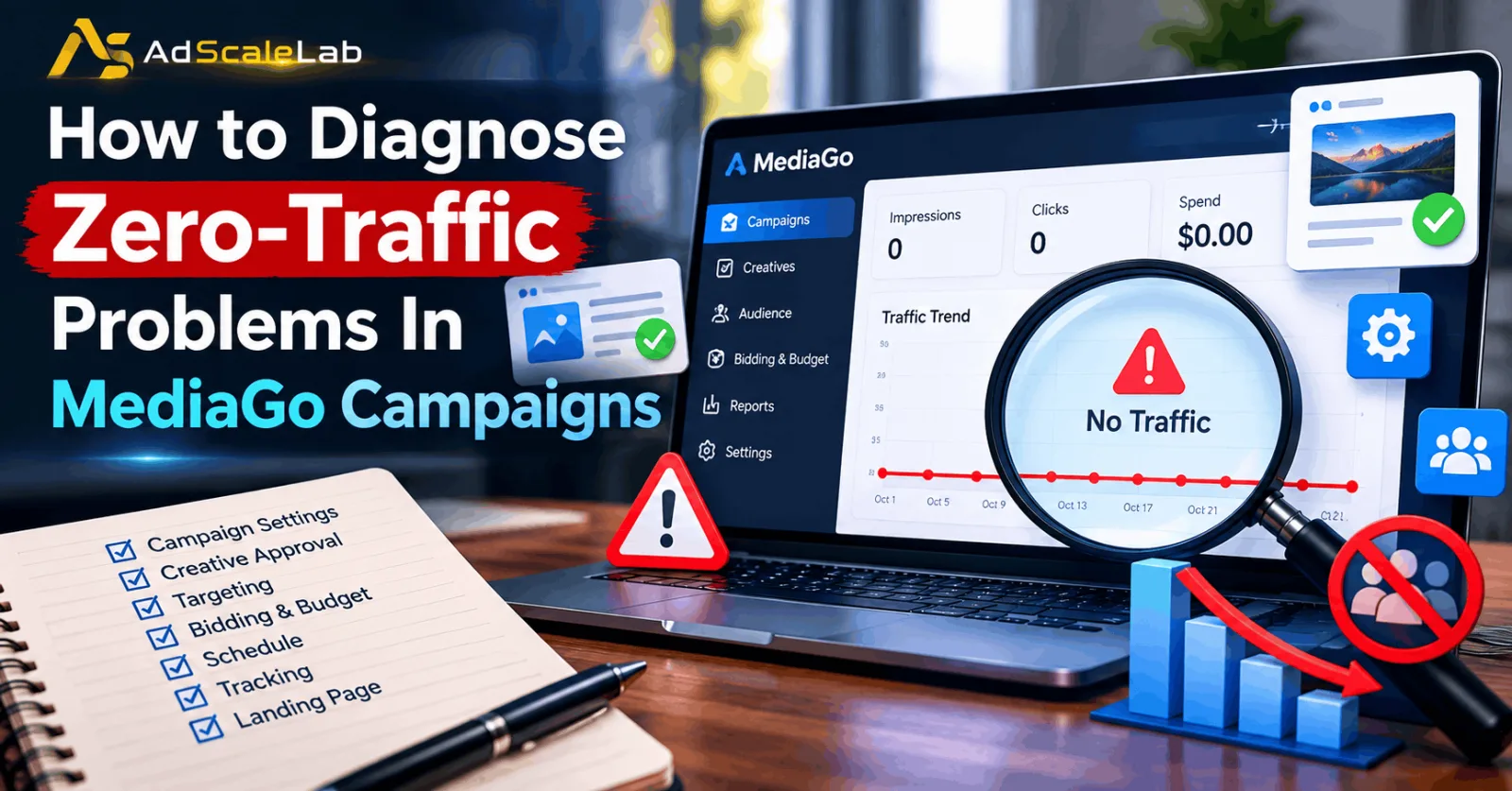
A MediaGo campaign can look ready to run in the dashboard, but that does not always mean it will start bringing visitors to your website. You may have uploaded your creatives, selected your audience, added a budget, and activated the campaign, yet the dashboard continues to show zero impressions, clicks, and spend. This situation can be frustrating, especially when you are trying to test a new offer or generate leads in the US market.
The good news is that zero traffic does not automatically mean your offer is bad or that MediaGo is the wrong advertising platform. The problem may be related to campaign settings, creative approval, targeting, bidding, scheduling, or account restrictions. The important thing is to find the actual reason before making changes.
MediaGo describes its DSP as a deep-learning-based advertising platform that uses real-time bidding strategies and evaluates advertising inventory. Its official advertiser information explains how bidding, audience prediction, and creative matching contribute to campaign performance. Understanding this process helps advertisers approach delivery problems in a more organized way. In this guide, we will explain how to diagnose zero-traffic problems in MediaGo campaigns step by step, what to check first, and how to decide which changes are worth making.
What Does Zero Traffic Mean In MediaGo Campaigns?
Zero traffic generally means that a campaign is not bringing visitors to the destination website. However, you need to check the individual metrics before deciding what has gone wrong. If impressions, clicks, and spend are all zero, the campaign may not be entering auctions successfully or may not be eligible to deliver. If impressions are increasing but clicks remain at zero, the problem may be related to the headline, image, audience relevance, or reporting delay. If clicks appear in MediaGo but not in your analytics tool, you may have a tracking or landing-page issue instead.
These situations require different solutions. Changing bids will not fix a broken analytics setup, and changing a headline will not solve a campaign that is paused. For that reason, the first goal of MediaGo campaign troubleshooting is to identify where the problem begins. Once you know which stage is failing, you can focus on the relevant settings instead of changing everything at once.
Why Do Zero-Traffic Problems Happen In MediaGo Campaigns?
There is no single reason why a MediaGo campaign might receive no traffic. A campaign may be active but have an unapproved creative, an incorrect schedule, a limited audience, or a bid that cannot compete for suitable inventory. The official MediaGo advertiser page explains that its bidding system considers factors such as auction conditions, competitor bids, and inventory competitiveness. This means that having a budget available does not guarantee that every campaign will win opportunities to show ads.
Campaign delivery can also be affected by settings such as start and end times, daily spending limits, and audience selection. MediaGo's official campaign API documentation identifies these as configurable campaign parameters.
The best approach is to check the simplest and most fundamental settings first, then investigate bidding and optimization if the basic checks do not reveal the cause.
How to Diagnose Zero-Traffic Problems in MediaGo Campaigns: 8 Practical Steps
Follow these steps in order. The exact menu names and available diagnostics may differ depending on your MediaGo account and interface.
Step 1: Check Whether the Campaign Is Actually Eligible to Run
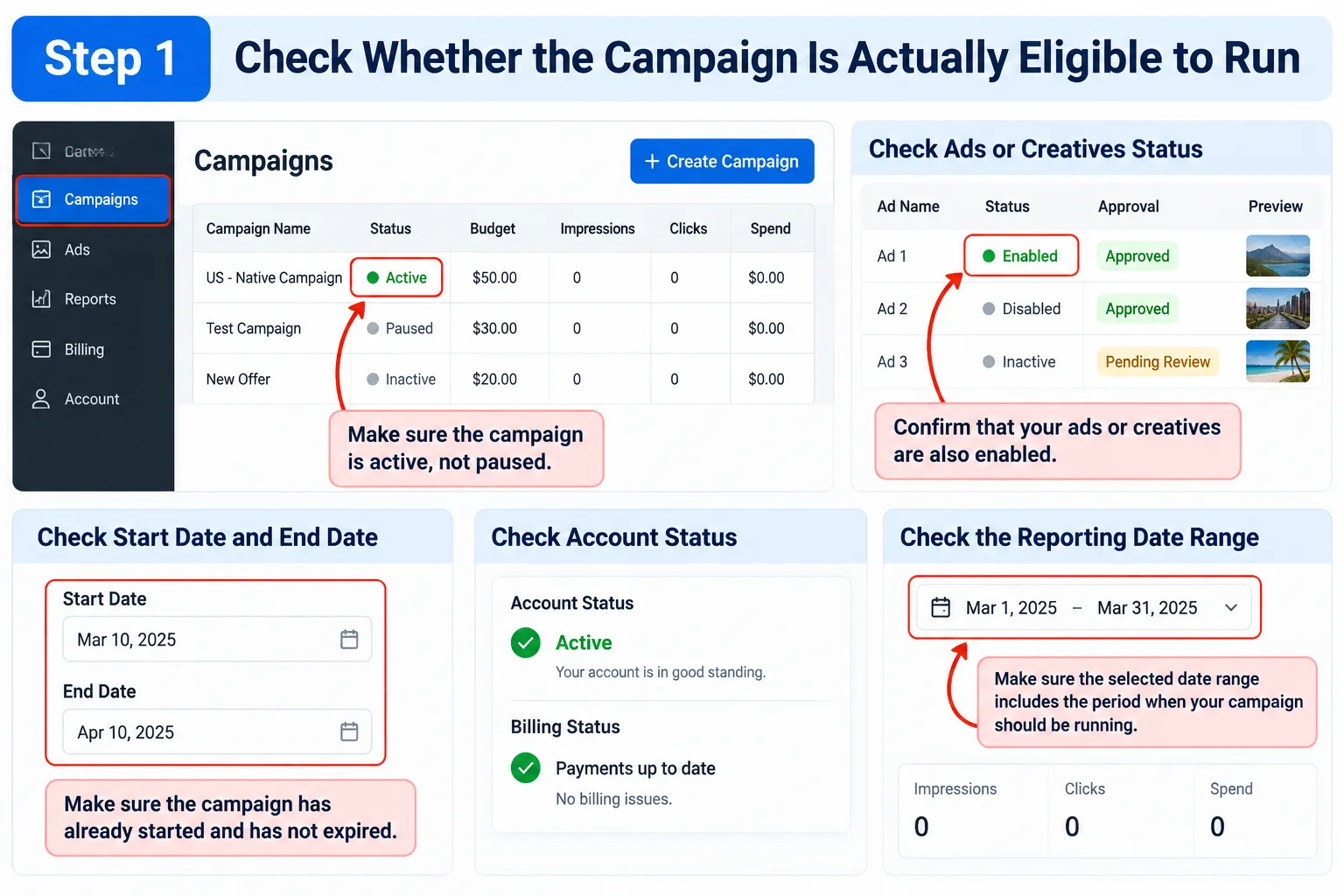
Start by opening the campaign dashboard and checking the campaign status. Make sure the campaign is active rather than paused, and confirm that the individual ads or creatives are also enabled. An active campaign can still have an inactive ad or another setting that prevents delivery.
Next, check the campaign's start date, end date, and account status. If the campaign has not reached its start time, has already expired, or is affected by a billing or account restriction, changing the creative or increasing the bid will not solve the underlying issue.
Also check the selected date range in the reporting dashboard. A campaign might have generated impressions outside the dates currently displayed, making the report appear empty. If everything looks correct but delivery remains at zero, continue to the next step instead of assuming the platform is broken.
Step 2: Review Creative Approval And Landing Page Status
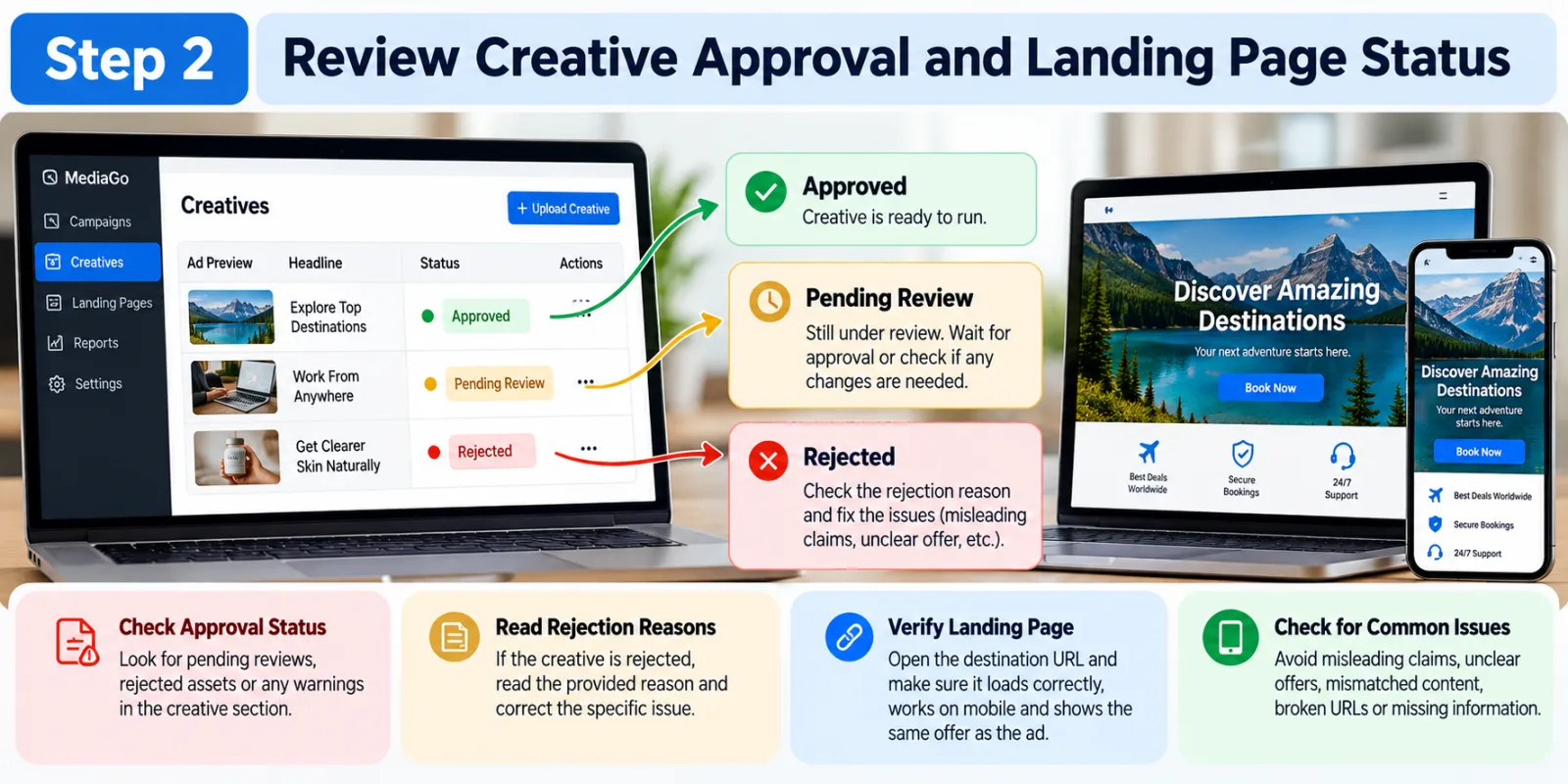
The next step is to check whether your ads and destination URL have passed the required review. Uploading an image and headline does not necessarily mean that the creative is approved for delivery.
Open the creative section and look for pending reviews, rejected assets, warnings, or other restrictions. If the platform provides a rejection reason, read it carefully and correct the specific issue. Common areas worth reviewing include misleading claims, unclear offers, mismatched landing-page content, broken destination URLs, and missing information required for your offer.
You should also open the landing page yourself. Confirm that it loads correctly, works on mobile devices, and shows the same offer promised in the ad. If the page redirects to an unrelated destination or fails to load, resolve that problem before trying to increase traffic.
For additional preparation, see AdScaleLab's guide to preparing a landing page for Outbrain campaign approval. Although it covers another native advertising platform, the general lesson about checking destination-page quality and policy compliance is relevant. MediaGo's own review requirements should always take priority.
Step 3: Check Audience Targeting And Traffic Restrictions
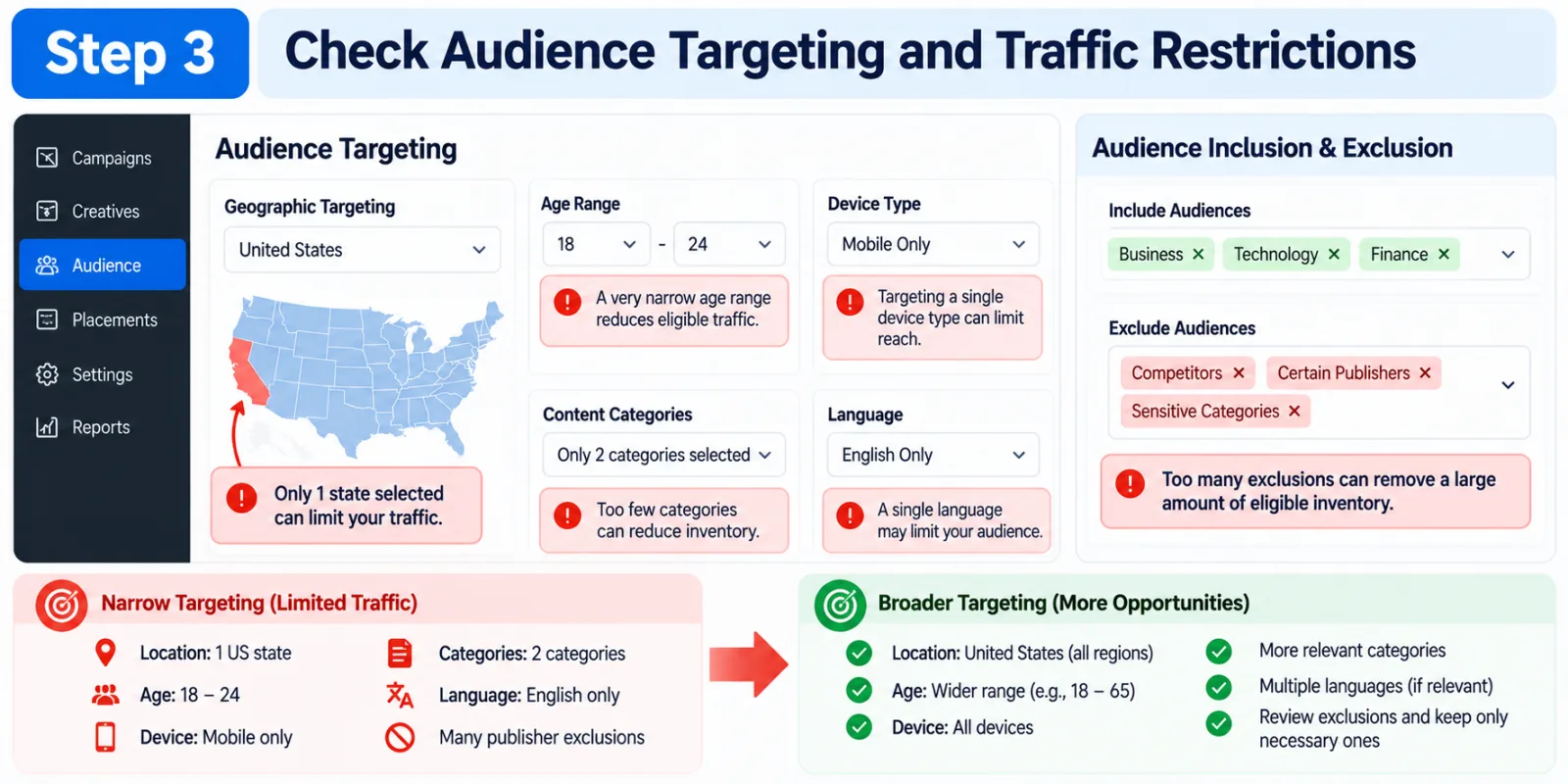
A campaign may receive little or no traffic when its audience settings leave very few eligible advertising opportunities. For example, you might target only one US state, a narrow age group, a specific device type, a limited set of content categories, and a restricted list of publishers at the same time. Each restriction reduces the number of opportunities available to the campaign. Several restrictions combined can make the audience much smaller than expected.
Review your geographic targeting first. If your campaign is intended for the United States, confirm that the correct country is selected and that you have not accidentally limited delivery to a small region. Then review any device, language, category, audience inclusion, exclusion, and placement settings available in your account. If your targeting is unusually narrow, consider testing a broader but still relevant audience. You can also review publisher or placement exclusions to see whether they are removing too much eligible inventory.
MediaGo's campaign API documentation describes audience selection through inclusion, exclusion, and unrestricted audience settings. Use the options actually available to your campaign, and change one restriction at a time so that you can identify what improves delivery.
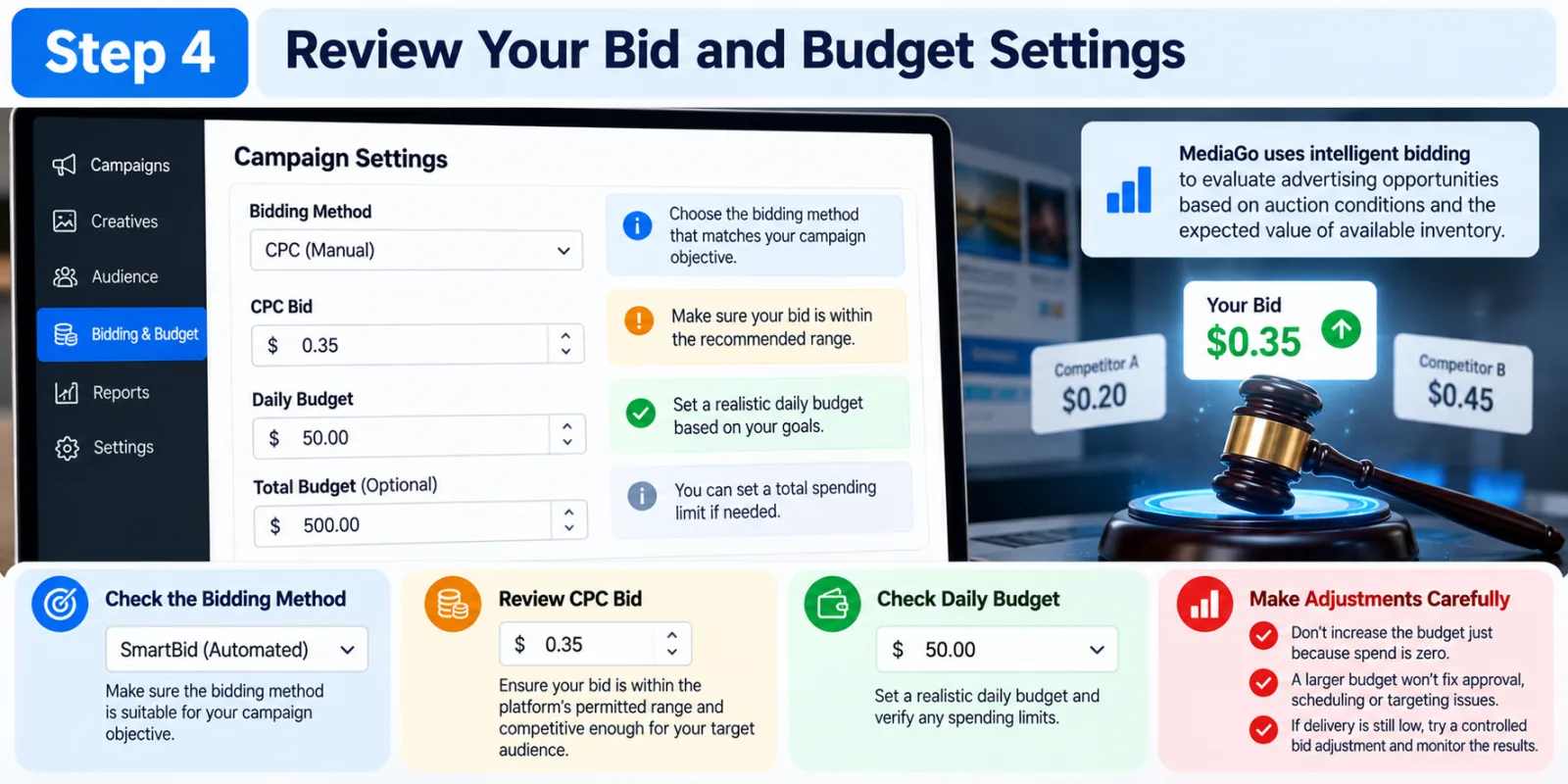
Step 4: Review Your Bid And Budget Settings
If the campaign is active, the creative is approved, and the audience is large enough, the next step is to investigate bidding.
MediaGo uses intelligent bidding to evaluate advertising opportunities. According to its official advertiser information, the system considers auction conditions and the expected value of available inventory when developing bidding strategies. A campaign may therefore struggle to win enough suitable opportunities when its bidding settings are too restrictive for the inventory it is trying to reach.
Check the bidding method selected for your campaign, the CPC bid where applicable, the daily budget, and any spending limits. Make sure the bid is within the platform's permitted range and is appropriate for your campaign objective. Avoid increasing the budget automatically just because spend is zero. A larger budget cannot fix an unapproved ad, an incorrect schedule, or an audience that is too restricted. If the campaign is eligible but still struggles to enter auctions, consider a controlled bid adjustment based on the available account guidance and your acceptable acquisition cost.
If you are using SmartBid or another automated bidding option, confirm that the settings are compatible with the campaign objective. Do not assume that switching bidding methods will immediately restore delivery. Record the original settings, make one reasonable adjustment, and observe the result.
Step 5: Verify Campaign Scheduling And Time Zone
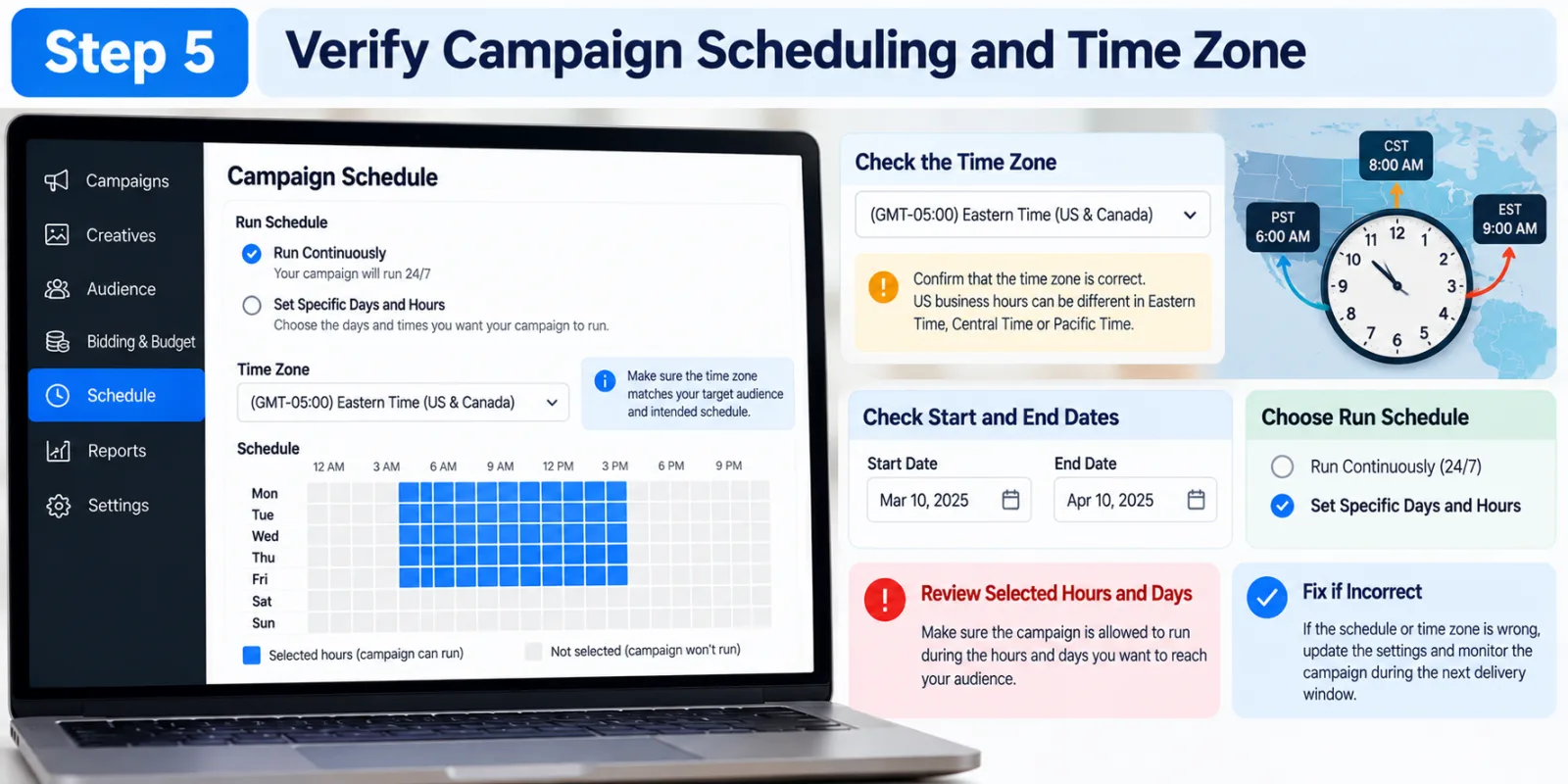
Scheduling errors are easy to overlook because the campaign may look active even when it is outside its permitted delivery hours. Check whether the campaign runs continuously or only during selected hours and days. Then confirm the time zone used by the campaign. A schedule configured for US business hours can behave differently depending on whether it follows Eastern Time, Pacific Time, or the account's default time zone.
For example, a campaign intended to reach US customers during the morning could be scheduled for the wrong hours if the advertiser assumes that the account uses local US time when it actually follows another time zone. MediaGo's official API documentation includes start and end times, day-parting settings, and a campaign time-zone parameter.
Check these settings against the campaign's intended schedule and ensure that the current reporting period includes time when delivery was permitted. If the schedule is incorrect, fix it and monitor the campaign during its next eligible delivery window. There is no need to change bids or targeting if scheduling was the actual cause.
Step 6: Inspect The Headline, Image, And Ad Relevance
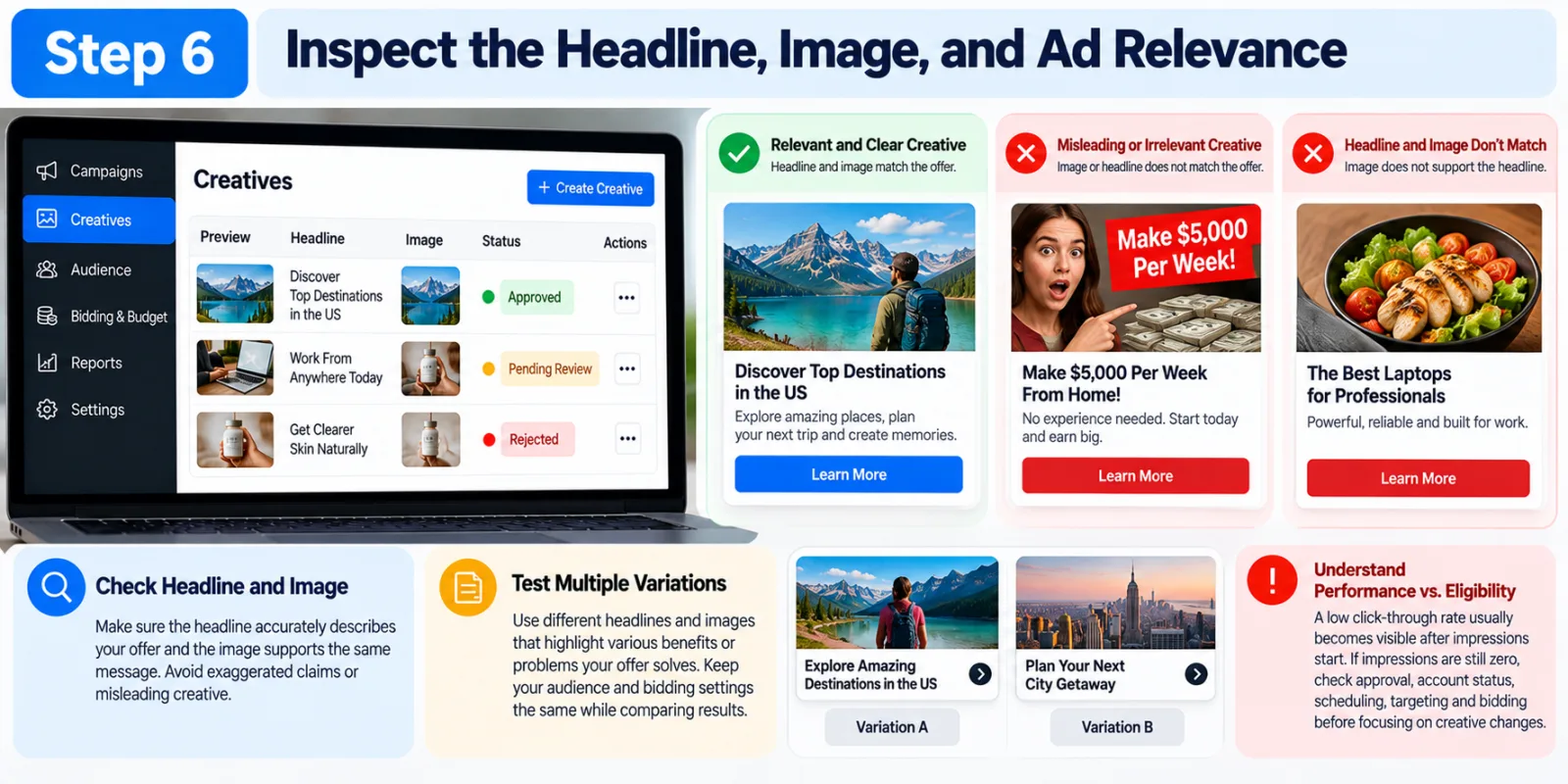
If your campaign is eligible to run but receives very few impressions, weak creative relevance may be part of the problem. A headline and image that do not match the target audience or the content surrounding the placement may struggle to attract attention or perform well. Start by checking whether the headline accurately describes the offer and whether the image supports the same message. Avoid exaggerated claims or creative that promises something the landing page does not deliver.
Where the account supports multiple creatives, consider testing a small number of meaningful variations. For example, one version might focus on a practical benefit while another highlights the problem the product solves. Keep the audience and bidding settings stable while you compare them.
It is important to understand the difference between creative performance and delivery eligibility. A poor click-through rate usually becomes visible after impressions begin. If impressions are still exactly zero, return to approval, account eligibility, scheduling, targeting, and bidding before spending time on headline optimization.
Step 7: Check Reporting, Click Tracking, And Landing-Page Analytics
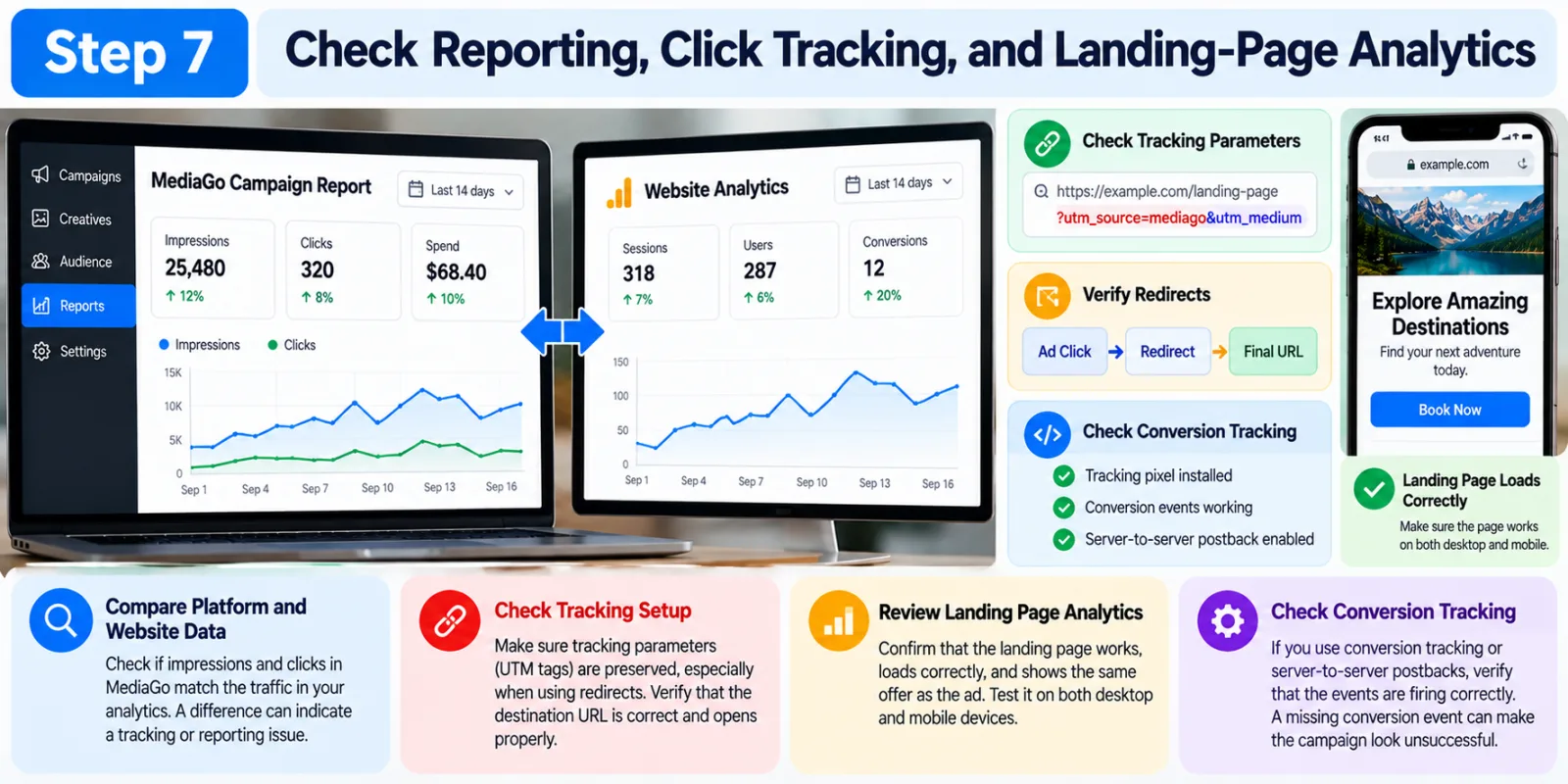
Sometimes a campaign appears to have zero traffic because different reporting systems are showing different information. Compare MediaGo's impression and click reports with your website analytics and server logs. If MediaGo records impressions but your website receives no visits, there may simply be no clicks yet. If MediaGo records clicks but analytics shows none, investigate the tracking setup, redirects, consent settings, and whether the destination page loads successfully.
Check that tracking parameters are preserved when visitors move through redirects. Confirm that the landing page works on mobile and desktop, and test the destination URL without relying solely on the ad preview. If you use conversion tracking or server-to-server postbacks, check those separately. A missing conversion event can make a campaign look unsuccessful even when visitors are arriving. However, a tracking problem alone does not necessarily explain zero impressions or zero clicks.
For a broader understanding of how traffic should be measured, AdScaleLab's native ads attribution guide discusses why platform-reported results and the wider customer journey can tell different stories. Use your actual reporting data to establish where the discrepancy begins.
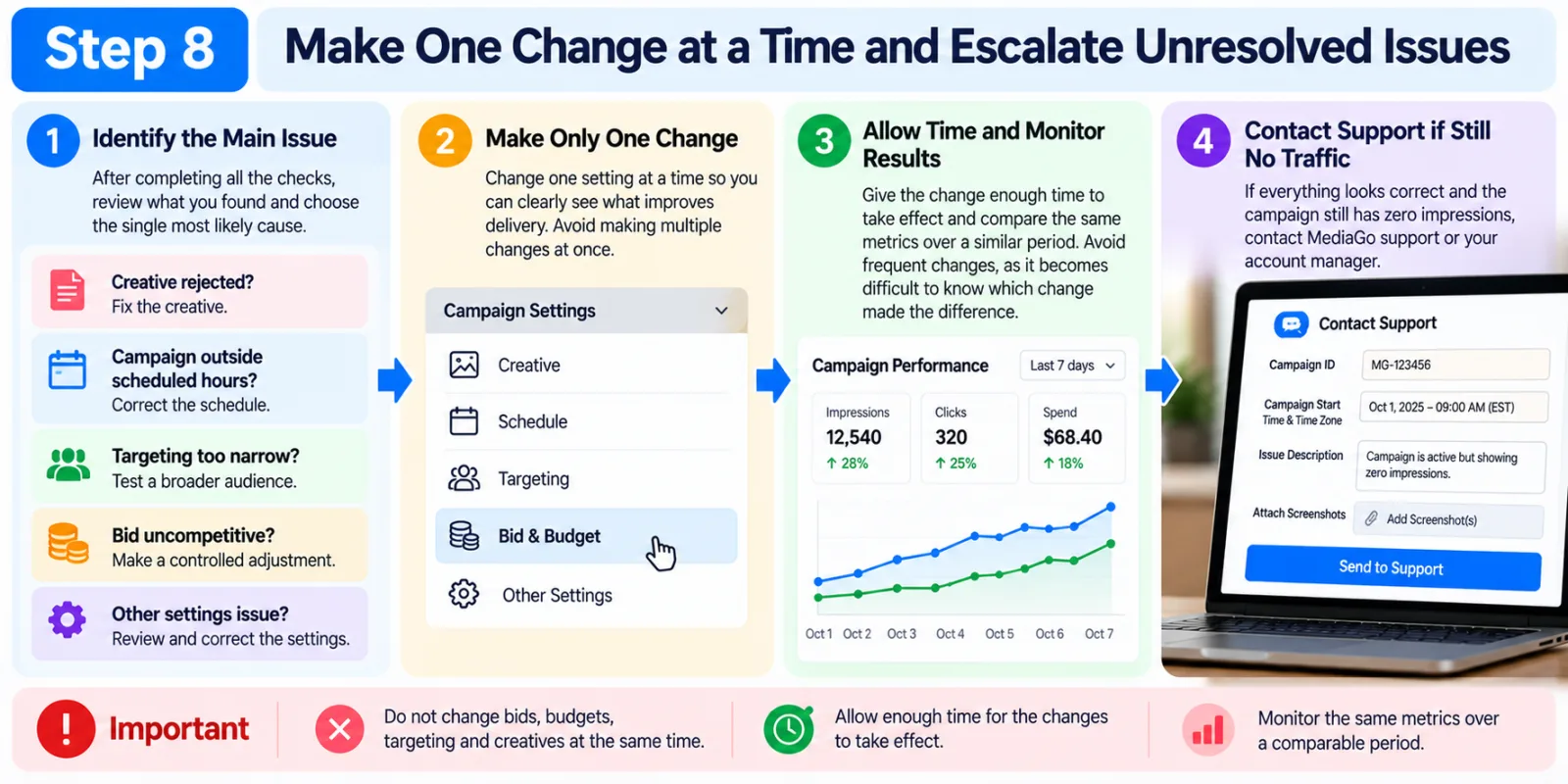
Step 8: Make One Change at a Time and Escalate Unresolved Issues
After completing the checks, write down what you found and choose the single most likely cause. If the creative was rejected, fix the creative. If the campaign was outside its scheduled hours, correct the schedule. If targeting was too narrow, test a broader audience. If the bid was uncompetitive, make a controlled adjustment. Then allow enough time for the change to take effect and review the same metrics over a comparable period. Do not repeatedly change bids, budgets, targeting, and creatives within a short time because that makes it difficult to understand which change mattered.
Google's official troubleshooting guidance for its own advertising platform also recommends checking account issues, campaign dates, ad approval, targeting, budgets, and bidding, and cautions that new or edited campaigns may need time to begin serving. These are useful general diagnostic principles, although Google's platform-specific rules should not be treated as MediaGo requirements.
If all the basic settings appear correct and the campaign still has zero impressions, contact MediaGo support or your account manager. Share the campaign ID, campaign start time and time zone, screenshots of the delivery status, creative approval status, and the period showing zero impressions. This gives the support team a clearer starting point for investigating an account-level or platform-side issue.
How Long Should You Wait Before Declaring A MediaGo Campaign Stuck?
There is no single waiting period that applies to every MediaGo campaign. The right approach depends on whether the campaign has just been launched, whether the creatives have been approved, and whether the platform reports any delivery activity.
Do not confuse the time needed for optimization with a campaign that is blocked from delivering. If impressions remain at zero, check eligibility and settings rather than simply waiting several days. If impressions have started and the campaign uses automated bidding, give it time to collect data before making further major changes.
The distinction matters because an automated bidding system can optimize only when it has eligible opportunities and useful signals to work with. MediaGo describes SmartBid as a system that evaluates advertising opportunities and adjusts bidding strategies. It should not be treated as a guarantee that every campaign will start spending immediately.
Common Mistakes To Avoid When Troubleshooting MediaGo Campaigns
One common mistake is increasing the bid and daily budget at the same time. Although either change might help in certain situations, making both changes together can increase costs without revealing what caused the original problem. Another mistake is narrowing the audience too aggressively before the campaign has generated enough data. Excessive placement exclusions, restrictive geography, and limited scheduling can reduce the number of eligible opportunities.
Advertisers should also avoid confusing a conversion problem with a delivery problem. If the campaign already receives impressions and clicks, investigate the creative, landing page, offer, and tracking before assuming that the platform is not delivering traffic.
Finally, do not overlook basic reporting issues. Check the selected date range, account time zone, and reporting delay before concluding that a campaign has stopped working. A clear diagnosis is usually more useful than making several changes based on an empty dashboard.
Agency ad accounts, without the wait.
Buy and top up Google, Meta, native, and more from one dashboard.
Get started

No comments yet. Be the first to comment.
Comments are open to registered AdScaleLab clients.
Sign in to comment