



How To Advertise On MediaGo And Launch A First Campaign
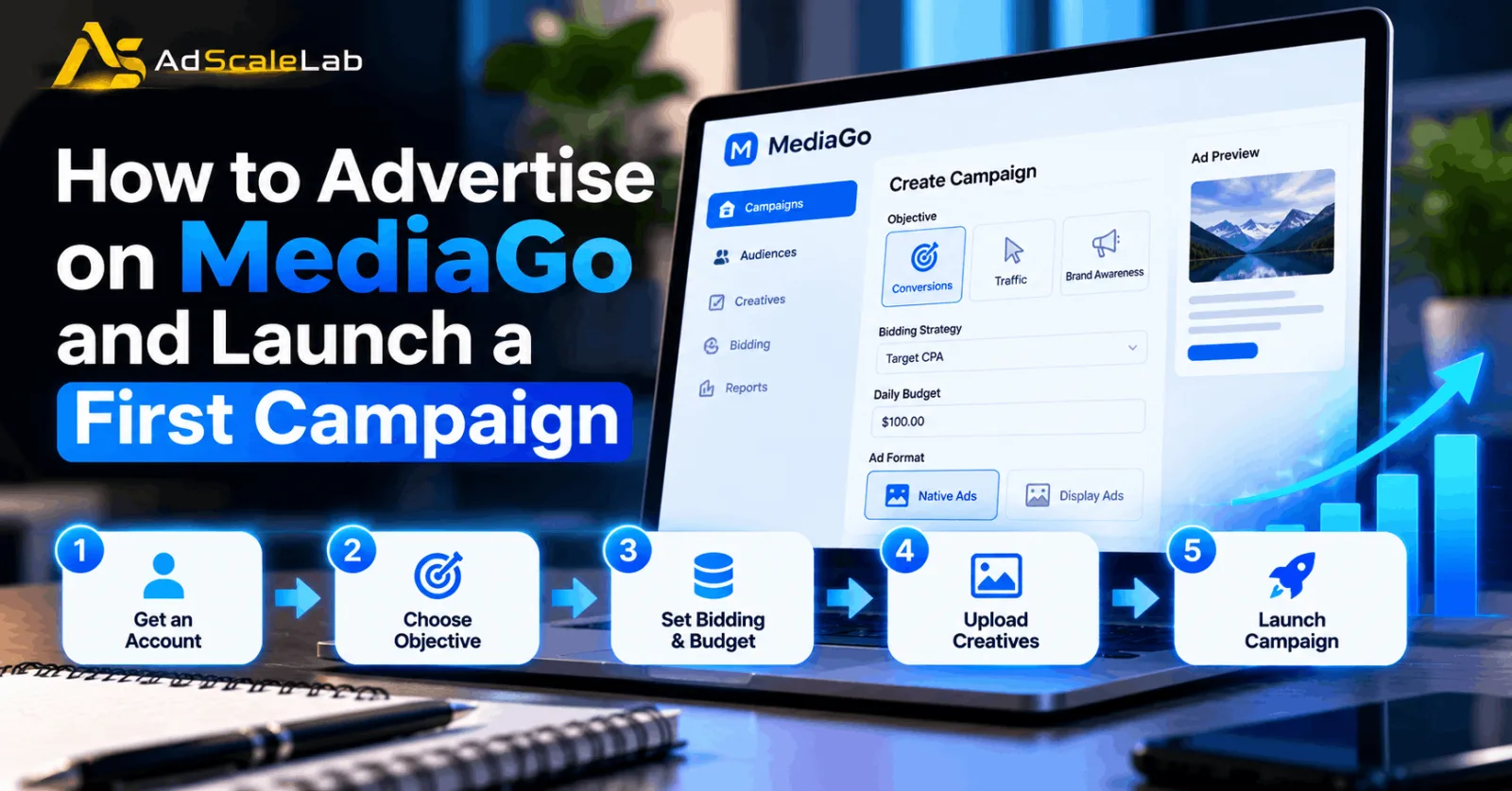
Working out how to advertise on MediaGo is slightly different from every other native network, because the platform does not hand out self-serve accounts the way Taboola or Outbrain do, and the setup screens use their own names for things you already know. None of it is difficult once you have seen it, but the first campaign tends to go badly for people who guess at the budget rules or pick the wrong objective and then spend a week wondering why the algorithm will not settle.
This covers how to advertise on MediaGo end to end, from getting access to reading the first week, with an image for each step. MediaGo itself is Baidu's programmatic platform for advertisers outside China, reaching audiences across 37 countries in North America and Europe and serving somewhere north of 30 billion impressions a month, so the inventory is real even if the on-ramp is unusual.
How To Advertise On MediaGo, Step By Step
Eight steps, in the order the platform asks for them, though steps one and seven are the two that decide whether any of the others matter.
Step 1: Get Access, Because There Is No Open Sign-Up
You cannot drop a card in and start buying. MediaGo accounts run through applications and partners, which is the first thing that surprises people arriving from Meta or Google.
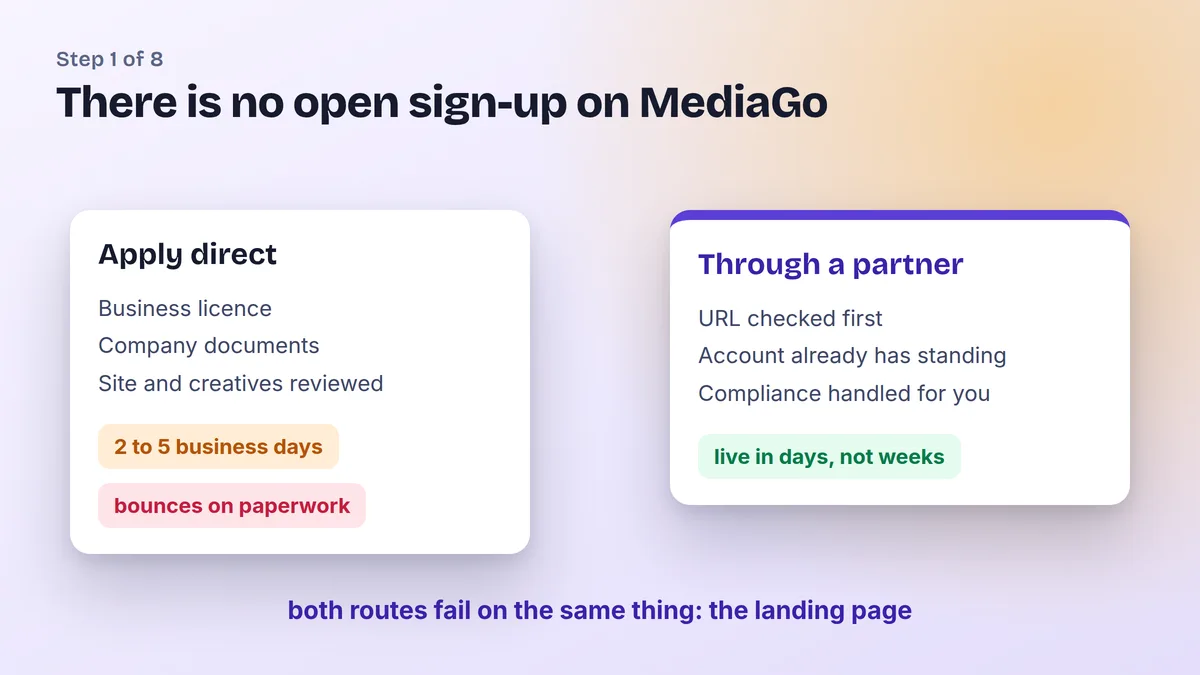
Applying direct means submitting company documentation and having your site and creatives looked at, and verification typically runs two to five business days, assuming nothing bounces. Applications do bounce, usually on paperwork that does not match or on a landing page that was never going to pass policy in the first place.
Going through a partner shortcuts the paperwork and starts you on an account that already has standing, which matters on a network where new accounts get watched closely. Either way the landing page is the thing that decides it, so check the page before you apply rather than after. If you run through us, the URL Approval tool in your dashboard sends the page to our compliance team, and you get a written verdict back before you pay for anything.
Step 2: Choose The Objective You Actually Pay For
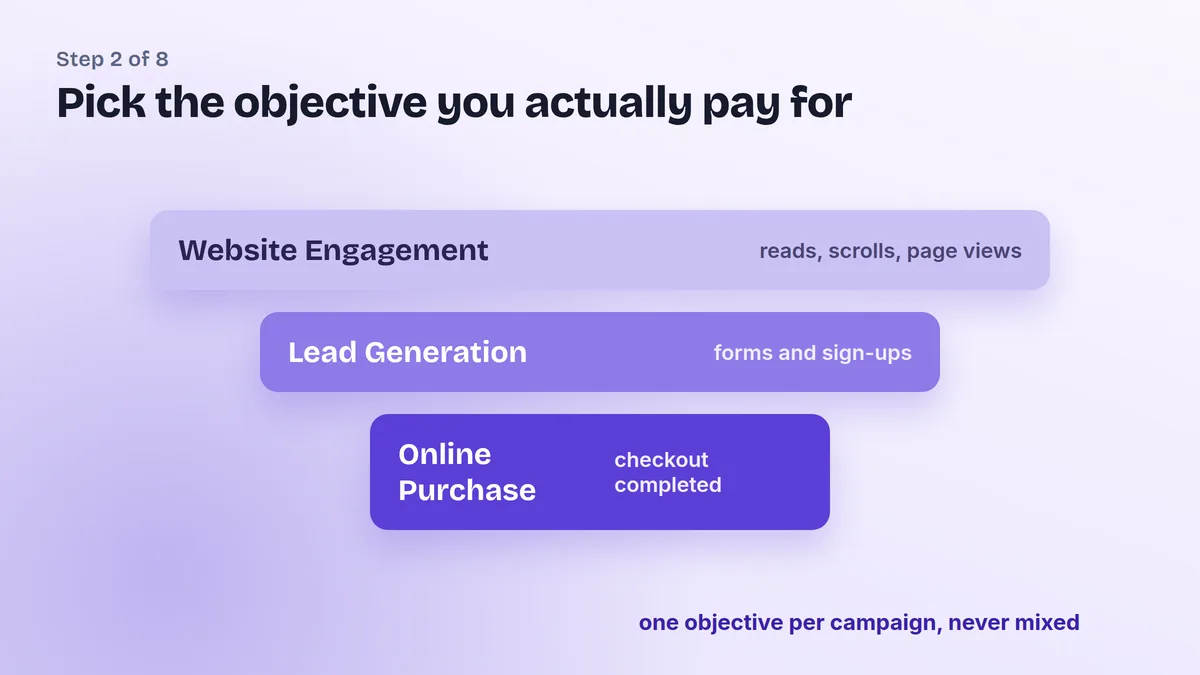
Once you are in, create the campaign, name it something you will still recognise in a month, and pick one of three objectives. MediaGo keeps this simpler than most platforms, offering Lead Generation, Online Purchase and Website Engagement, and the choice feeds straight into how the algorithm decides who sees your ad.
Match it to the thing you get paid on rather than the thing that sounds ambitious. If your money event is a form fill, Lead Generation is the honest answer even though Online Purchase sits there looking more serious, and mixing two goals inside one campaign leaves the system optimising towards an average of two different users.
Step 3: Set Targeting Wide Before You Set It Clever
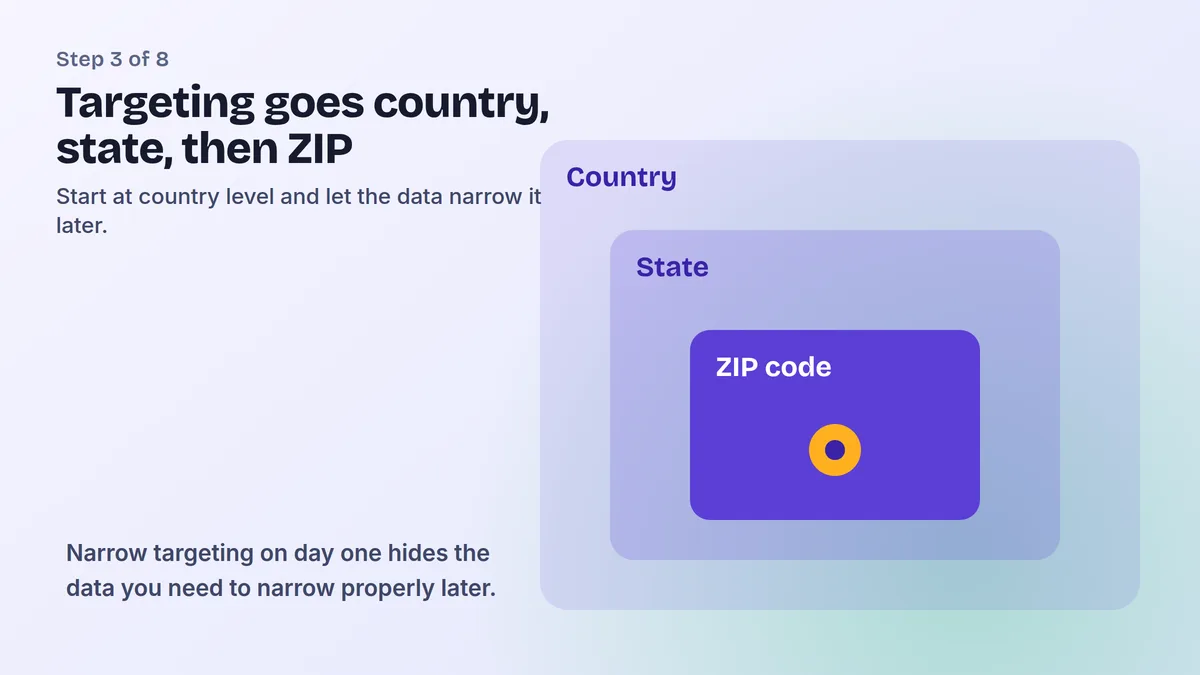
MediaGo lets you target by country or region and then narrow all the way down to state and ZIP code level, which is more granular than most native platforms give you and more rope than a new campaign needs.
Start at country level. The ZIP-level control earns its place later, when you have a report telling you which regions convert and which ones only click, but on day one it does nothing except shrink the pool of inventory you are bidding into, which pushes your costs up while giving you less data to learn from.
Step 4: Pick Between Smart Bidding And A Fixed Price
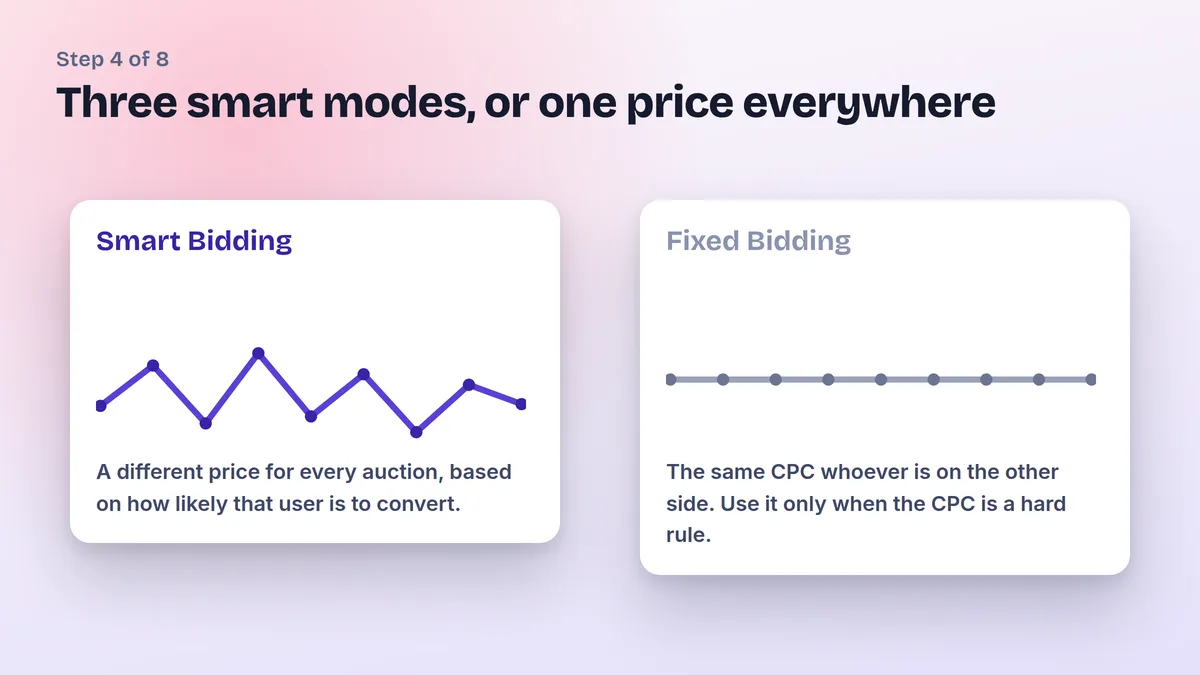
There are three Smart Bidding modes and one Fixed Bidding option. Smart bidding is MediaGo's own system, built on a deep neural network that predicts how likely a given user is to convert and adjusts what you pay for that impression accordingly, so your price changes auction by auction rather than sitting still.
The platform reports that more than 80 percent of its advertisers use automatic bidding, and in a test across more than 500 campaigns the average conversion rate rose by roughly a quarter when SmartBid was switched on. Those are the network's own figures rather than independent ones, though the direction matches how every other native platform has moved.
Fixed Bidding earns its place when you have a hard CPC ceiling you cannot cross, for example on an arbitrage play where the maths breaks above a certain click price. Outside that case, letting the system bid usually costs less per conversion.
Step 5: Size The Budget Off Your CPA, And Mind The Floor
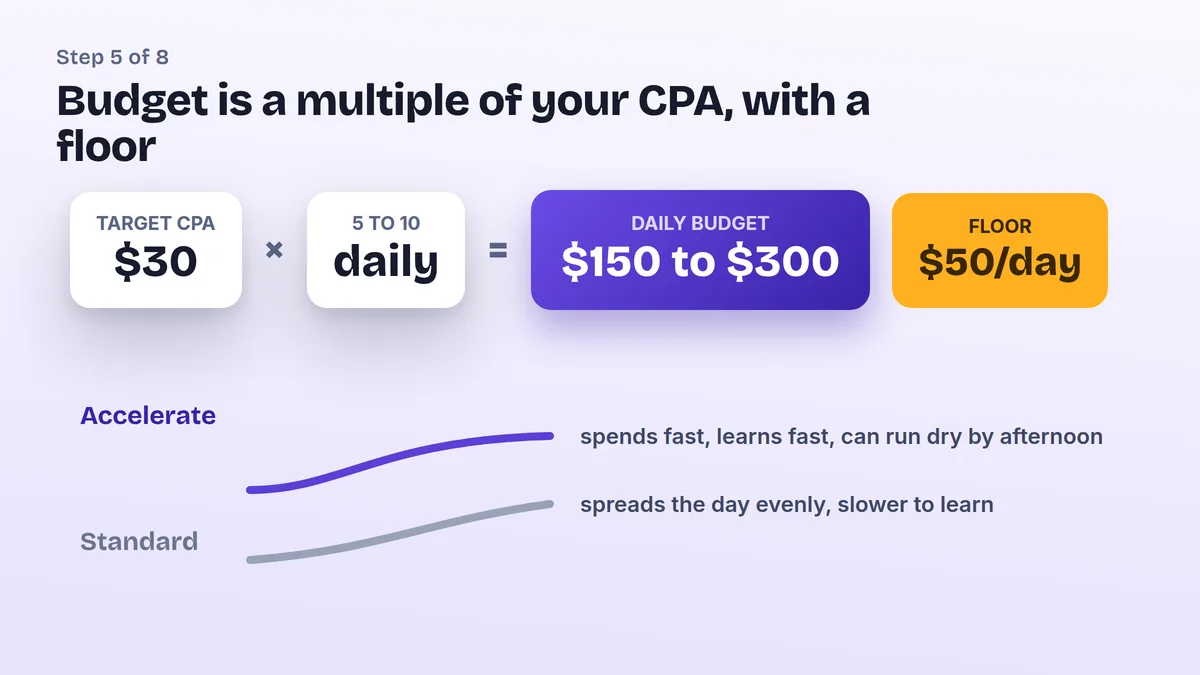
The guidance MediaGo partners give is to set a daily budget of five to ten times your target CPA, with a practical floor of around fifty dollars a day, and to leave the total campaign budget uncapped unless you have a genuine reason to cap it.
So a thirty dollar CPA target puts you somewhere between a hundred and fifty and three hundred a day. That sounds like a lot until you consider what the alternative does, since a budget that only affords one or two conversions a day gives the model almost nothing to learn from, and it stays in that unstable early state for far longer than it should.
Pacing comes with the same decision. Accelerate spends as fast as the auction allows, which teaches the algorithm quickly but can empty your daily budget by the afternoon, while Standard spreads spend across the scheduled window and takes longer to gather the same learning.
Step 6: Upload Creatives That Survive The Crop
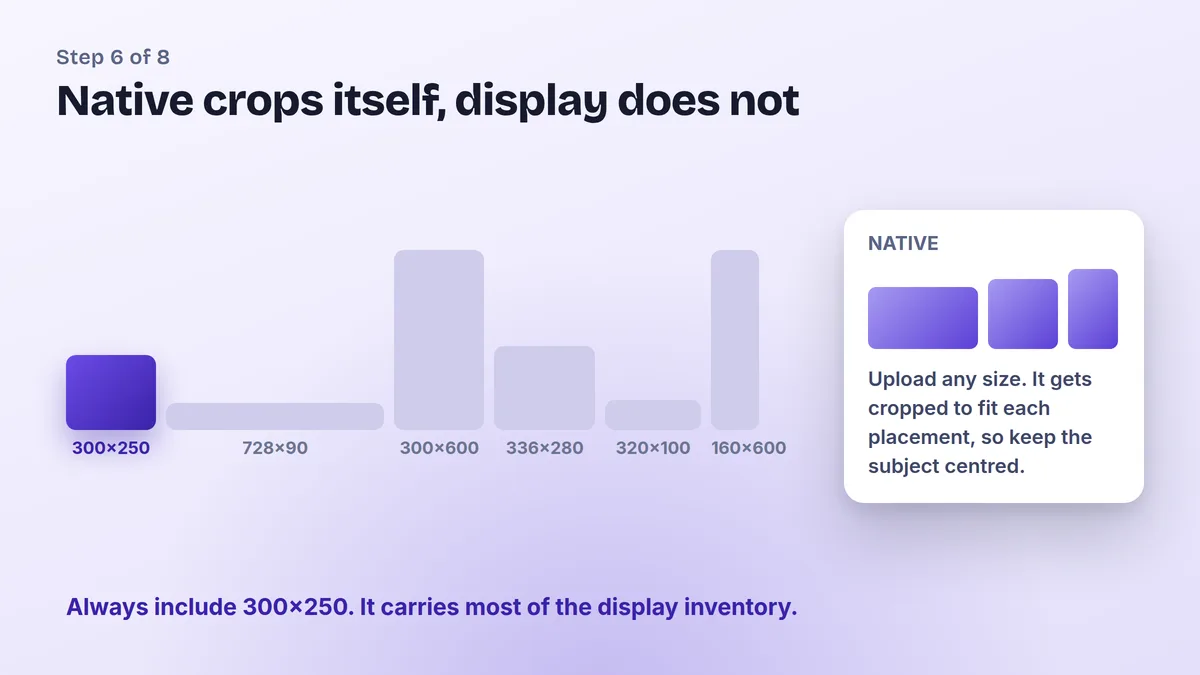
Native and display work differently here. For native placements you can upload an image at more or less any size and MediaGo crops it automatically to fit each slot, which is convenient right up until it cuts the product or the face out of your best image, so keep the subject centred and away from the edges.
Display banners are stricter and have to arrive in standard sizes, the usual set being 300x250, 728x90, 300x600, 320x50, 970x250, 300x50, 320x100, 160x600 and 336x280. If you only build a few, build 300x250 first, because it carries more inventory than anything else on the list.
Step 7: Wire The Conversion Back Before You Launch
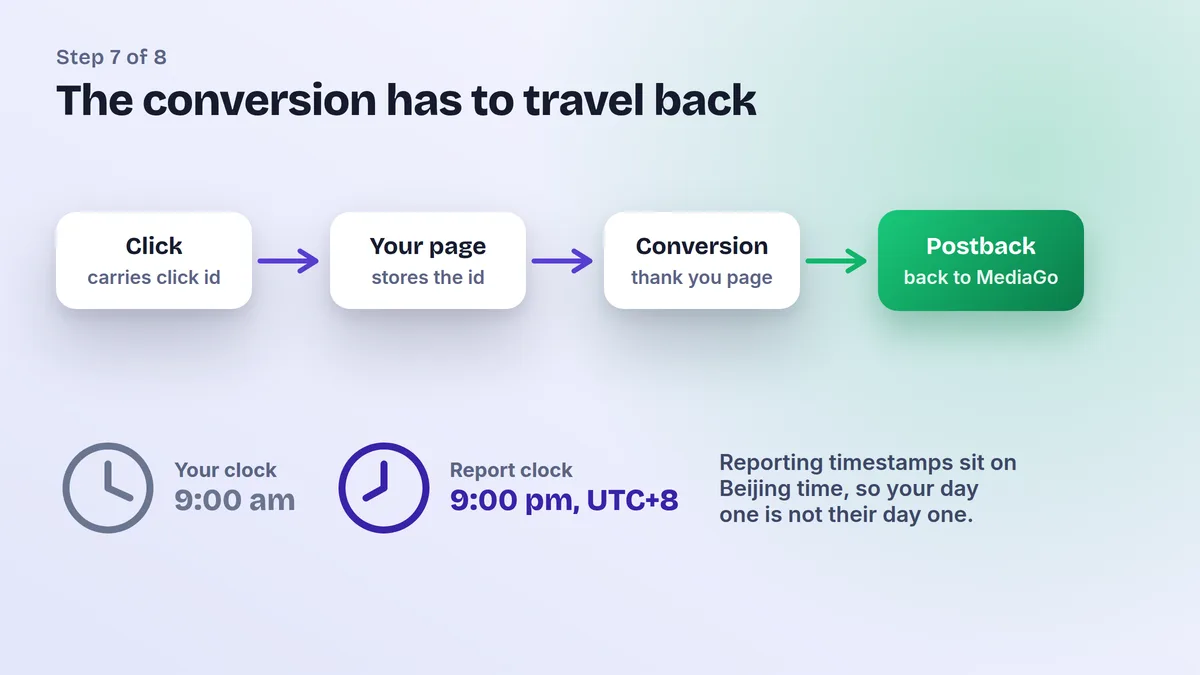
Smart bidding is only as good as the conversion data you feed it, so the postback needs to work on day one rather than being something you fix in week two. The click arrives carrying an identifier, your page holds onto it, and when the conversion fires you send that identifier back so the network can tie the sale to the impression it bought.
The detail that catches people is the clock. MediaGo's reporting timestamps run on Beijing time, so a campaign you launched on Monday morning your time will not line up with the day boundaries in the interface, and a day that looks like it underspent is often a day that has not finished yet from the platform's point of view.
Step 8: Judge It At The End Of The First Week
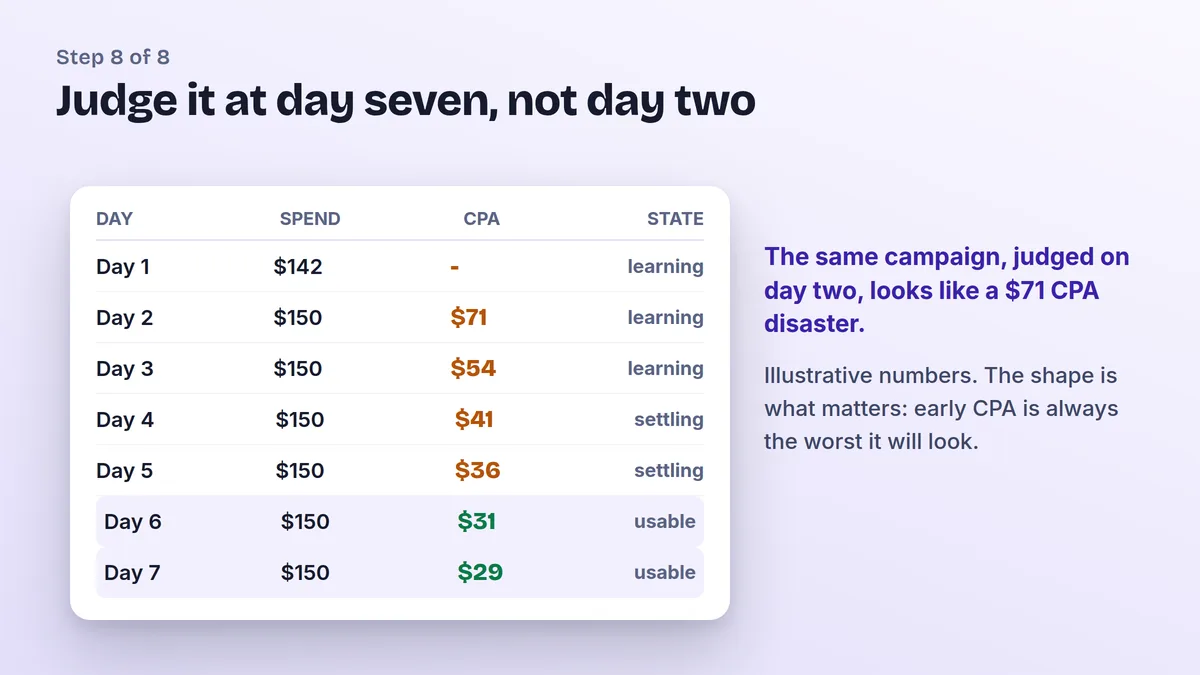
The first days always look worse than the campaign is, because the model is still working out which users are worth bidding on and the reporting lag makes recent days look thin. A CPA that reads double your target on day two routinely lands close to target by day six or seven, and the people who cut budget on day two never find that out.
What you should be doing in that window is watching for the things that are actually broken, so no conversions at all after real spend points at tracking rather than targeting, and a campaign that will not spend at all points at the bid or the approval status rather than the creative.
After The First MediaGo Campaign
Knowing how to advertise on MediaGo is mostly knowing what to change once the data is in. Once there is a week of clean data, the useful moves are narrowing by region using the ZIP-level targeting you left alone, adding creatives around whichever angle won rather than whichever image you liked, and moving from Fixed to smart bidding if you started manual and the pixel is now fed.
Everything above assumes the account is live and the page passed policy, which is where most MediaGo attempts actually stall. If you would rather have that settled before you spend, you can get a MediaGo agency account through AdScaleLab with the destination URL checked by our compliance team first, so you find out about a policy problem in a dashboard message rather than three days into an application.
Agency ad accounts, without the wait.
Buy and top up Google, Meta, native, and more from one dashboard.
Get started
No comments yet. Be the first to comment.
Comments are open to registered AdScaleLab clients.
Sign in to comment