





How To Manage Meta Agency Account Access Management Guide
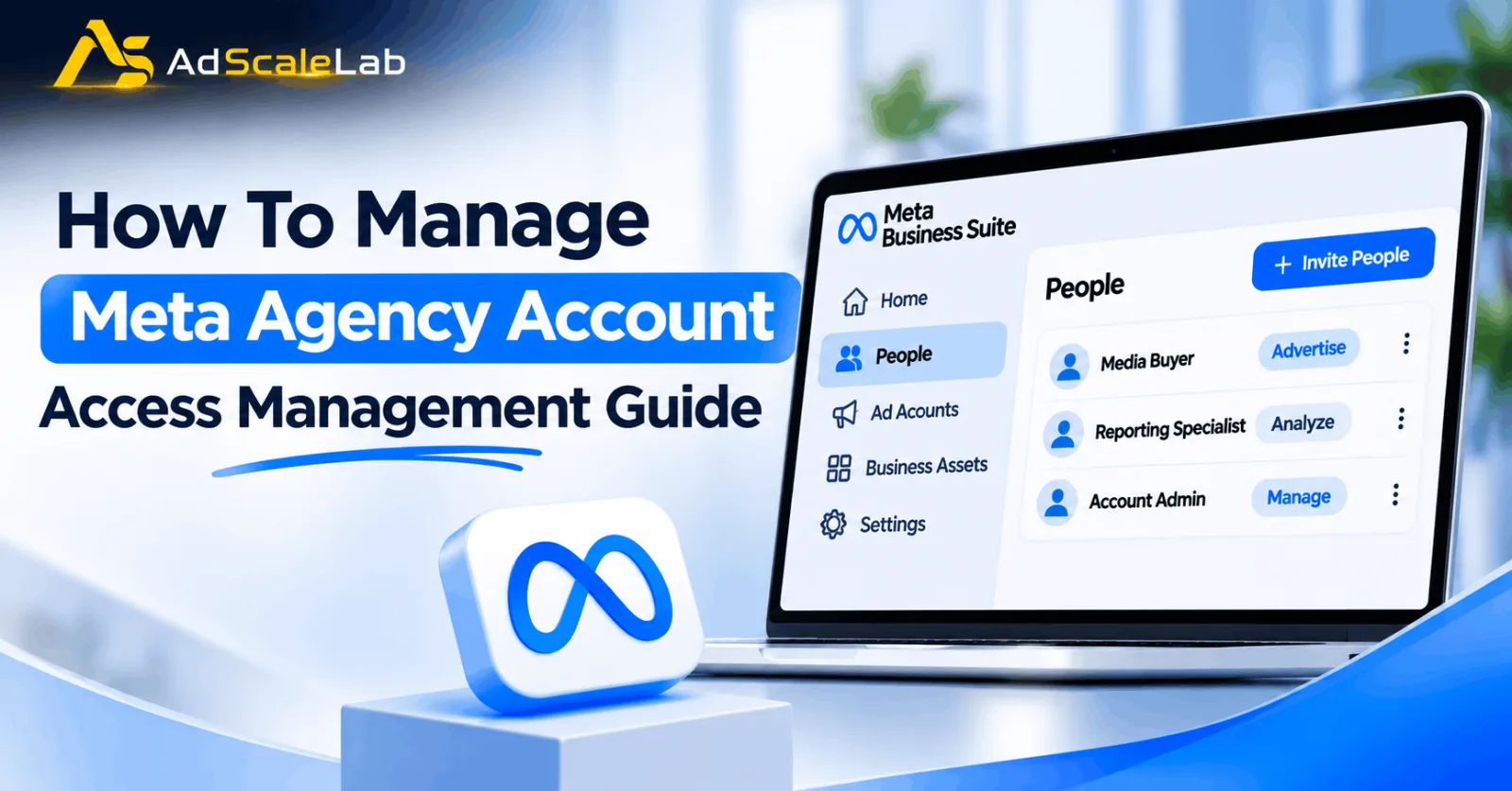
Meta agency account access management is an important part of running advertising campaigns with a team. In most advertising agencies, several people work together to manage campaigns. One person handles campaign setup, another works on creatives, someone else checks performance, and an account manager looks after the client. Now imagine giving all these people the same level of access to your Meta agency account. A designer could end up with permissions to change account settings, while a media buyer might have access to business features they never use. This is not a good way to manage an advertising team.
That is why agencies need to understand how Meta account permissions work. It helps them decide who can access an advertising account and what each person can do inside it. When permissions are set properly, team members can finish their work without getting access to settings they do not need.
Meta provides different options for managing people and business assets through its Business Suite and Business Portfolio settings. You can invite employees, assign advertising accounts and give them permissions based on their responsibilities. There is one thing worth remembering: adding someone to your Business Portfolio does not automatically give them access to every ad account connected to it. You may still need to assign the individual advertising account and choose the right permissions.
Let's look at how this works and how an agency can manage its team without making account access unnecessarily complicated.
Why Should Advertising Agencies Manage Account Access Properly?
Let's take a simple example. An agency has eight employees working on Meta advertising campaigns for different clients. Two employees handle campaign management, one person prepares reports, two designers create ad creatives, and the remaining team members look after clients and daily operations.
Does everyone need full access to the agency's advertising accounts? Obviously not.
A designer may only need access to the creative assets required for their work. A reporting specialist needs to check campaign performance, while a media buyer needs permission to create and edit campaigns. Only a few trusted people may need to manage account settings and other important business permissions.
When everyone receives the same access, it becomes harder to control what happens inside the account. Someone might change a setting by mistake, or an employee who no longer works with the agency might still have access. Proper permission management makes these situations easier to avoid. It also helps when a new employee joins or someone moves to a different role.
For agencies handling several clients, this is even more important. Keeping access organized from the beginning can save a lot of confusion later. You can also read our guide on Meta agency account management to understand more about managing advertising accounts.
Understanding Meta Business Portfolio Access And Ad Account Permissions
Before inviting your team, it helps to understand how Meta separates business access from ad account access. A Business Portfolio is where a business can organize its people and assets, such as Facebook Pages, Instagram accounts and advertising accounts. People can be given access to the portfolio, but that does not mean they automatically receive permission to use every asset inside it.
For example, you might invite a new media buyer to your Business Portfolio. They may be able to enter the business environment, but they still need access to the specific ad account where they will run campaigns.
Meta also provides different types of ad account permissions. The main permission categories include Manage, Advertise and Analyze. Manage access is intended for people who need to handle wider account responsibilities, such as managing campaigns, billing, reporting and permissions. Advertise access is suitable for people who create and edit ads. Analyze access is mainly for people who need to view advertising performance and reports. Get meta ads agency account here

The important thing is to choose access according to the work someone actually does. A person who only checks reports does not need the same permissions as someone responsible for managing the advertising account. You can check Meta's official documentation for ad account asset management for more details.
How To Assign Roles To Your Advertising Team In Meta Business Suite
If you are setting up access for your agency team for the first time, follow these steps. The exact names or positions of some settings may look different depending on Meta's current interface and your level of access, but the general process is similar.
Step 1: Open Your Meta Business Portfolio
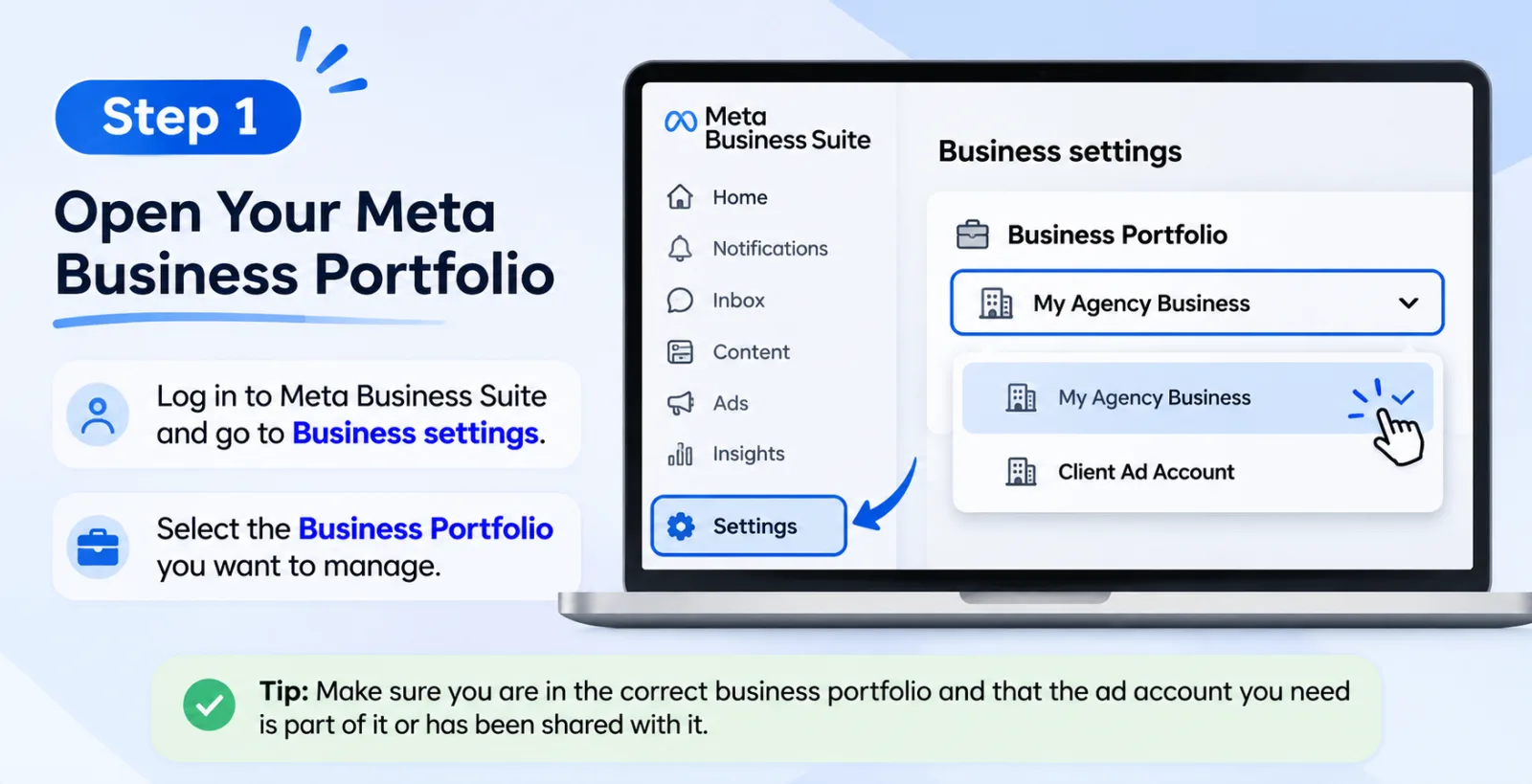
First, log in to Meta Business Suite using your own authorized account. Open the business settings and select the Business Portfolio you want to manage.
This might sound like a small thing, but it is worth checking before making any changes. Agencies sometimes work with multiple businesses and advertising accounts, so selecting the wrong portfolio can create problems later. Take a moment to confirm that you are working inside the correct business. Also check whether the ad account you want to use belongs to that portfolio or has been shared with it by another business.
Step 2: Find The People Section
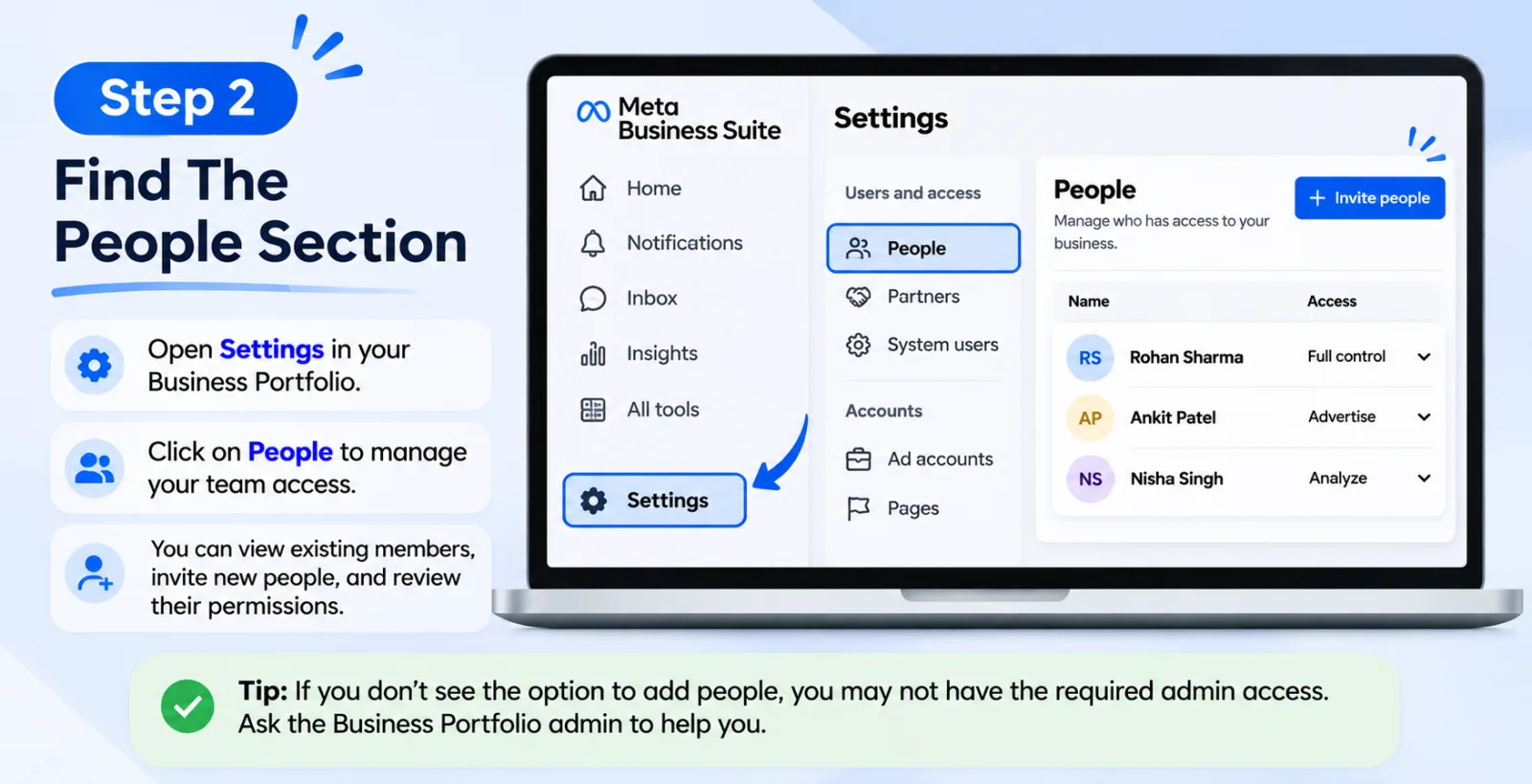
Once you have selected the correct Business Portfolio, open Settings and look for the People section. This is where you can see who already has access to the business. You can also invite new employees and review the permissions given to existing team members.
If you cannot find the option to add people, check your own access first. You may not have the required administrative permissions to invite someone or change business settings. In that case, the person who manages the Business Portfolio will need to help.
Step 3: Invite The Employee You Want To Add
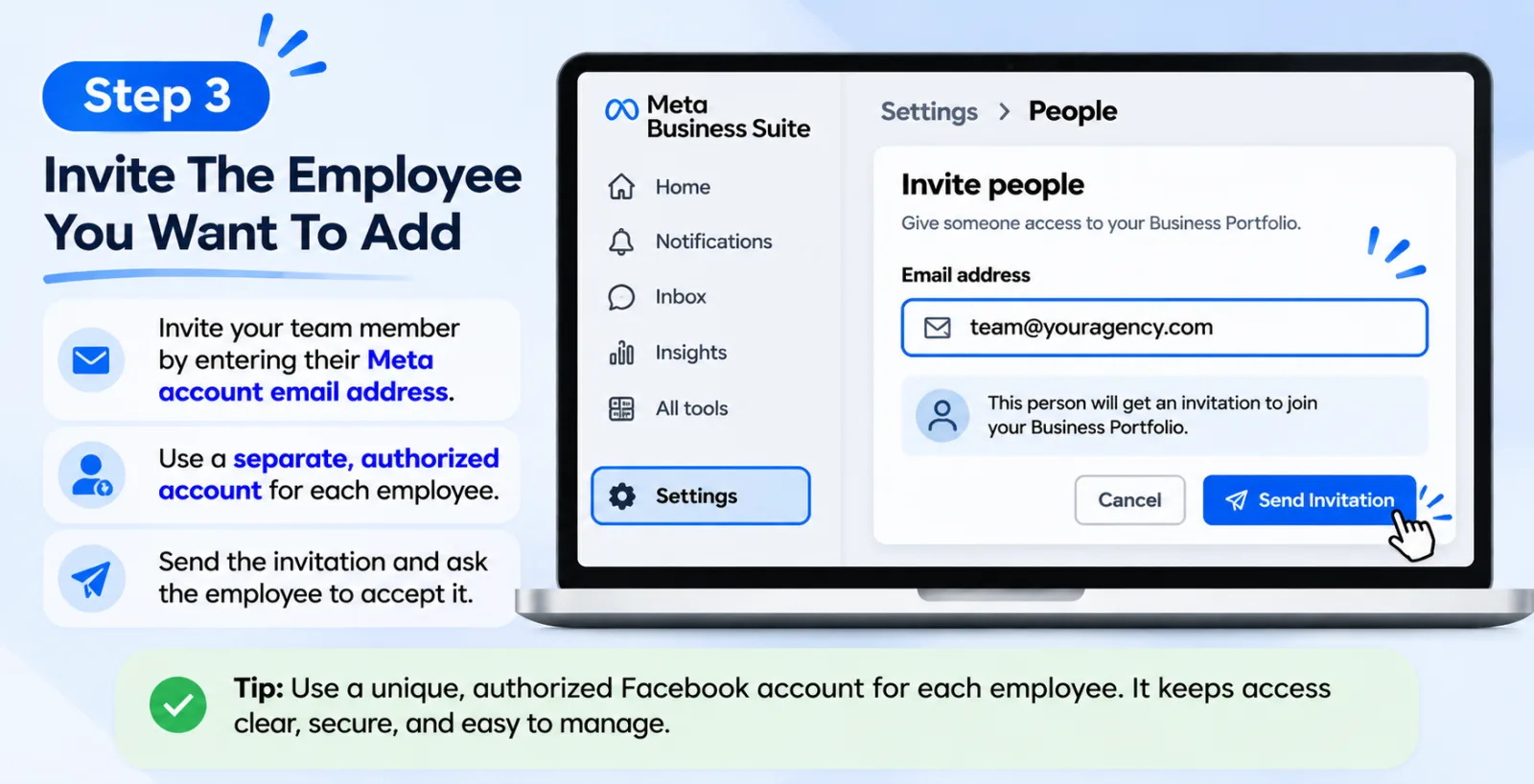
Now you can invite the team member who needs access. Enter the email address associated with their Meta account and check it carefully before sending the invitation. A small mistake in the email address can delay the entire process.
One thing agencies should avoid is asking several employees to use the same Facebook login. Each person should work through their own authorized account. This makes it much easier to see who has access and update permissions when someone leaves the team. After entering the required details, continue with the invitation process. The employee may need to accept the invitation before they can use the assigned business assets.
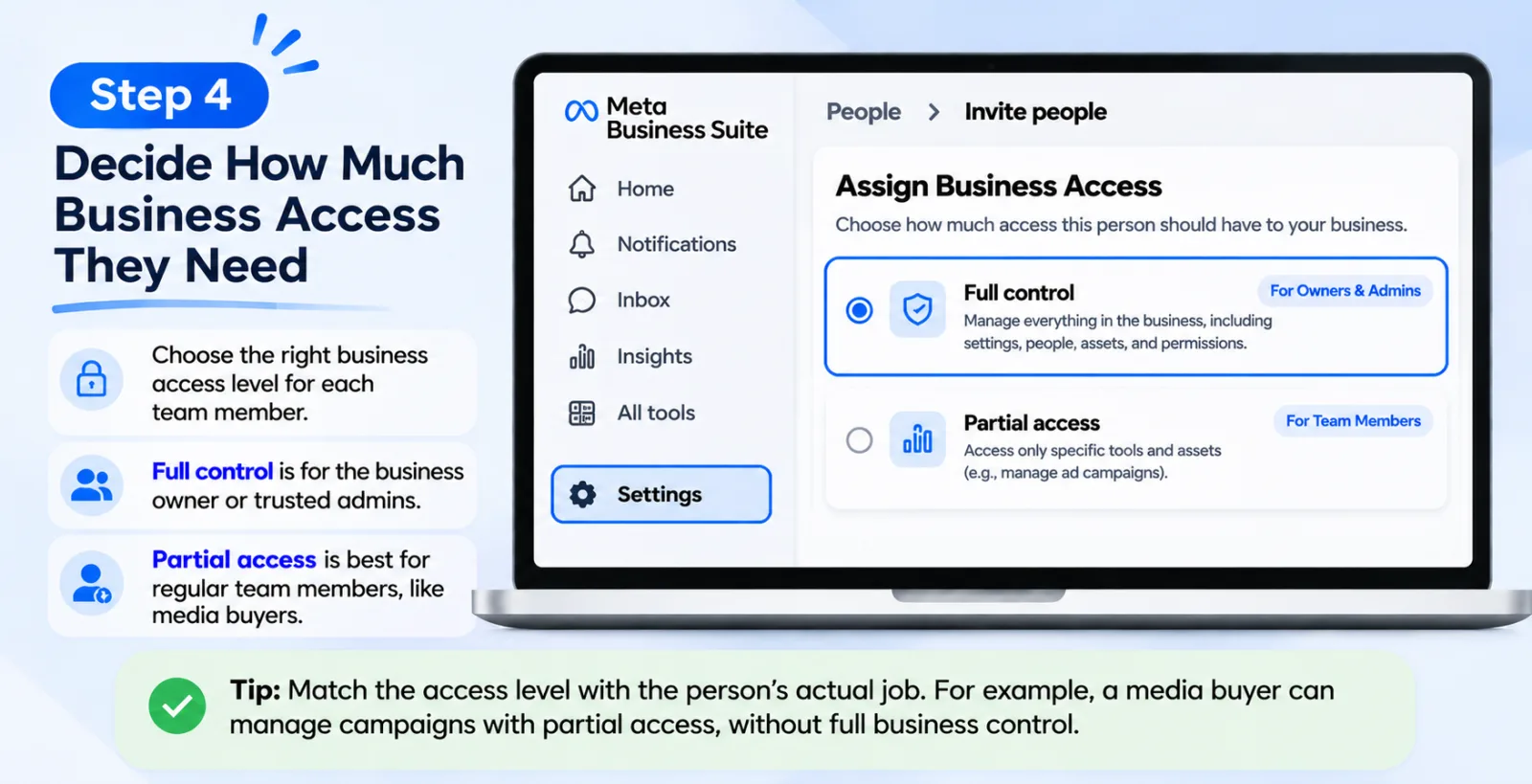
Step 4: Decide How Much Business Access They Need
Meta provides different levels of business access. In general, you will come across options such as full control and partial access.
Full control should be given carefully. It is normally more suitable for the business owner or a small number of trusted administrators who are responsible for managing the business and its important settings. Partial access is a better choice for many regular team members. It allows an agency to give employees access to the work they need without giving them control over the entire business.
For example, a media buyer who only needs to manage advertising campaigns may not need permission to add or remove other employees. Think about the person's actual responsibilities before selecting an access level.
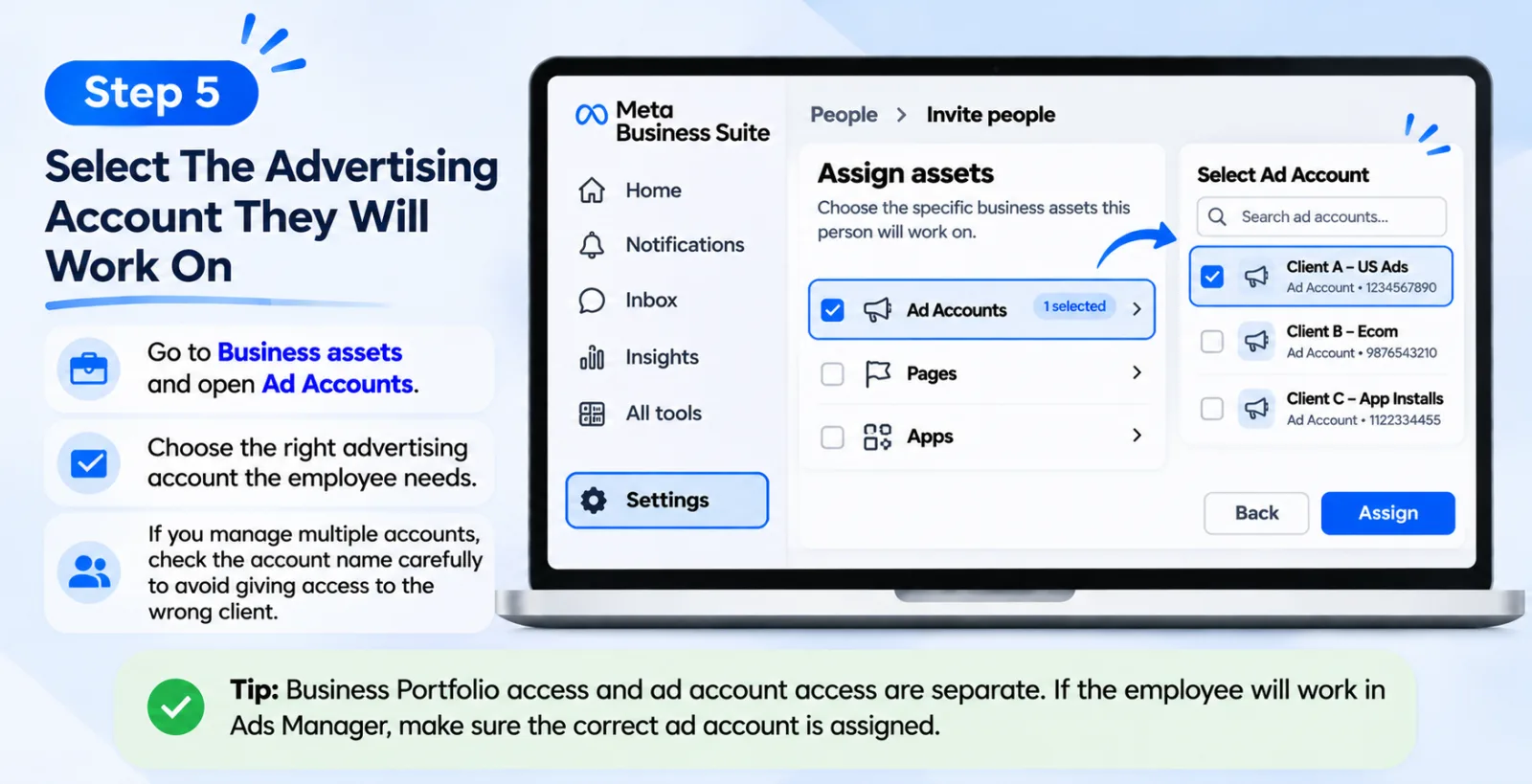
Step 5: Select The Advertising Account They Will Work On
This is a step that agencies should not skip. After selecting the person's business access, go to the business assets section and find Ad Accounts. Choose the advertising account the employee needs to work with. If your agency manages several accounts, check the account name carefully. Selecting the wrong one could give an employee access to a different client's advertising activity.
Also remember that access to a Business Portfolio and access to an individual ad account are separate things. If the employee needs to work inside Ads Manager, make sure the correct ad account has been assigned to them.
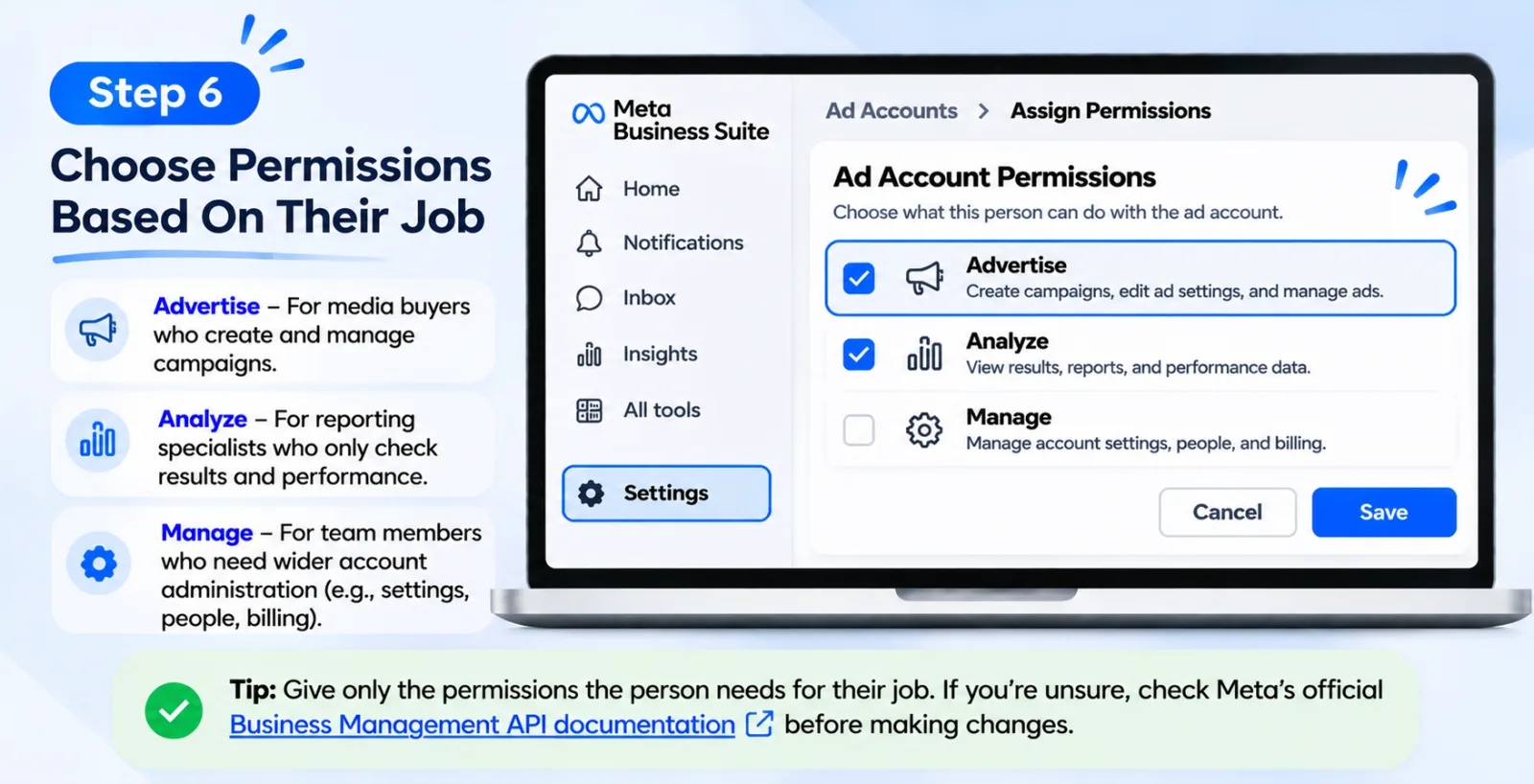
Step 6: Choose Permissions Based On Their Job
Now comes the part where you decide what the employee can actually do. A media buyer who creates campaigns and changes ad settings will generally need Advertise access. A reporting specialist who only checks results may need Analyze access. Someone responsible for wider account administration may require Manage access.
For example, there is little reason to give a reporting specialist permission to manage billing if their only responsibility is preparing weekly performance reports.
The same applies to other roles. Do not select every available permission just to make the setup easier. Choose what the person needs to complete their work. If you are unsure about a permission, check Meta's official Business Management API documentation before changing the account setup.
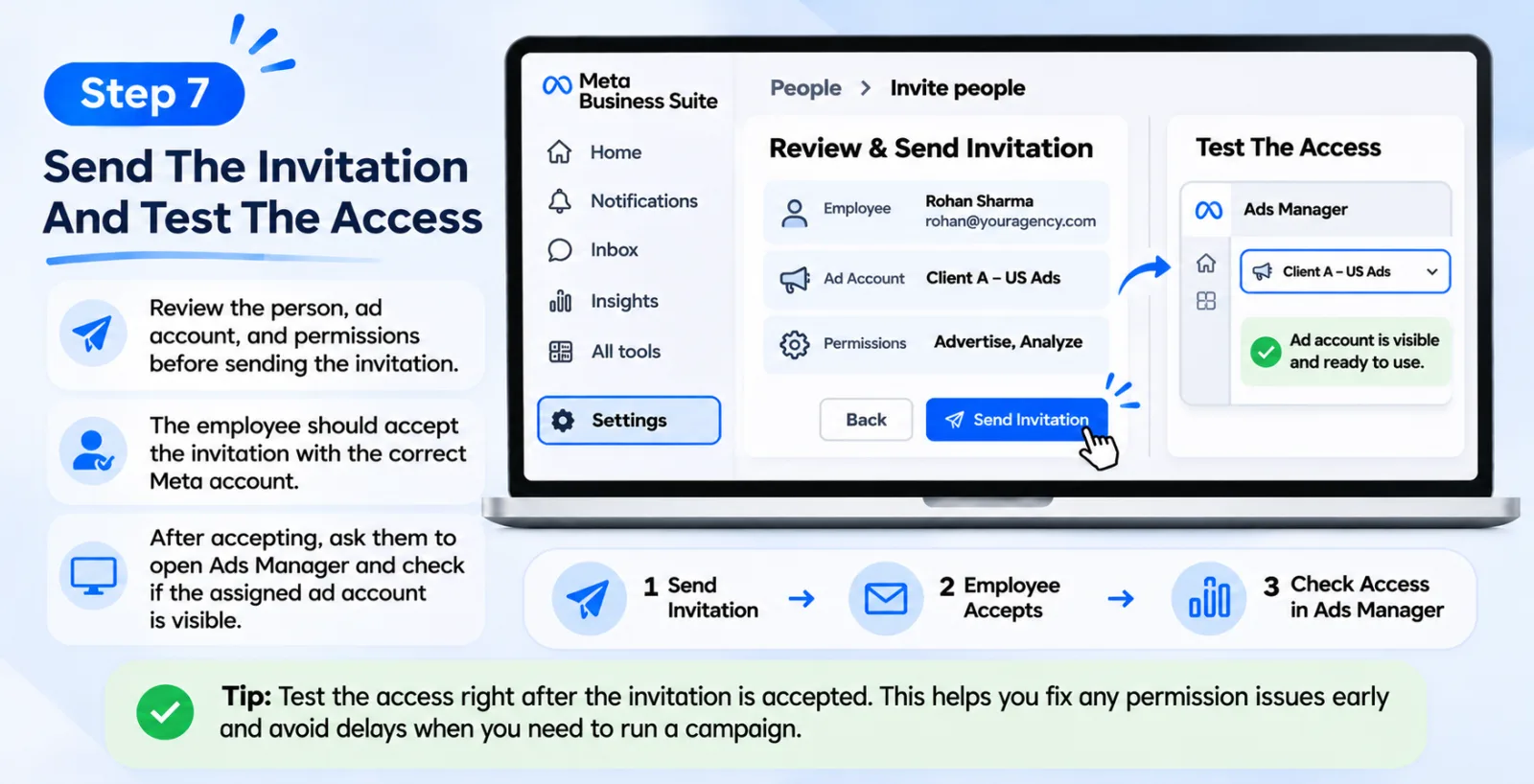
Step 7: Send The Invitation And Test The Access
Before finishing, take another look at the selected person, advertising account and permissions. If everything is correct, send the invitation. The employee should accept it using the correct Meta account. Once that is done, ask them to open Ads Manager and check whether the assigned advertising account is visible.
It is better to test access at this stage instead of waiting until a campaign needs to go live. If the employee cannot see the account or cannot perform a particular task, you can check the permissions while there is still time to fix the issue.
Step 8: Review Access When Your Team Changes
Many agencies remember to add employees but forget to remove access when those employees leave. This can become a problem over time, especially if an agency works with freelancers, temporary campaign managers or outside marketing teams.
Whenever someone leaves the company or changes responsibilities, review their access. You may need to remove their permissions or give them a different level of access. It is also a good idea to review the People and Partners sections regularly. This helps you find old accounts and permissions that are no longer required.
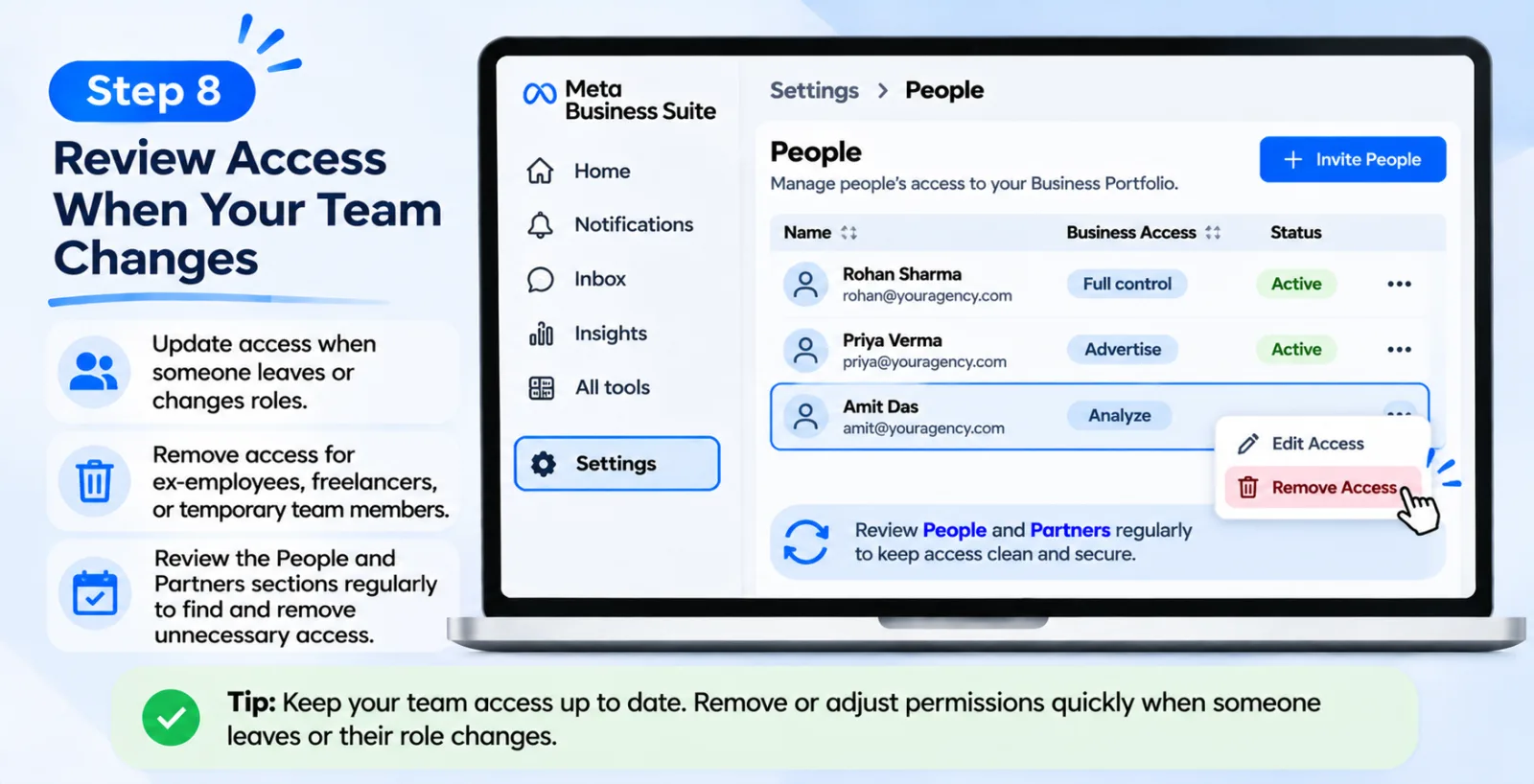
Meta Agency Account Access Management Helps You Choose The Right Roles For Each Team Member
There is no single permission setup that works for every agency. It depends on the size of your team and the work each person handles.
Still, the following arrangement can be a useful starting point:
| Team member | Suggested access |
|---|---|
| Business owner | Full control |
| Senior account administrator | Manage access |
| Media buyer | Advertise access |
| Campaign manager | Advertise access |
| Performance analyst | Analyze access |
| Reporting specialist | Analyze access |
| Designer | Only the specific creative and asset permissions required |
These are general recommendations, not fixed roles officially created by Meta. Some employees may need more than one permission depending on their responsibilities. For example, a campaign manager who also handles billing may need additional access. The goal is not to give everyone the minimum possible access regardless of their job. It is to give each person enough access to do their work properly, without opening up unrelated settings.
How Can An Agency Give Access To Another Agency Or External Partner?
Not every person working on your campaigns will be an employee. Sometimes an agency works with another marketing agency, a freelance media buyer or an external service provider.
In these situations, Meta's partner access option can be useful.
Instead of inviting every person from the outside company individually, a business can share selected assets with another Business Portfolio. The external business can then manage access for its own employees, based on the permissions it has received. Generally, you can find this option under the Partners section in your Business Portfolio settings. The business providing access needs the other partner's Business Portfolio ID. It can then select the assets it wants to share and choose the available permissions.
For example, an agency may want to let an external media buying team work on one advertising account without giving it access to every other account in the business. This approach keeps the arrangement more organized. It also allows the business that owns the assets to maintain control over what it shares.
A Few Simple Ways To Keep Your Meta Agency Account Secure
Giving people the right permissions is a good start, but agencies should also pay attention to account security. One common mistake is sharing login details between employees. It may seem convenient when several people need to work quickly, but it makes access harder to manage. Use individual authorized accounts instead. Two-factor authentication is another important step. It adds an extra layer of protection when someone tries to log in, so a password alone is not enough.
You should also keep the number of people with full control as small as possible. If every new employee receives administrative access, it becomes harder to manage the business safely.
Finally, make access reviews part of your normal agency routine. Check who has access, which advertising accounts they can use and whether those permissions are still needed. This is especially important after employee changes or when an external project comes to an end. These are simple habits, but they can make a real difference when an agency is managing several advertising accounts.
Common Meta Agency Account Access Problems
Even after following the correct steps, you may sometimes find that an employee cannot access an advertising account. The reason is not always a problem with the invitation itself. For example, the employee may have received an invitation but not accepted it yet. They might also be logged in with a different Meta profile from the one used for the invitation. Another common situation is when someone can enter the Business Portfolio but cannot see the required ad account. In this case, check whether the advertising account was actually assigned to them.
Sometimes a team member can view campaign results but cannot edit ads. This may happen because they have Analyze access rather than Advertise access. If they need to manage wider account settings, they may require additional permissions.
Agencies can also run into problems when an advertising account belongs to another business. If the account was shared with your Business Portfolio, your agency may only have the permissions that the owning business provided. You may need to contact that business and request additional access. When something goes wrong, check three things first: the person's Business Portfolio access, the assigned advertising account and the permissions selected for that account. This will help you narrow down the problem instead of changing settings randomly.
Final Thoughts
Managing Meta agency account access is not difficult once you understand how the different permissions work. The real challenge is making sure that everyone in your team has the access they actually need. A media buyer should be able to manage campaigns, an analyst should be able to check results, and only trusted administrators should handle important business settings. When these responsibilities are separated properly, daily work becomes much easier.
If your agency is growing or managing campaigns for multiple clients, do not wait until an access problem appears. Set up a clear permission structure from the beginning and review it whenever your team changes. It may take a little extra time during setup, but it can save your agency from unnecessary confusion later. If you are also looking for Meta advertising account solutions, visit AdScaleLab's Meta Ads agency account page to learn more about the options available for advertisers.
Agency ad accounts, without the wait.
Buy and top up Google, Meta, native, and more from one dashboard.
Get started
No comments yet. Be the first to comment.
Comments are open to registered AdScaleLab clients.
Sign in to comment