






How To Find URL Problems in Performance Max Landing Page Reports
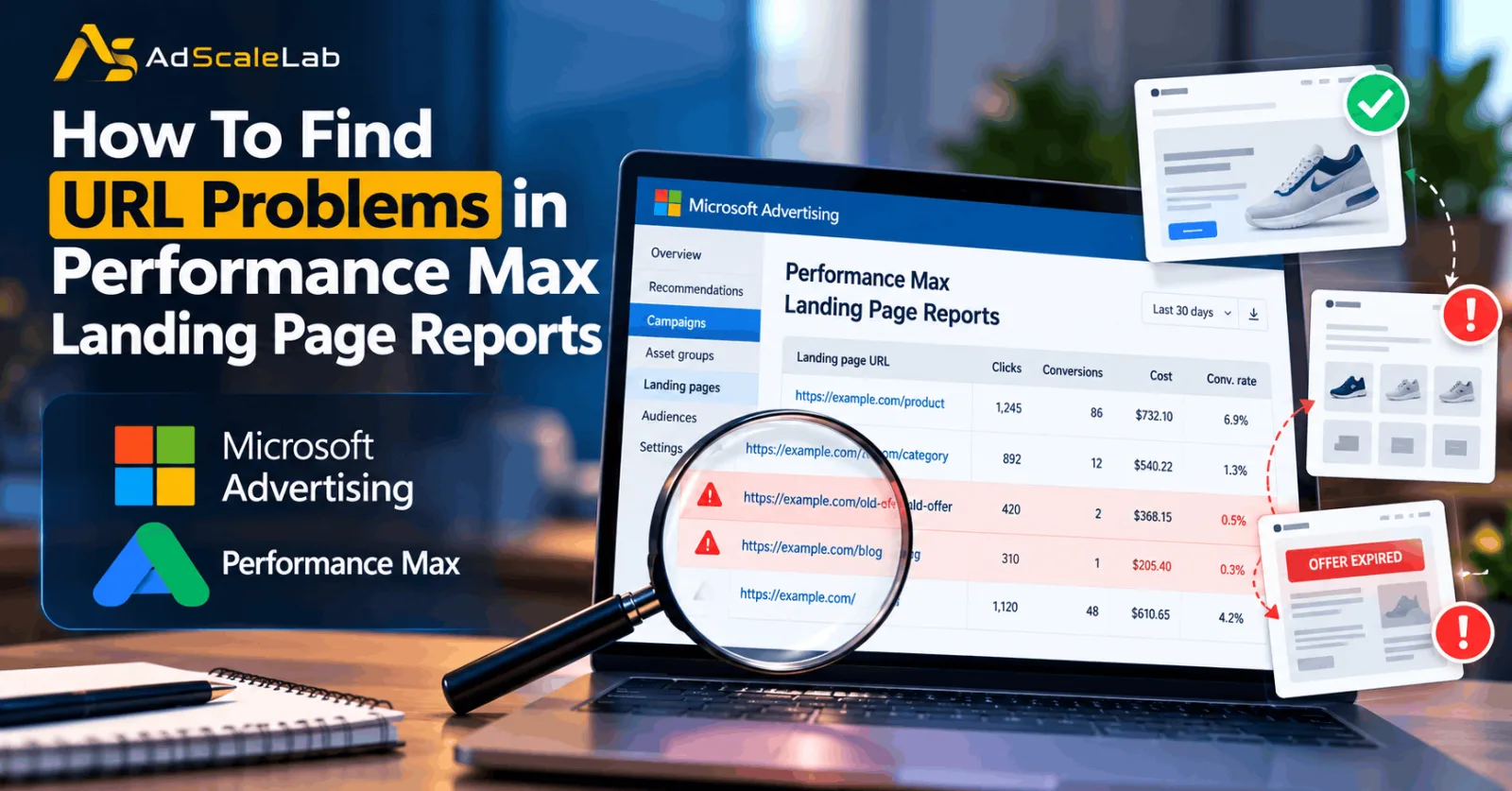
Performance Max landing page reports in Microsoft Advertising help advertisers understand which website pages receive traffic and how those pages perform. Microsoft Advertising Performance Max campaigns can send visitors to different pages across your website. This gives advertisers more ways to reach potential customers, but it can also create a problem. A visitor might click an ad and land on a page that does not match the product, service, or offer they expected.
For example, an advertiser may want to promote a specific product, but the campaign sends some visitors to a general category page. Other visitors might reach an outdated offer or a page that does not generate conversions. These problems can be difficult to spot when you look only at the campaign's total performance.
Microsoft Advertising introduced landing page reporting for Performance Max in April 2026. The feature gives advertisers more visibility into the performance of individual final URLs, including impressions, clicks, spend, and conversion-related metrics. Microsoft explained that these reports can help advertisers understand how final URL expansion directs visitors to different pages. In this guide, we will explain how to use Performance Max landing page reports to identify URL mismatches, investigate weak results, and make better decisions about where your advertising traffic should go.
What Are Microsoft Advertising Performance Max Landing Page Reports?
A landing page report helps advertisers examine how individual website URLs perform within a Performance Max campaign. Instead of looking only at the total results for a campaign, you can review the pages receiving traffic and compare their performance.
Microsoft's April 2026 announcement confirmed that advertisers can examine metrics such as impressions, clicks, spend, and conversion-related results, including all-conversion revenue and return on ad spend (ROAS). Additional columns and breakdowns can help you understand results by campaign, asset group, and custom parameters. This matters because a campaign can have good overall results while certain landing pages perform poorly. A page might receive clicks but produce few conversions. Another page could generate valuable sales even if it receives less traffic.
However, the report should not be treated as an automatic broken-link checker. It helps you identify pages that deserve investigation. You may need to open the URL yourself or use Microsoft Advertising's campaign diagnostics to confirm whether a destination is broken or insecure.
Step 1: Open Your Performance Max Campaign
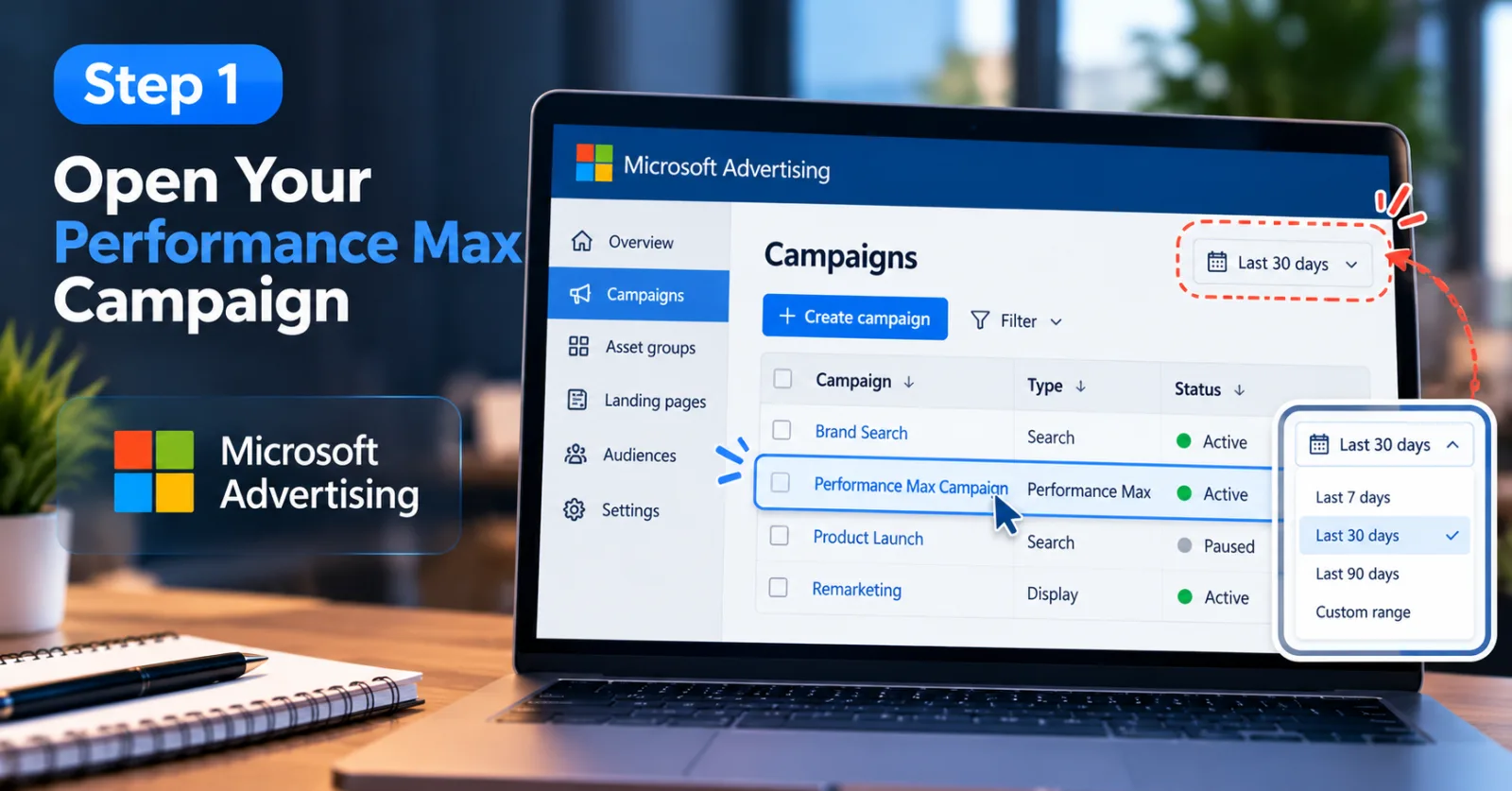
Start by signing in to your Microsoft Advertising account and opening the campaign area. Select the Performance Max campaign you want to investigate.
Find the landing page reporting view in the campaign interface. Microsoft's April 2026 announcement described the feature as final URL reporting available in the campaign grid. The exact layout or available columns may vary as the interface changes, so use the current reporting options available in your account. Choose a campaign that has received enough traffic to make the report useful. If the campaign has only recently started running, there may not be enough information to identify a meaningful pattern.
Before reviewing individual pages, check the date range. A period that is too short may make normal fluctuations look like serious problems. For a campaign with a longer buying cycle, you may need to review a longer period before deciding that a URL is performing poorly.
Step 2: Review The Landing Page URLs Receiving Traffic
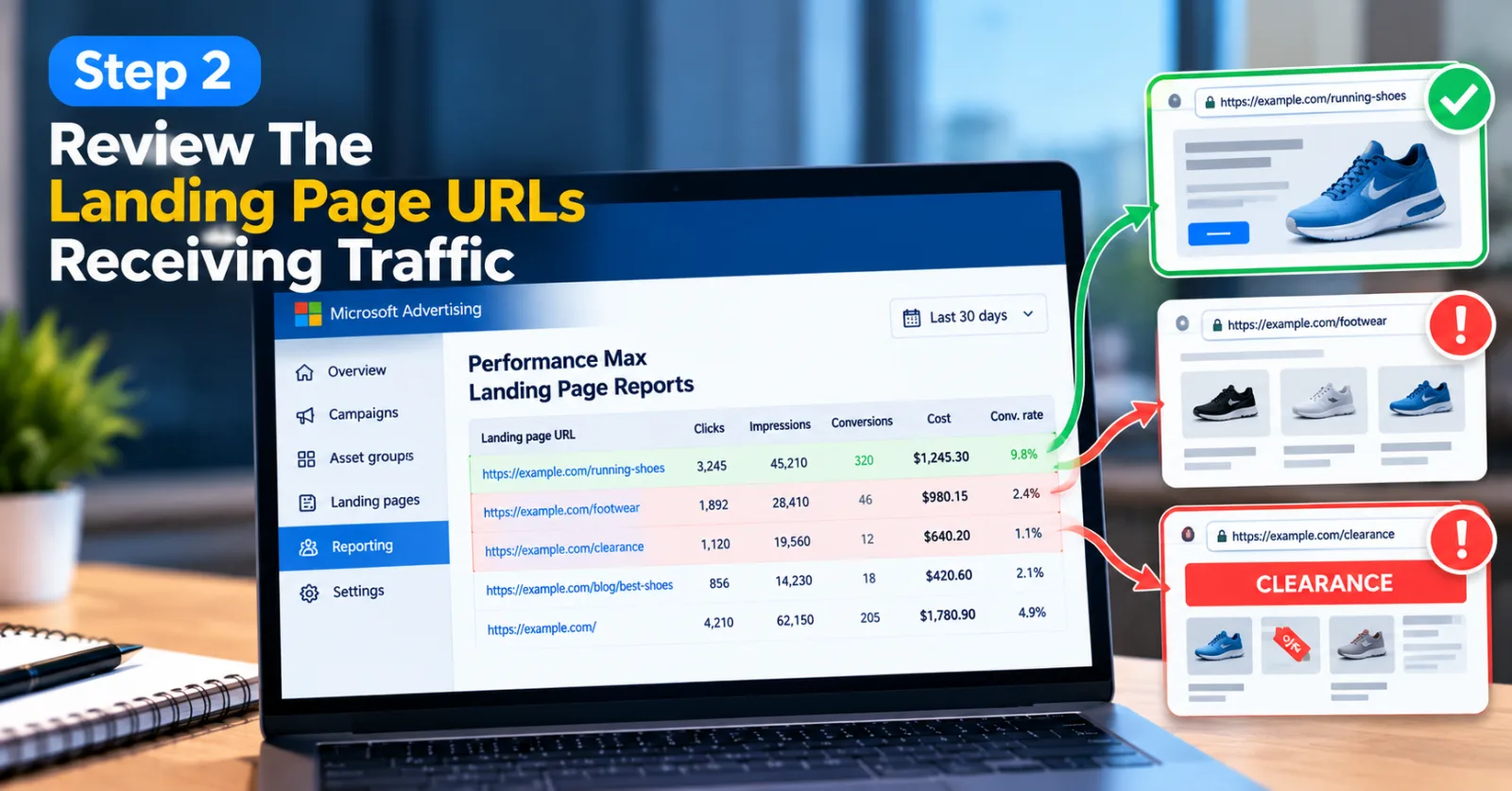
Once the report is available, review the final URLs listed in it. Look for pages you recognize, such as product pages, service pages, category pages, blog posts, and other important destinations on your website. The first question is simple: are these the pages you actually want potential customers to visit?
Imagine that an online store is advertising running shoes. The campaign's main landing page is a running-shoe category, but the report also shows traffic going to a general footwear page and an old clearance page. That does not automatically mean the campaign is broken, but it gives the advertiser a reason to check whether those destinations are relevant to the campaign's current offer.
Pay attention to URLs that look unfamiliar, contain outdated page paths, or lead to content that no longer matches the business. Open them in a browser and check the actual page instead of judging a URL by its name alone. Also, remember that a URL appearing in the report does not necessarily mean it is performing badly. The purpose of this step is to understand where the campaign is sending people before deciding whether any changes are needed.
Step 3: Compare URL Performance With Campaign Goals
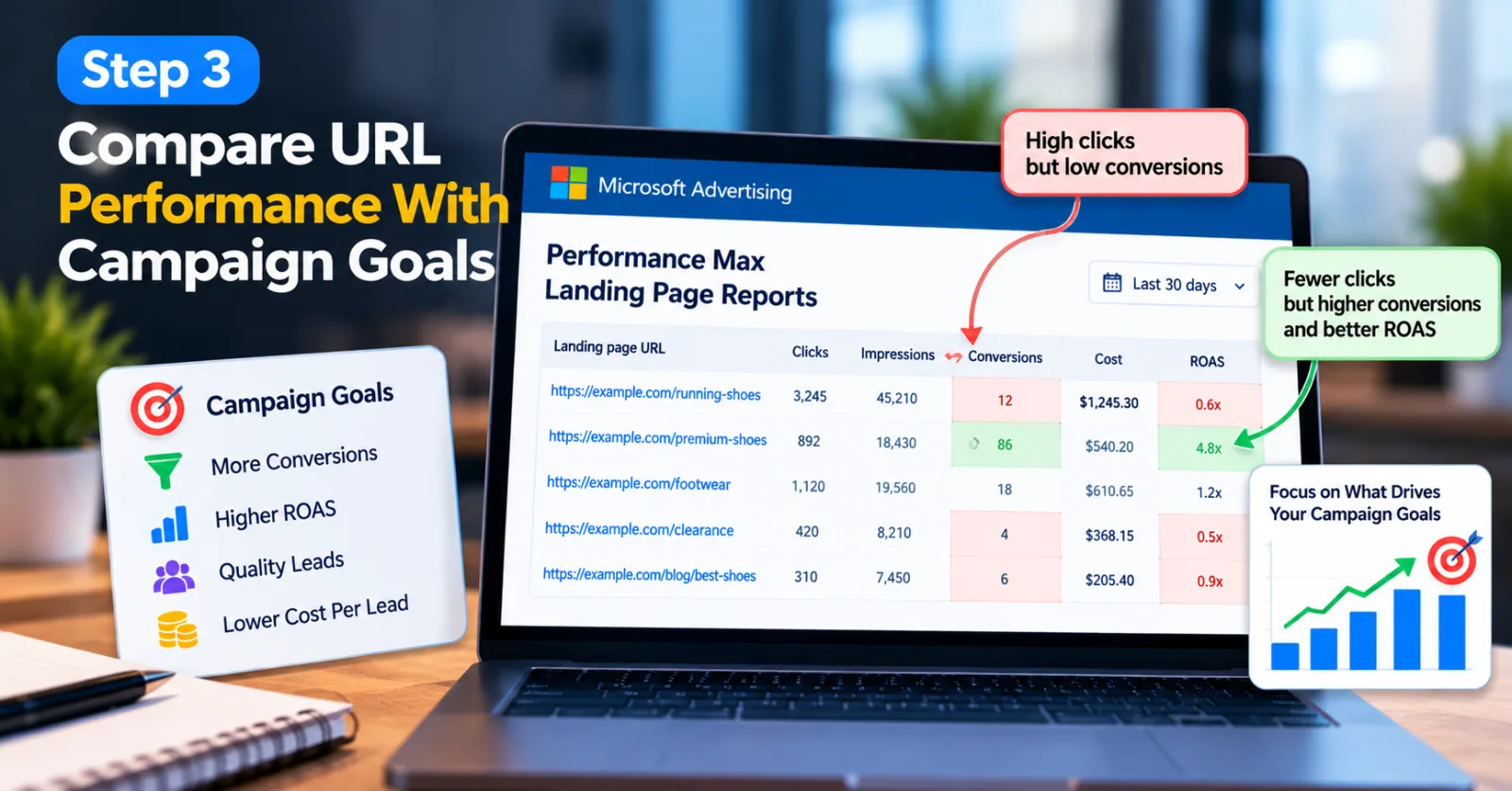
After checking the destinations, compare the available performance metrics. Start with spend, clicks, and impressions, then examine conversion volume, conversion value, or ROAS where those metrics are available and correctly configured. Suppose one landing page receives many clicks but generates very few leads. Another page receives fewer clicks but produces more qualified enquiries. The second page may be more valuable to the business, even though its traffic volume is lower. This is why advertisers should not judge a URL only by its click-through rate or cost per click. The important question is whether the page helps the campaign achieve its actual objective.
Before drawing conclusions, check whether the conversion tracking is working correctly. A page that appears to generate no conversions may have a measurement problem rather than a genuine performance problem. You can also review AdScaleLab's guide to programmatic advertising and Google Search traffic for broader context on evaluating traffic sources and their role in a marketing strategy. Microsoft advises Performance Max advertisers to evaluate campaign performance using meaningful business outcomes and sufficient data rather than reacting to isolated metrics. The same approach is useful when reviewing landing-page results.
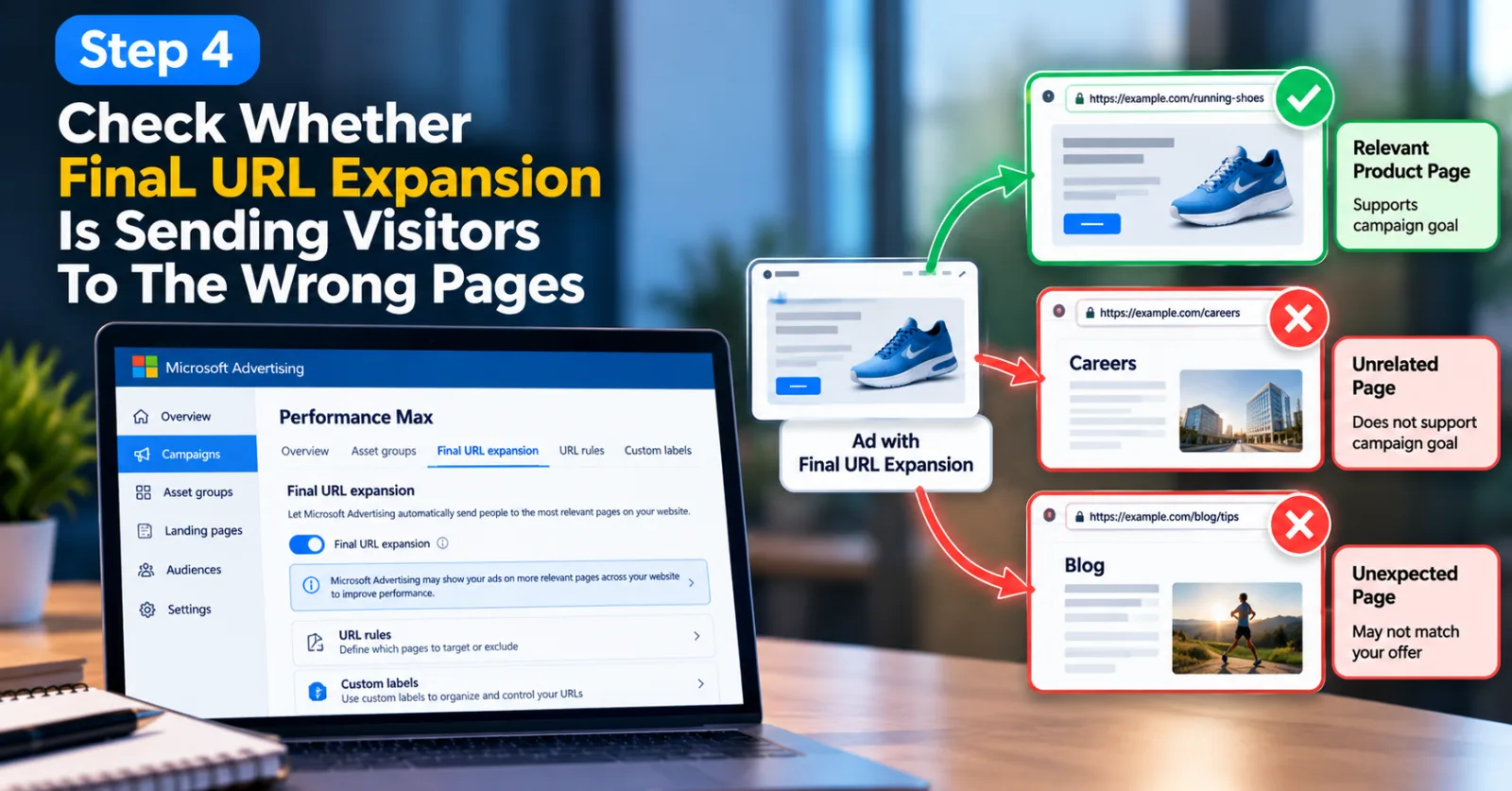
Step 4: Check Whether Final URL Expansion Is Sending Visitors To The Wrong Pages
Final URL expansion allows Performance Max to direct users to relevant pages on your website rather than relying only on the original final URL. This can help connect people with useful content, but it also means advertisers should check whether the selected destinations fit their campaign goals.
Microsoft's May 2026 guidance specifically says that landing page reporting can help advertisers check whether final URL expansion is directing customers to relevant pages. If mismatches appear, Microsoft recommends refining the setup with URL rules or custom labels to target specific pages.
For example, a business might run a campaign promoting its enterprise software. If visitors are being sent to a general careers page or an unrelated blog post, those destinations may not support the campaign's goal. First, confirm that the page is genuinely unsuitable. A page that seems unexpected may still help a visitor learn about the product before converting. If the destination is irrelevant, review your final URL expansion settings and the available URL rules or custom labels.
Use these controls to guide traffic toward appropriate sections of the website. Avoid restricting every possible destination without checking the evidence, because unnecessary restrictions can reduce the campaign's ability to find relevant pages and conversion opportunities.
Step 5: Investigate Broken Or Insecure Final URLs
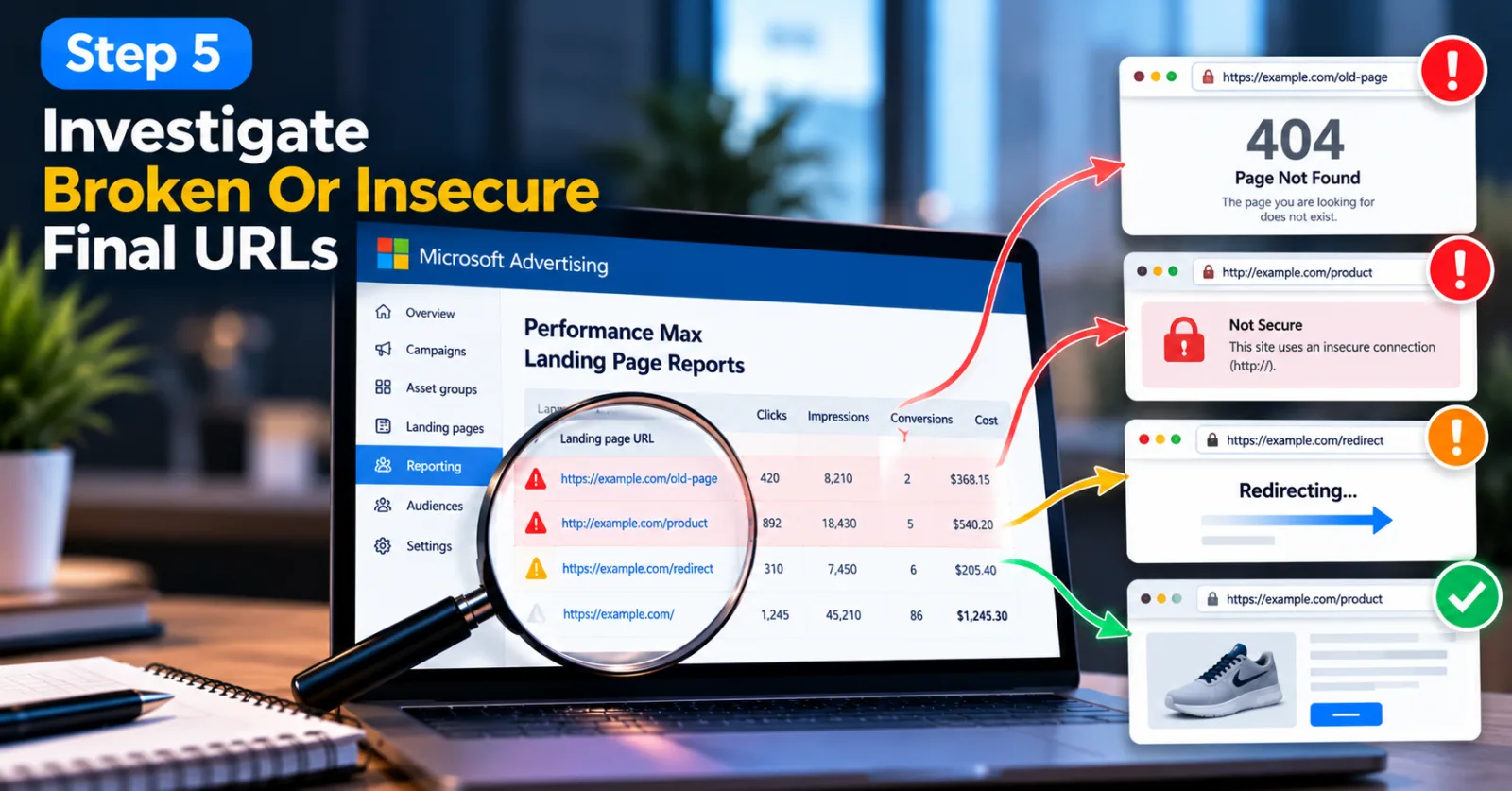
A URL can look correct in a report but still fail when someone opens it. It might return a 404 error, redirect to the wrong destination, use an insecure HTTP address, or lead to a page that has been removed.
Open suspicious URLs directly and test them in a browser. Check whether the intended content loads, whether the page redirects unexpectedly, and whether the final destination uses HTTPS. If you recently changed your website structure, pay particular attention to older URLs that may no longer exist.
Microsoft Advertising also provides campaign diagnostic information that can identify certain URL problems. Its documentation describes warnings for broken final URLs and URLs that use http:// instead of https://. To review and edit a flagged Performance Max URL, Microsoft's documented workflow is to open the campaign, select Asset groups, open Summary, and choose Edit asset group to review the final URL.
If a page is broken, fix the destination or update the final URL to the correct live page. If it is an HTTPS problem, correct the website's security configuration before changing campaign settings unnecessarily. Do not assume that every weak-performing URL is broken. The landing page report helps you decide where to investigate, while a direct page test and the relevant diagnostic information help establish what is actually wrong.
Step 6: Check Whether The Landing Page Matches The Ad
A working URL can still be the wrong destination for an advertisement. The page should match the promise made in the ad and help visitors take the next logical step. For example, an ad promoting a free software trial should take users to a page where they can understand the trial and begin the sign-up process. Sending those visitors to a general company homepage adds another step and may make it harder for them to complete the action.
Review the landing-page headline, product information, images, pricing, and main call to action. If the page has changed since the campaign was created, make sure the ad still describes the current offer accurately. Also consider the mobile experience. A page may load correctly on a desktop but display poorly on a phone, hide the main button, or make the sign-up form difficult to use.
If a destination is relevant and working but conversion performance remains weak, investigate the page experience before assuming the campaign needs a major targeting change. Clear content, a relevant offer, and an easy conversion process can all matter to the final result.

Step 7: Correct The URL Setup And Monitor The Results
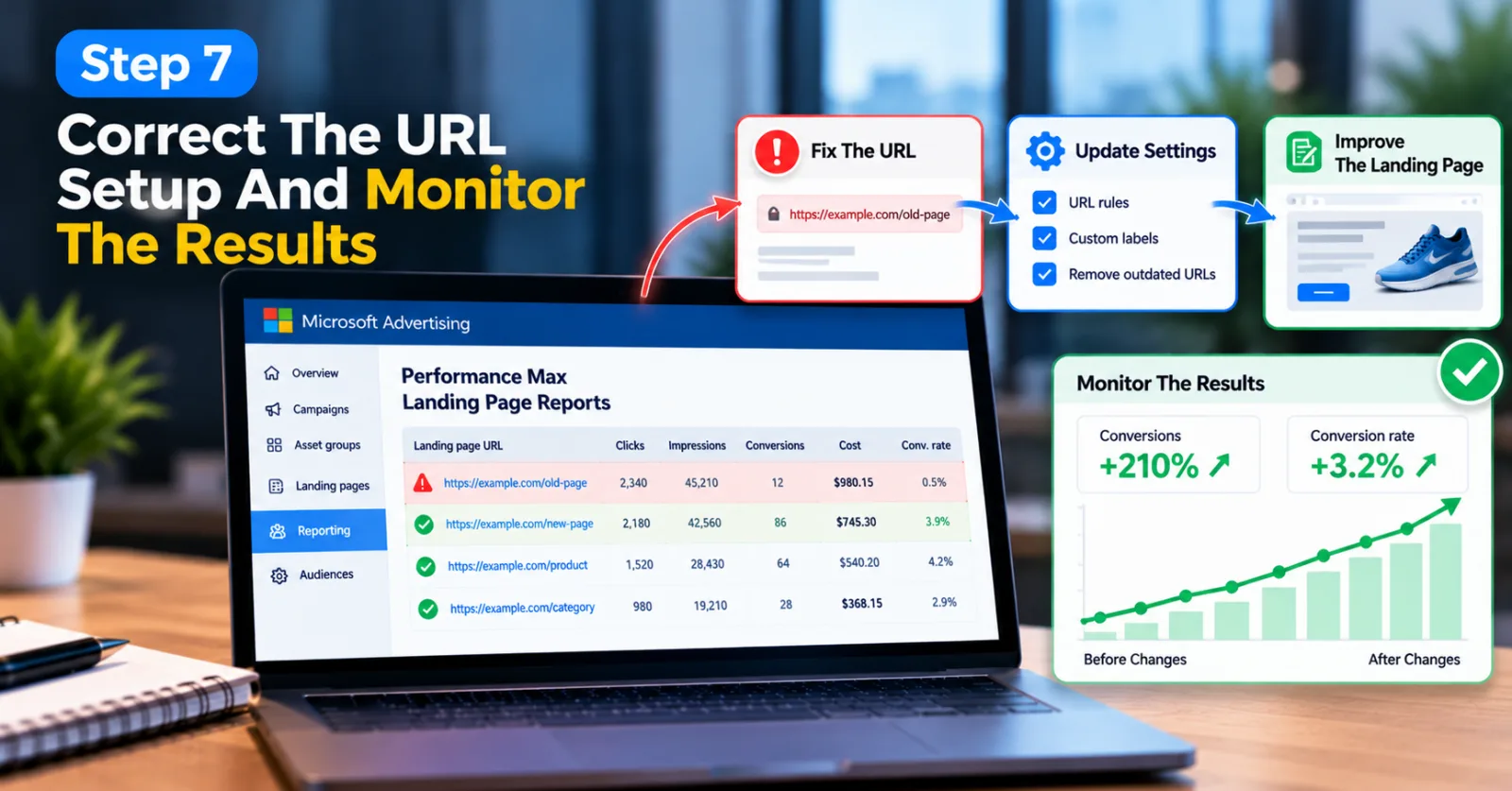
Once you have identified a genuine problem, make the smallest change that addresses it. Update a broken final URL, repair a redirect, remove an outdated destination from the relevant targeting setup, or refine URL rules and custom labels when final URL expansion is sending traffic to unsuitable pages. If the page itself is the problem, improve the landing page rather than changing campaign targeting without a clear reason. If the URL is correct and the page is relevant, allow enough time for results to develop before making further adjustments.
After making changes, return to the report and compare the results over a suitable period. Check whether the corrected page is receiving relevant traffic and whether the campaign's conversion metrics improve. Remember that several factors can affect campaign performance, so a change in results does not automatically prove that one URL adjustment caused the difference. Keep a record of the issue, the change you made, and the results you observed. This makes future troubleshooting easier and helps prevent repeated changes based on guesswork.
Step 8: Build Landing Page Reports Into Your Regular Campaign Checks
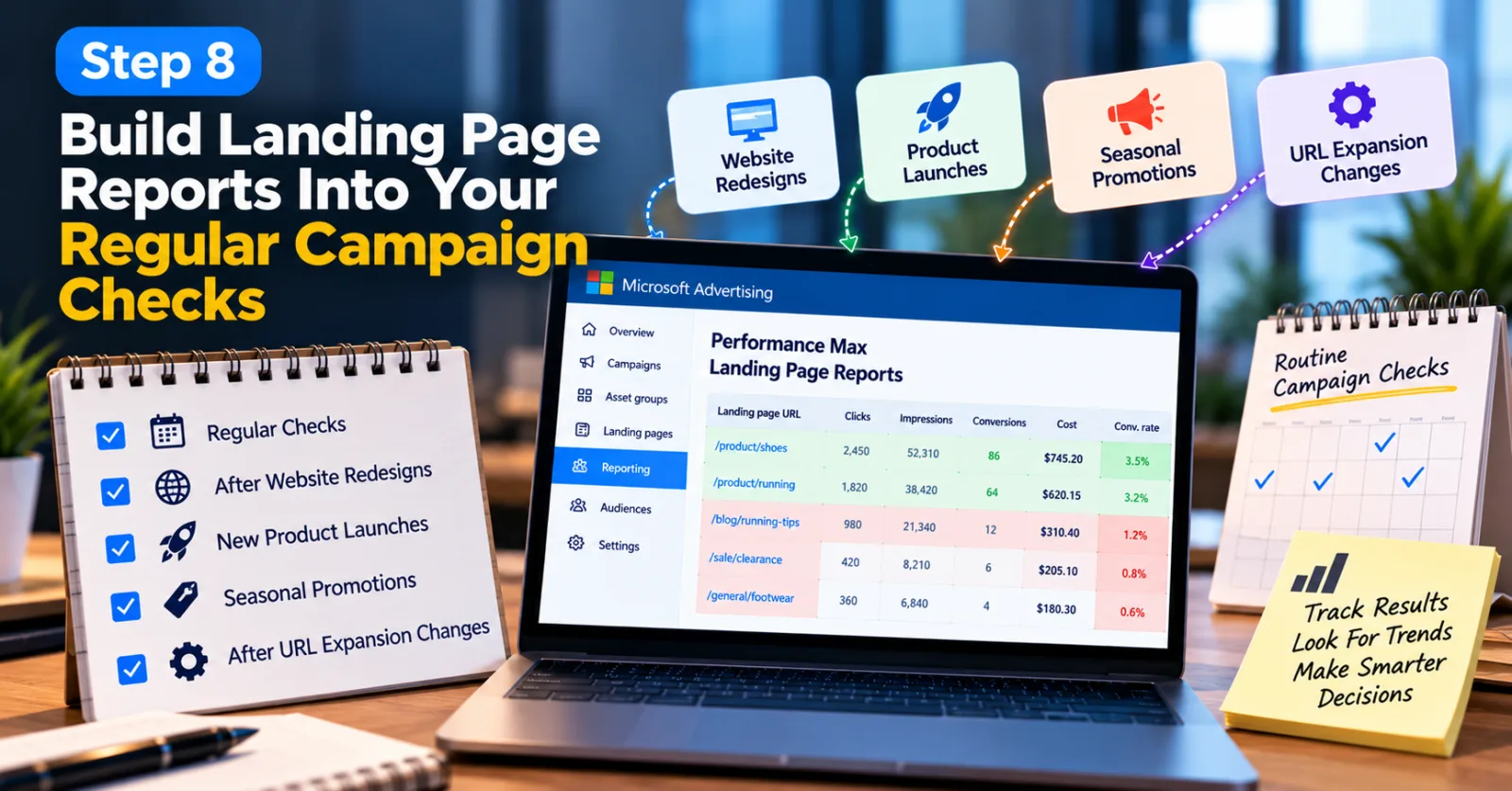
Do not wait until campaign performance drops sharply before reviewing your URLs. Make landing-page reporting part of your regular Performance Max routine, especially after website redesigns, product launches, seasonal promotions, or changes to URL expansion settings. Review which pages are receiving traffic, which destinations contribute to conversions, and whether any URLs look outdated or unrelated to the campaign. Then investigate unusual results instead of automatically excluding pages based on a small number of clicks or a short reporting period.
Microsoft's Performance Max best-practice guidance warns against making decisions based on isolated website or query results. The system optimizes across multiple signals, so advertisers should evaluate campaign-level outcomes and give performance enough time to develop before making significant exclusions. This approach helps you use reporting as a decision-making tool rather than a reason to make constant changes. The goal is not to send every visitor to one page. It is to make sure the campaign's destinations are relevant, functional, and useful to potential customers.
Common Mistakes To Avoid When Reviewing Performance Max Landing Page Reports
One common mistake is treating every URL with low traffic as a problem. Some pages may receive little traffic because they serve a specific audience or play a smaller role in the customer journey. Check the context before removing them. Another mistake is relying only on clicks and impressions. These metrics show activity, but they do not explain whether the traffic produces valuable business results. Where conversion tracking is available and reliable, use conversion volume, conversion value, CPA, or ROAS to make a more informed assessment.
Advertisers should also avoid confusing a performance issue with a technical issue. A page with few conversions may be working correctly but attracting the wrong audience, offering a poor user experience, or serving a low-demand product. A broken URL, on the other hand, needs a technical correction. Test the destination before deciding which problem you have.
Finally, do not make too many changes at once. If you modify URL rules, landing pages, assets, and budgets together, it becomes harder to understand which change affected the results. Correct the clearest issue first, monitor performance, and then decide whether more work is needed.
Agency ad accounts, without the wait.
Buy and top up Google, Meta, native, and more from one dashboard.
Get started

No comments yet. Be the first to comment.
Comments are open to registered AdScaleLab clients.
Sign in to comment