






How To Use MediaGo Approval Copilot For Creative Reviews
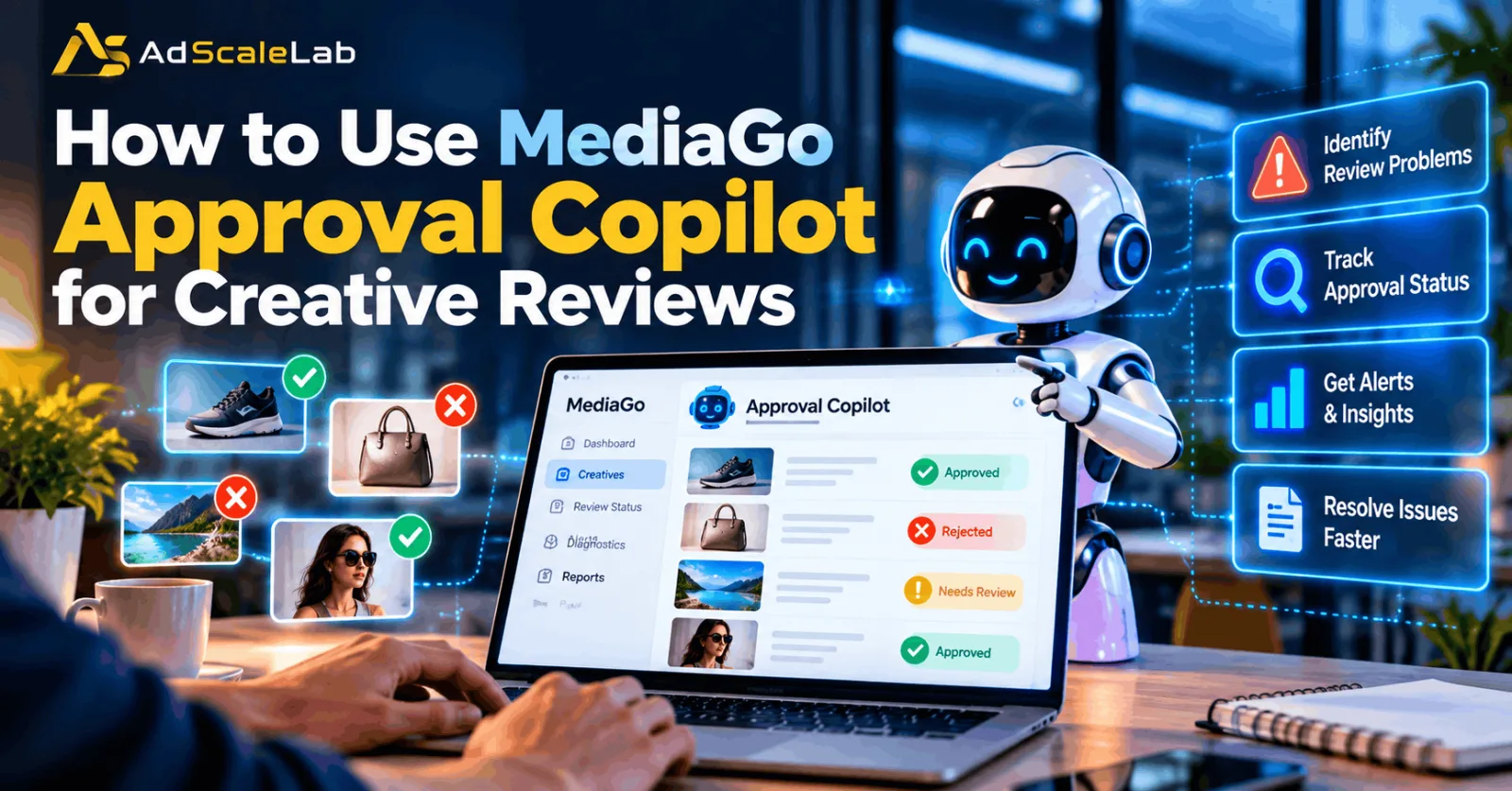
Running an advertising campaign is not just about choosing the right audience, setting a budget, and creating an attractive ad. Advertisers also need to make sure their creatives pass review and remain approved while campaigns are running. When an ad gets rejected or a previously approved creative becomes unavailable, campaign delivery can suffer even if the targeting and budget are set up correctly.
This is where MediaGo Approval Copilot can help. MediaGo introduced the feature in 2026 as an AI-powered assistant for monitoring creative review status, diagnosing disapproved ads, and alerting advertisers when approval issues create a risk of significant campaign losses. The company also describes the feature as part of its wider set of tools for improving advertising on the open internet.
For advertisers managing several campaigns, accounts, and publisher placements, checking every creative manually can become a time-consuming task. Approval Copilot is designed to make that process easier by bringing review information and alerts into a more organized workflow.
In this guide, we will explain how MediaGo Approval Copilot works, what problems it can help identify, and how advertisers can use its information to respond to creative review issues. The exact interface and available settings may depend on your MediaGo account, so use these steps as a practical workflow rather than a claim that every account has identical screens.
What Is MediaGo Approval Copilot?
MediaGo Approval Copilot is a creative review monitoring feature that helps advertisers understand why ads are disapproved and identify changes in approval status. Instead of relying only on manual checks, advertisers can use its diagnostics and notifications to find issues that may affect campaign delivery.
According to MediaGo's published product explanation, the feature can trace review problems across three levels: the account, campaign, and publisher. This is useful because an ad may be available in one part of a campaign but rejected by a particular publisher or placement. Knowing where the issue occurred makes troubleshooting more specific. The feature also covers newly launched creatives and existing live assets. New creatives may fail their first review, while an asset that has already been running can encounter a later review problem. MediaGo says Approval Copilot can provide real-time alerts for high-risk approval issues and scheduled summaries of creatives that fail review.
It is important to understand what the tool does not replace. Approval Copilot helps surface review information; advertisers still need to investigate the underlying reason, correct the creative or landing page where necessary, and follow the relevant publisher's requirements. It should be treated as a monitoring and troubleshooting assistant, not a guarantee that every ad will be approved.
Why Creative Review Problems Can Affect Campaign Performance
Creative approval issues can cause problems that are easy to overlook. Imagine launching several new ads for a lead generation campaign. One creative is approved and starts receiving traffic, but another is rejected because its destination page does not meet a publisher's requirements. If the team does not notice the rejection, it may continue analyzing campaign performance without realizing that part of the creative set is unavailable. A similar issue can happen after an ad has already been running. A publisher may review the asset again and change its status. If the advertiser misses that update, delivery may fall and the team may spend time investigating bids, audience settings, or budgets instead of checking the creative's approval status.
There is also a learning problem. When multiple ads receive different rejection reasons, reviewing them one by one makes it harder to identify recurring mistakes. A clear view of the account, campaign, and publisher involved can help advertisers spot patterns and make better decisions when preparing future creatives. For this reason, creative review monitoring should be part of regular campaign management, alongside budget checks, performance analysis, and landing-page testing.
How To Use MediaGo Approval Copilot: Step-by-Step Guide
Step 1: Confirm That Approval Copilot Is Available In Your Account
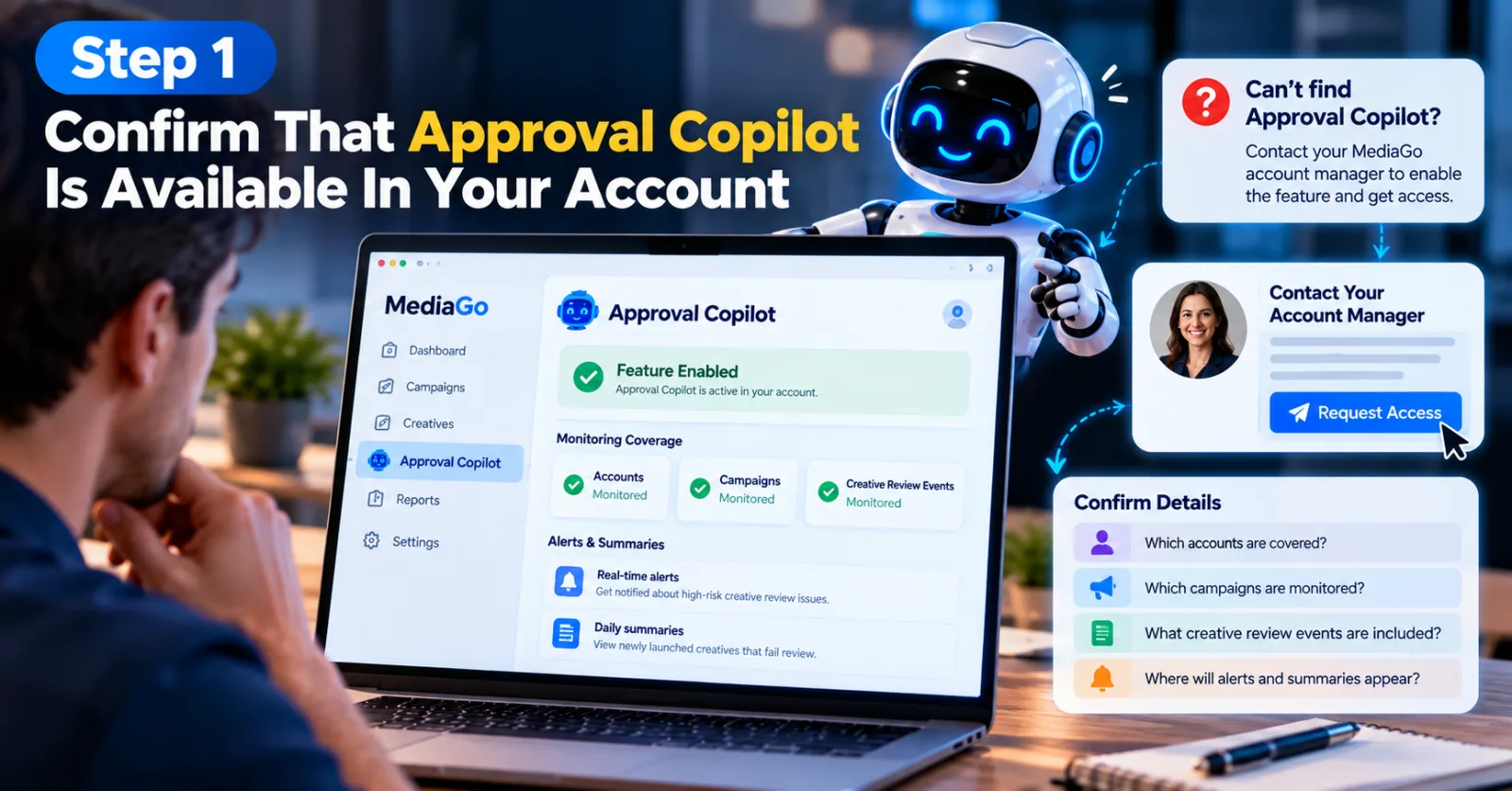
Start by checking whether Approval Copilot is enabled for your MediaGo account. If you cannot find the feature or its notifications, contact your MediaGo account manager and ask about access and setup. MediaGo's published guidance says advertisers can contact their account manager to enable the feature.
Step 2: Review The Status Of New Creatives
When you launch a new campaign or upload fresh creative assets, use Approval Copilot's available review information to identify creatives that have failed approval. Pay attention to the asset identifier and the campaign it belongs to, rather than looking only at the overall campaign status.
A campaign can appear active while an individual creative is rejected or unavailable. Checking the asset-level information helps you identify which part needs attention. For newly launched creatives, MediaGo describes scheduled daily summaries that can help advertisers review failed assets and their rejection details.

Step 3: Trace the Rejection to the Account, Campaign, and Publisher
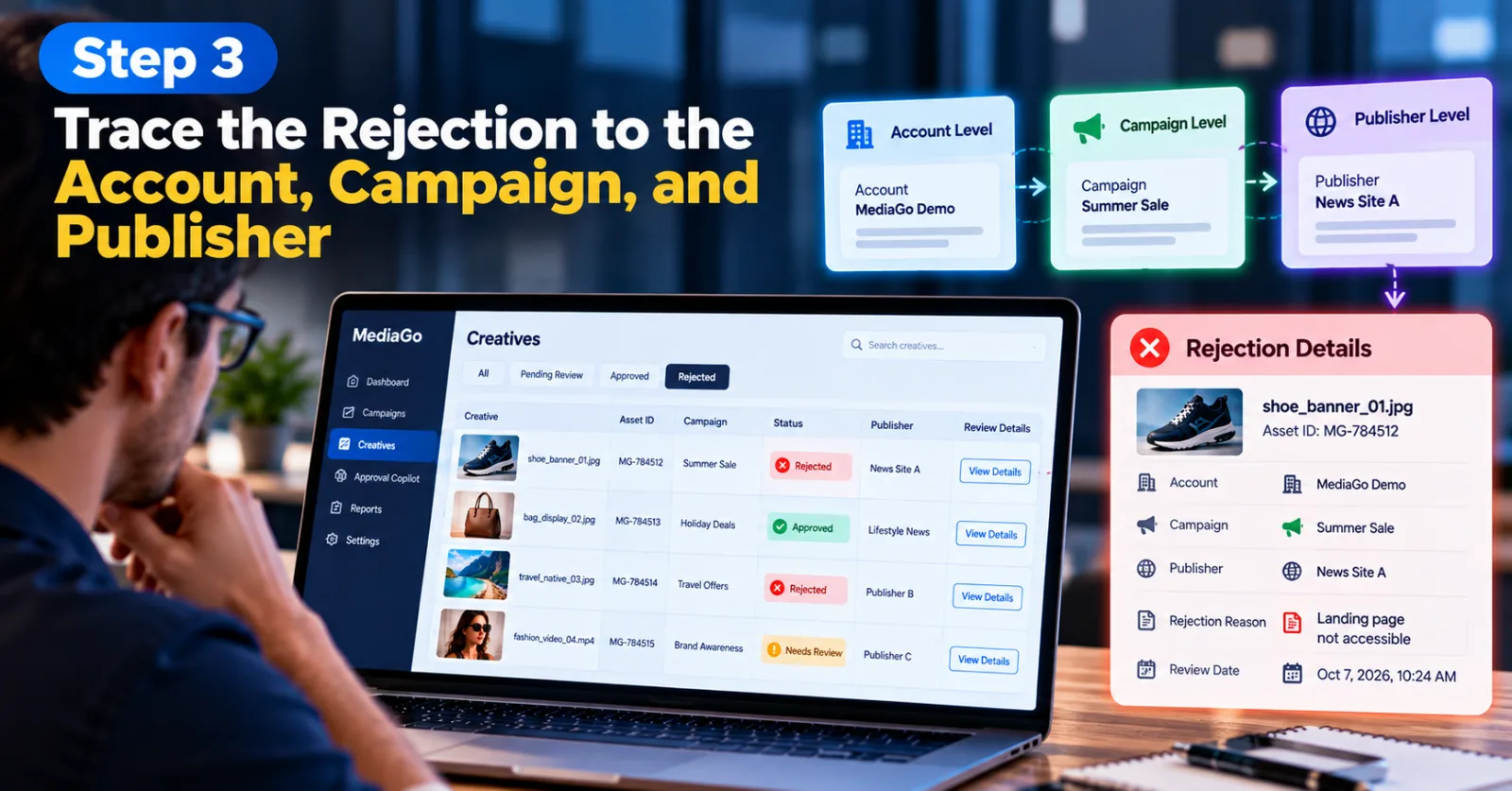
Once you identify a rejected creative, use the available diagnostic details to understand where the problem occurred. MediaGo describes a three-level tracing approach that connects review issues with the account, campaign, and publisher.
For example, if a creative is rejected by one publisher, do not automatically assume that every placement or campaign using the asset has the same issue. Check the specific rejection details and affected media source first. This helps narrow the investigation and prevents unnecessary changes to unrelated campaigns.
The goal is to move from “the ad was rejected” to a more useful question: “Which asset was rejected, where did the rejection happen, and what reason was provided?”
Step 4: Read TRhe Exact Rejection Reason Before Making Changes
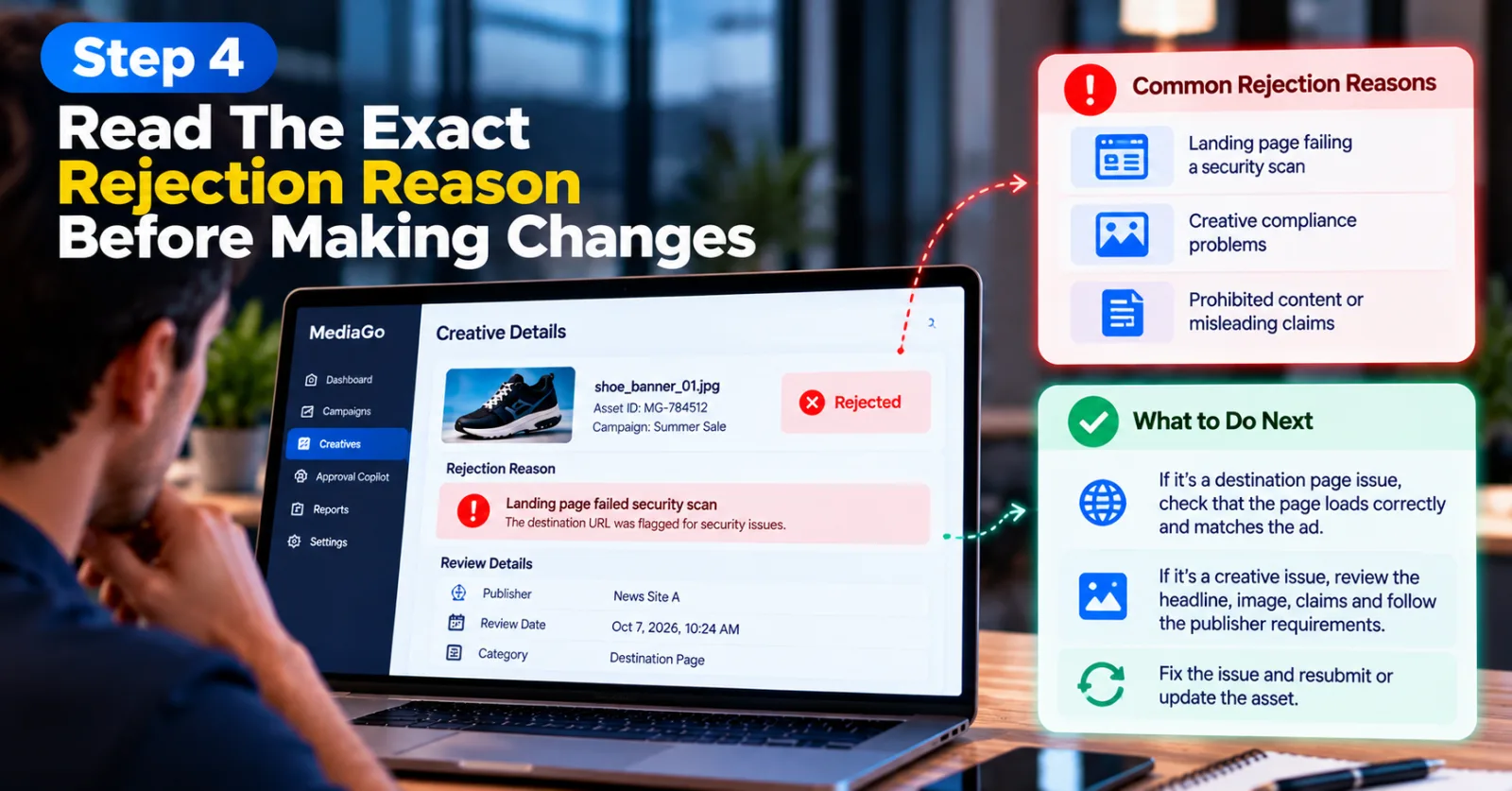
After locating the affected creative, examine the reason attached to the rejection. MediaGo's published example includes issues such as a landing page failing a security scan and creative compliance problems. These examples show why it is important to investigate the actual cause instead of repeatedly uploading the same asset.
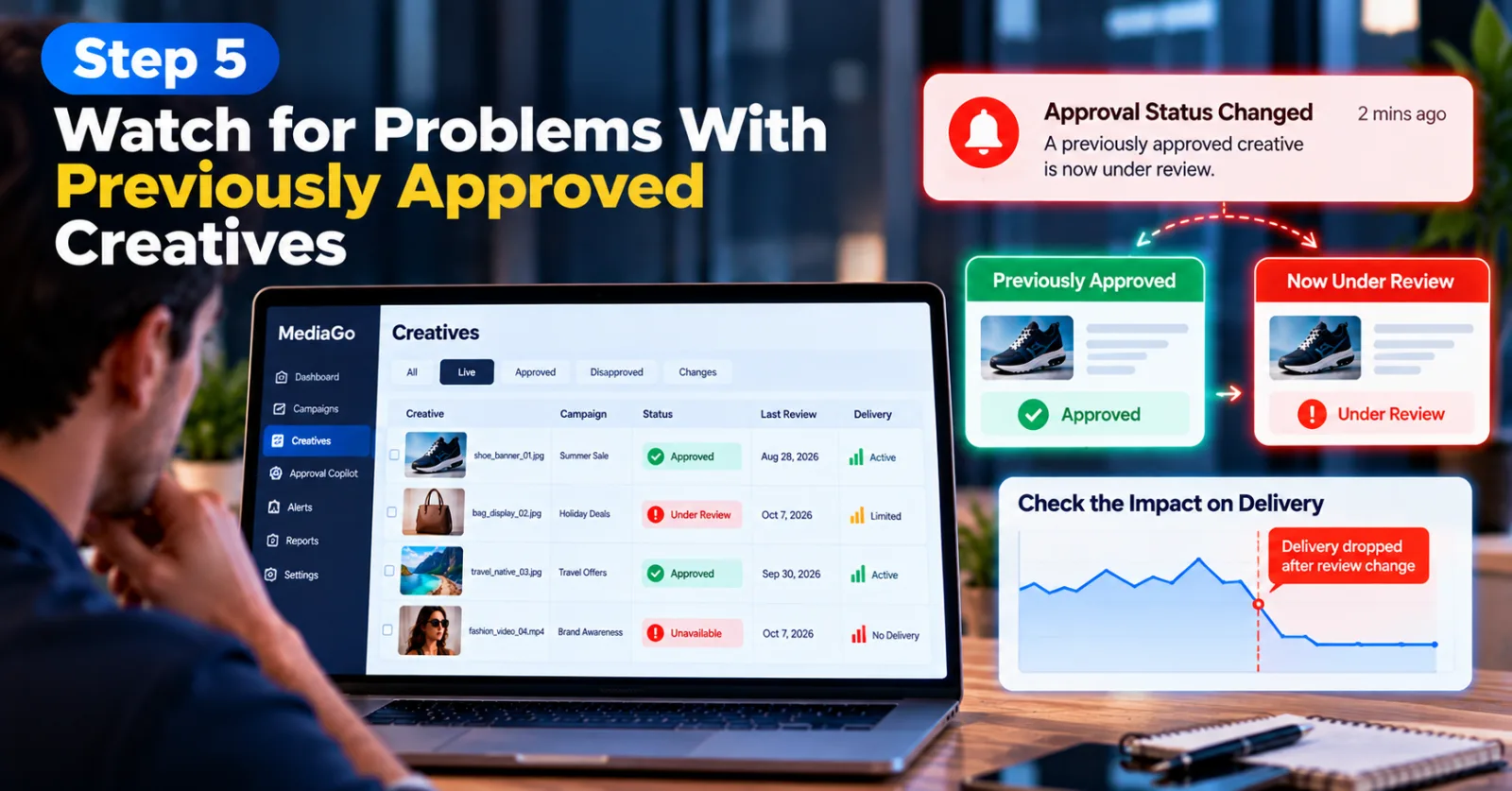
Step 5: Watch for Problems With Previously Approved Creatives
Do not limit monitoring to new uploads. An ad that passed its initial review may still face a later review and become unavailable. This is especially important when a campaign depends on a small number of creatives that have already built up meaningful delivery.
Use Approval Copilot's alerts and status information to identify changes affecting live assets. When an alert arrives, verify which creative and publisher are involved, then check whether the asset is still available and whether the campaign's delivery has changed.
This can help your team investigate the approval issue before spending too much time changing unrelated settings. However, an alert is a reason to investigate, not proof that the review problem is the only cause of a performance change.
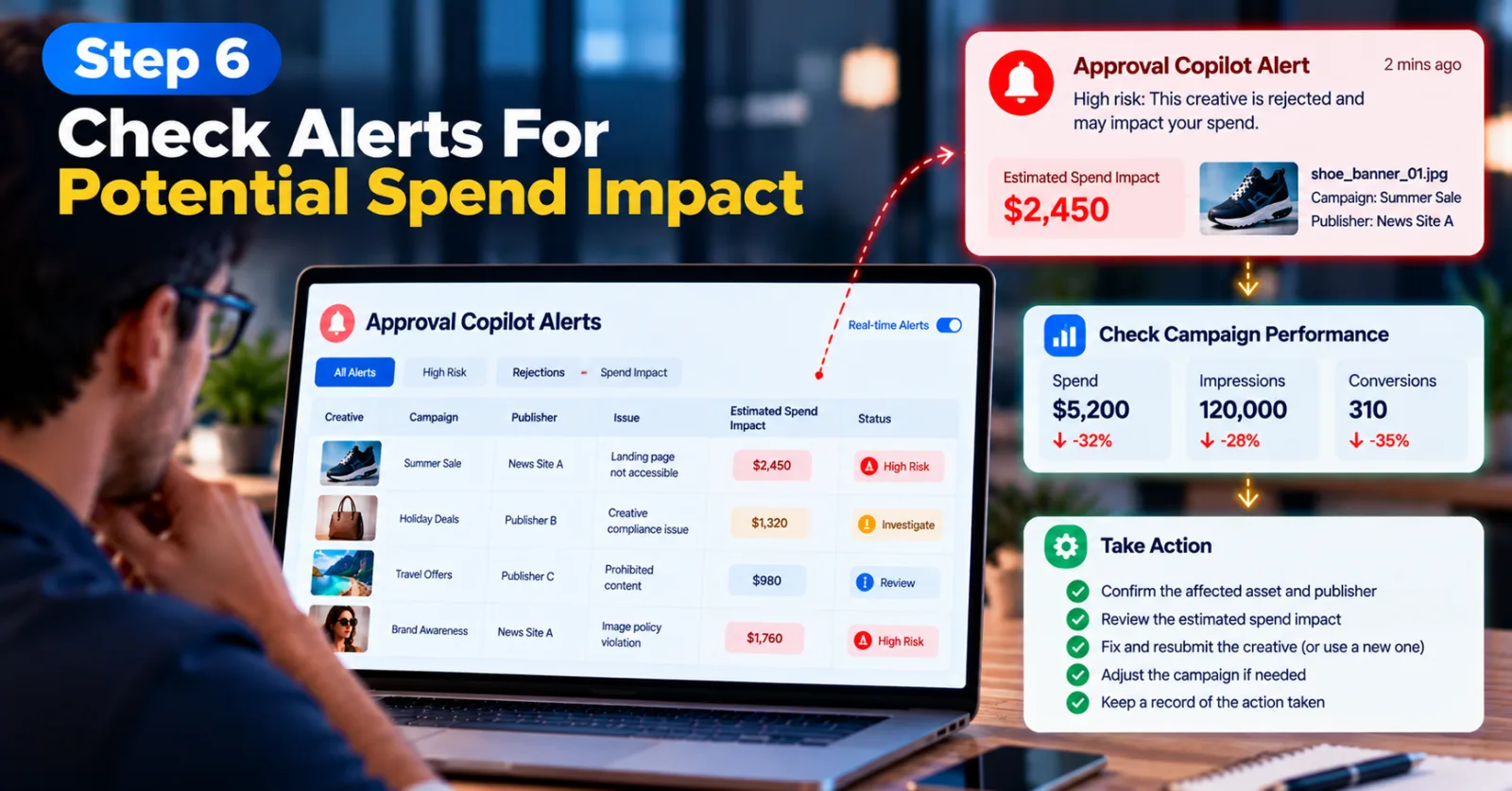
Step 6: Check Alerts For Potential Spend Impact
MediaGo says Approval Copilot can send real-time alerts when high-loss risks are detected. Its published product explanation also describes alerts that connect rejection information with estimated spend impact. When you receive an alert, first identify the affected asset and the publisher involved. Then review the estimated impact and check the campaign's actual delivery and spend data. An estimate helps prioritize the investigation, but it should not be treated as a guaranteed amount of money lost.
If the issue is confirmed, decide whether the best response is to correct and resubmit the asset, use another compliant creative, or adjust the campaign while the review problem is being resolved. Keep a record of the action taken so the team can understand what happened later.
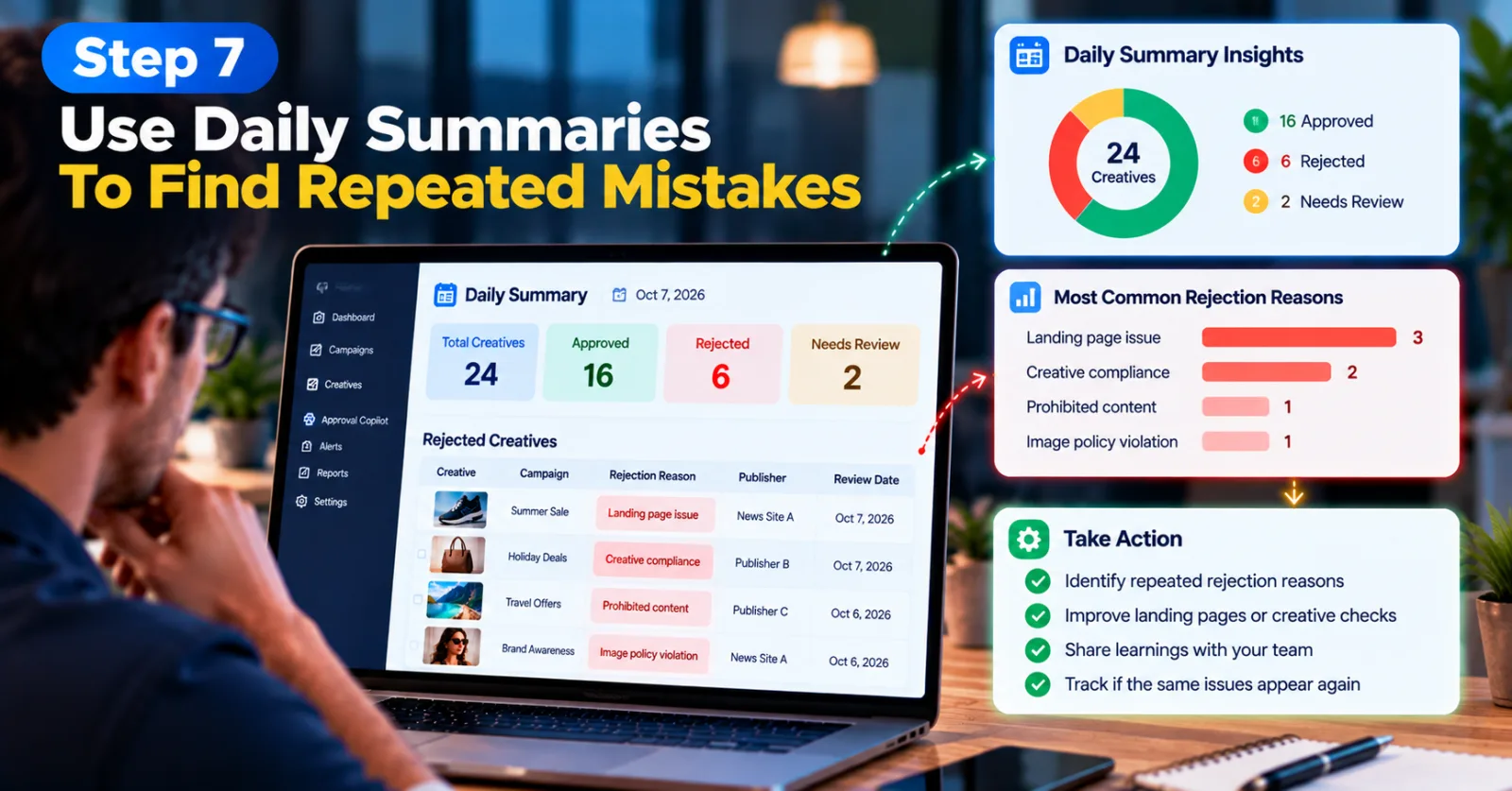
Step 7: Use Daily Summaries To Find Repeated Mistakes
When multiple creatives are launched, checking every notification separately can become difficult. MediaGo describes daily summaries for newly launched creatives that fail review, allowing advertisers to see the overall picture and open individual asset details.
Use these summaries to look for repeated problems. For example, several rejections involving landing-page checks may suggest that the destination pages need a more careful review before the next launch. Repeated compliance-related rejections may point to a need for better creative checks before submission.
The important part is to turn the information into a repeatable improvement process. Record the common rejection reasons, share them with the people preparing the ads, and check whether the same problems appear in later launches.
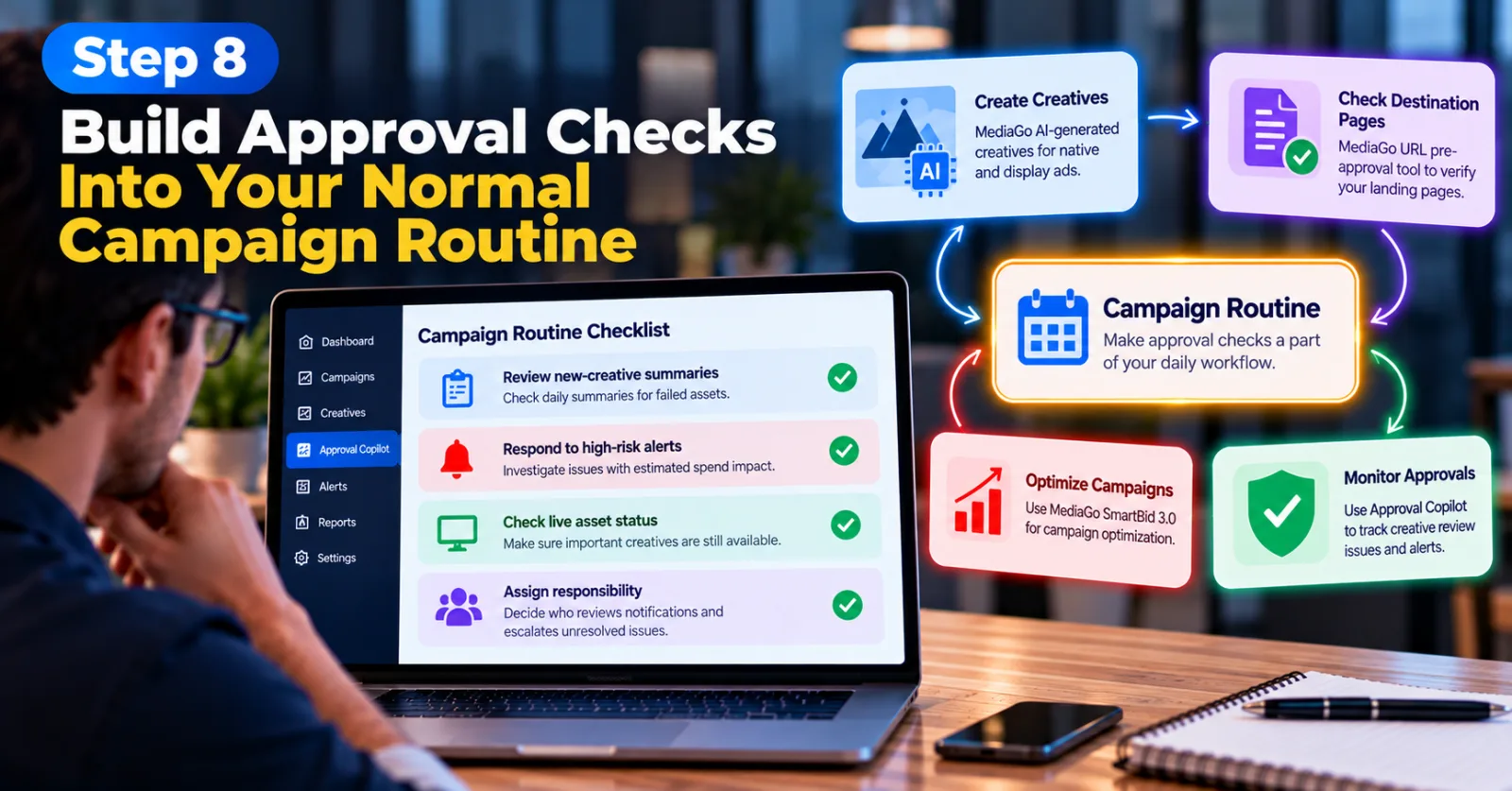
Step 8: Build Approval Checks Into Your Normal Campaign Routine
Approval monitoring works best when it is part of your daily campaign routine instead of something you remember only after performance drops. Review new-creative summaries, respond to high-risk alerts, and check the status of important live assets. For campaigns with large creative volumes, decide who is responsible for reviewing notifications and escalating unresolved issues.
You can also combine this process with other MediaGo campaign management practices. For example, MediaGo AI-generated creatives for native and display ads discusses creative production and the importance of checking whether assets can run. For campaign optimization, see how to optimize MediaGo campaigns with SmartBid 3.0. If destination-page approval is the problem, AdScaleLab's MediaGo URL pre-approval tool guide may also help you prepare the URL before planning a campaign around it.
These tools address different parts of campaign management. Creative generation helps prepare assets, URL pre-approval helps check destinations, SmartBid 3.0 focuses on campaign bidding and optimization, and Approval Copilot helps monitor creative review issues. Using them together can create a more organized workflow without confusing their separate roles.
Best Practices For Getting More From MediaGo Approval Copilot
The tool is most useful when your team has a clear process for acting on the information it provides. Start by assigning responsibility for reviewing alerts. If everyone assumes someone else will handle a rejection, the problem may remain unresolved for longer than necessary.
Next, keep a simple record of recurring issues. Note the creative involved, the publisher, the rejection reason, the correction made, and whether the asset passed review after the change. Over time, these records can help your team identify preventable mistakes and improve its creative preparation process. It is also worth checking the destination page whenever an ad is rejected for a landing-page issue. Confirm that the page works on mobile and desktop, that the advertised offer is available, and that the page content matches the creative. Do not change the headline or image randomly when the actual problem is on the destination page.
Finally, treat estimated spend impact as a prioritization aid rather than a complete performance report. Check actual delivery, spend, and conversion data before deciding how much damage an approval problem caused. Approval Copilot can help identify where to investigate, but campaign decisions should still be based on verified information.
What MediaGo's Published Information Confirms
MediaGo's product information supports several key points about Approval Copilot. The company says the feature offers multi-level diagnostics for disapproved creatives, real-time alerts when high-loss risks are detected, and monitoring intended to help advertisers respond to creative issues. Its June 2026 explanation also describes account-, campaign-, and publisher-level tracing, along with scheduled summaries for newly launched creatives.
These details establish that Approval Copilot is a real MediaGo feature, rather than a hypothetical tool. However, they do not establish that every advertiser will see the same results or that every rejection can be resolved automatically. Actual outcomes depend on the reason for rejection, the publisher's requirements, the advertiser's response, and the campaign setup.
Agency ad accounts, without the wait.
Buy and top up Google, Meta, native, and more from one dashboard.
Get started


No comments yet. Be the first to comment.
Comments are open to registered AdScaleLab clients.
Sign in to comment