






How to Use MediaGo Auto Rules for Campaign Optimization
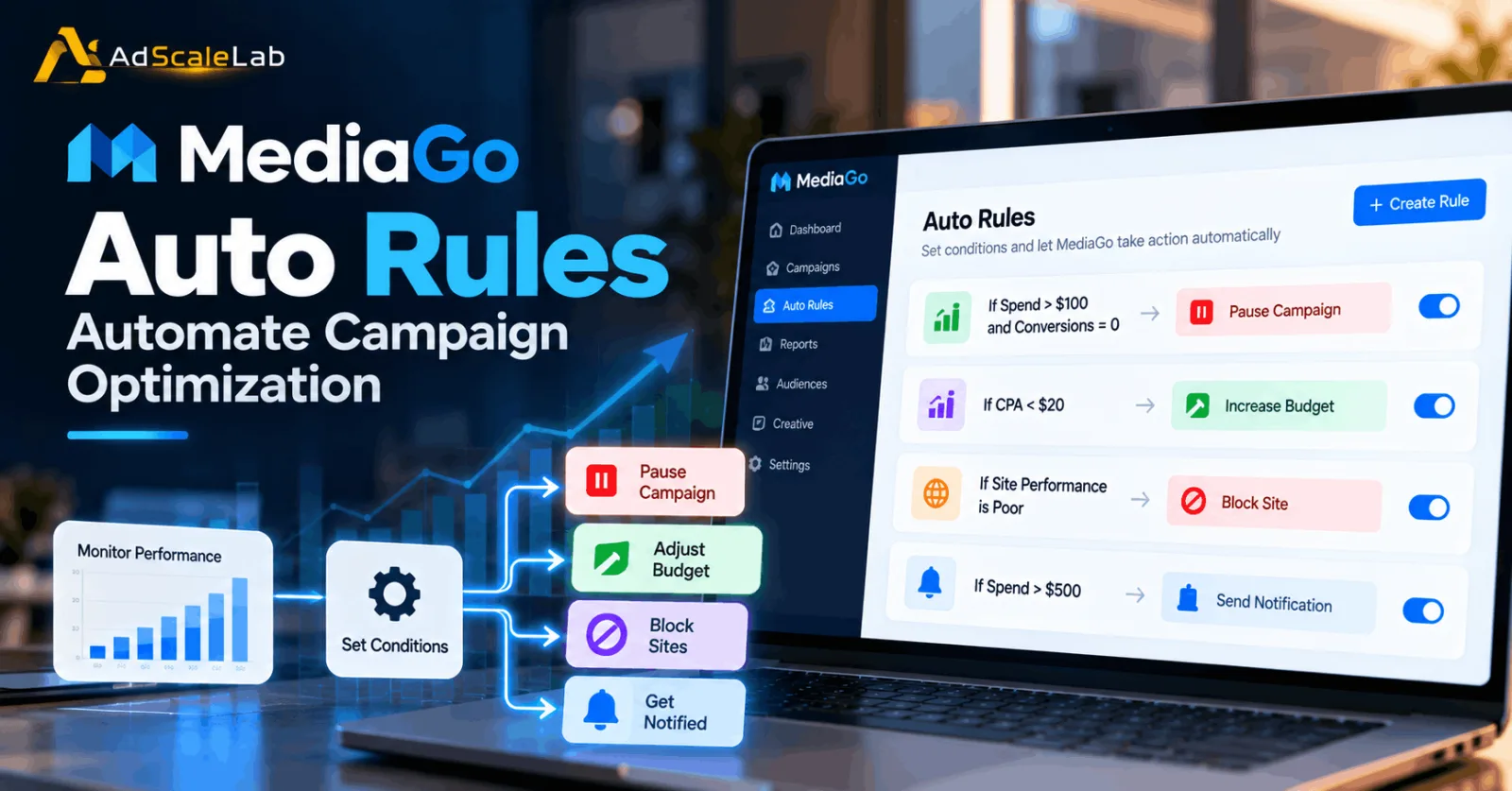
MediaGo Auto Rules gives advertisers a way to automate some of the routine work involved in campaign optimization. Instead of checking campaign performance manually and taking the same action every time a condition is reached, advertisers can create rules that watch selected performance signals and trigger an action automatically.
MediaGo introduced Auto Rules in August 2026 as a rules-based automation feature. The basic setup connects a trigger condition with an action. For example, an advertiser can create a rule that pauses a campaign when spend passes a defined amount and sends a notification at the same time. The feature is designed to help advertisers respond faster while keeping campaign management more consistent.
For advertisers who already use MediaGo for programmatic campaigns, Auto Rules can be useful alongside tools such as SmartBid and AD Learning. However, automation should not replace campaign strategy. The goal is to automate repeatable decisions while leaving important strategic decisions under human control.
What Are MediaGo Auto Rules?
MediaGo Auto Rules is a campaign-management feature built around conditions and actions. An advertiser defines a performance condition, selects an operator and threshold, and then chooses what MediaGo should do when the rule is triggered.
According to MediaGo's official announcement, conditions can use performance metrics such as spend, conversions and cost. Available actions include pausing or enabling campaigns, adjusting or setting budgets, and sending email or dashboard notifications. At the site level, MediaGo also describes rules for blocking or unblocking sites based on Site Name.
MediaGo says a rule can contain up to five conditions. All conditions must be met before the action is executed. This makes it possible to build rules that are more specific than a simple one-metric trigger.
Why Use Auto Rules For Campaign Optimization?
Campaign optimization often involves repetitive checks. An advertiser may repeatedly look at spend, conversions, cost, traffic quality or individual sites and then perform the same action when a threshold is reached. That process takes time and can lead to delays, especially when campaigns are running continuously.
Auto Rules can reduce some of that manual work. A rule can keep checking the selected condition during the period defined by the advertiser and perform the selected action when the conditions are satisfied. The feature can also help create a clearer operating process. Instead of relying on someone to remember every threshold, the campaign can have predefined rules for routine situations. MediaGo positions this as a way to support continuous monitoring and faster response.
How To Use MediaGo Auto Rules For Campaign Optimization
Step 1: Decide What You Want The Rule To Control
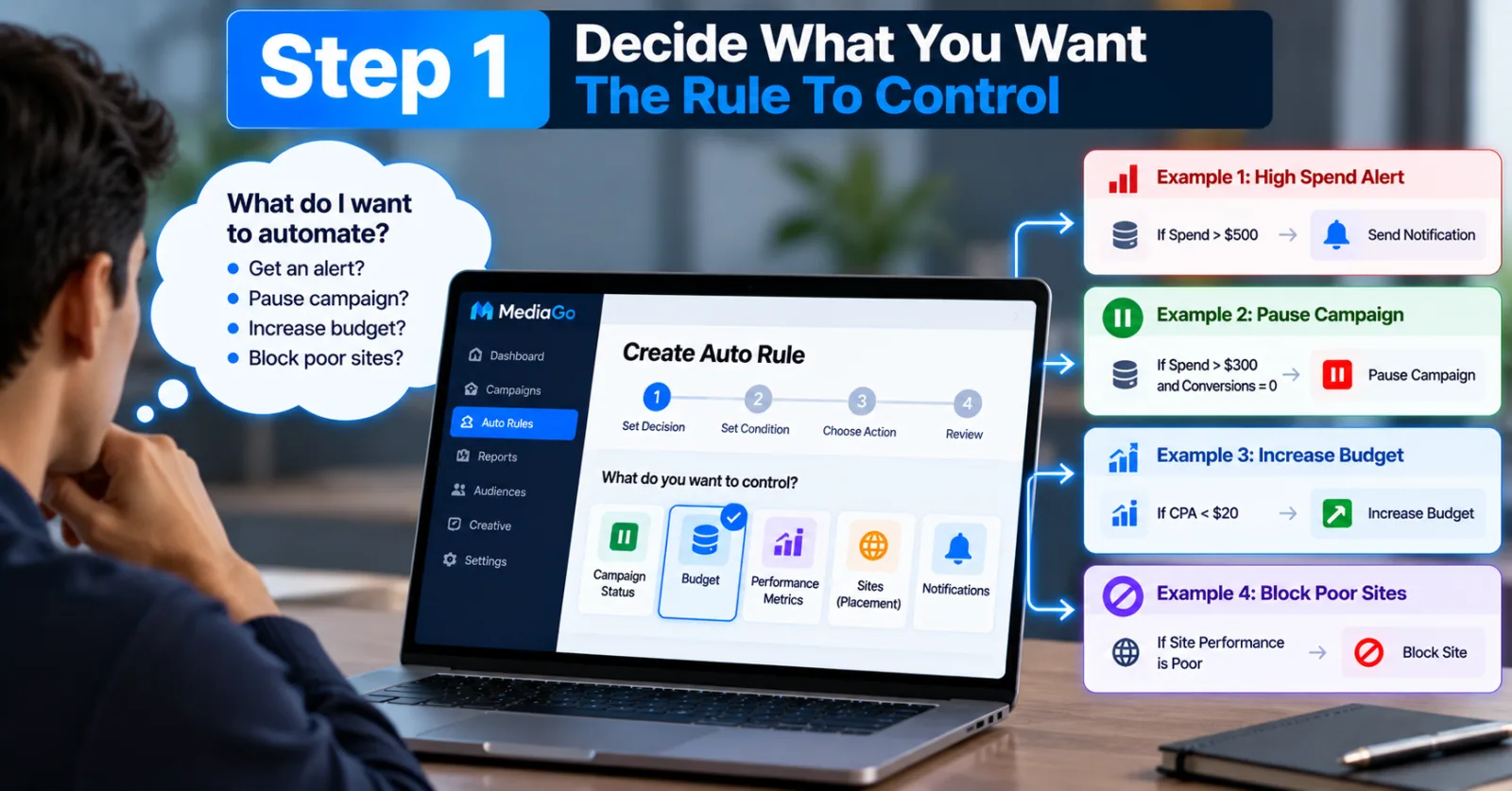
Start with the decision you want to automate. Do not begin by choosing a metric simply because it is available. First ask what you would normally do manually when a campaign reaches a certain condition.
For example, you may want to receive an alert when spending becomes unusually high, pause a campaign after a predefined spending limit, or adjust a budget when performance reaches a particular threshold. Having a clear decision in mind makes the rule easier to build and review.
If you are still setting up your first MediaGo campaign, it can help to review your existing MediaGo campaign setup guide before creating automated rules.
Step 2: Choose The Performance Condition
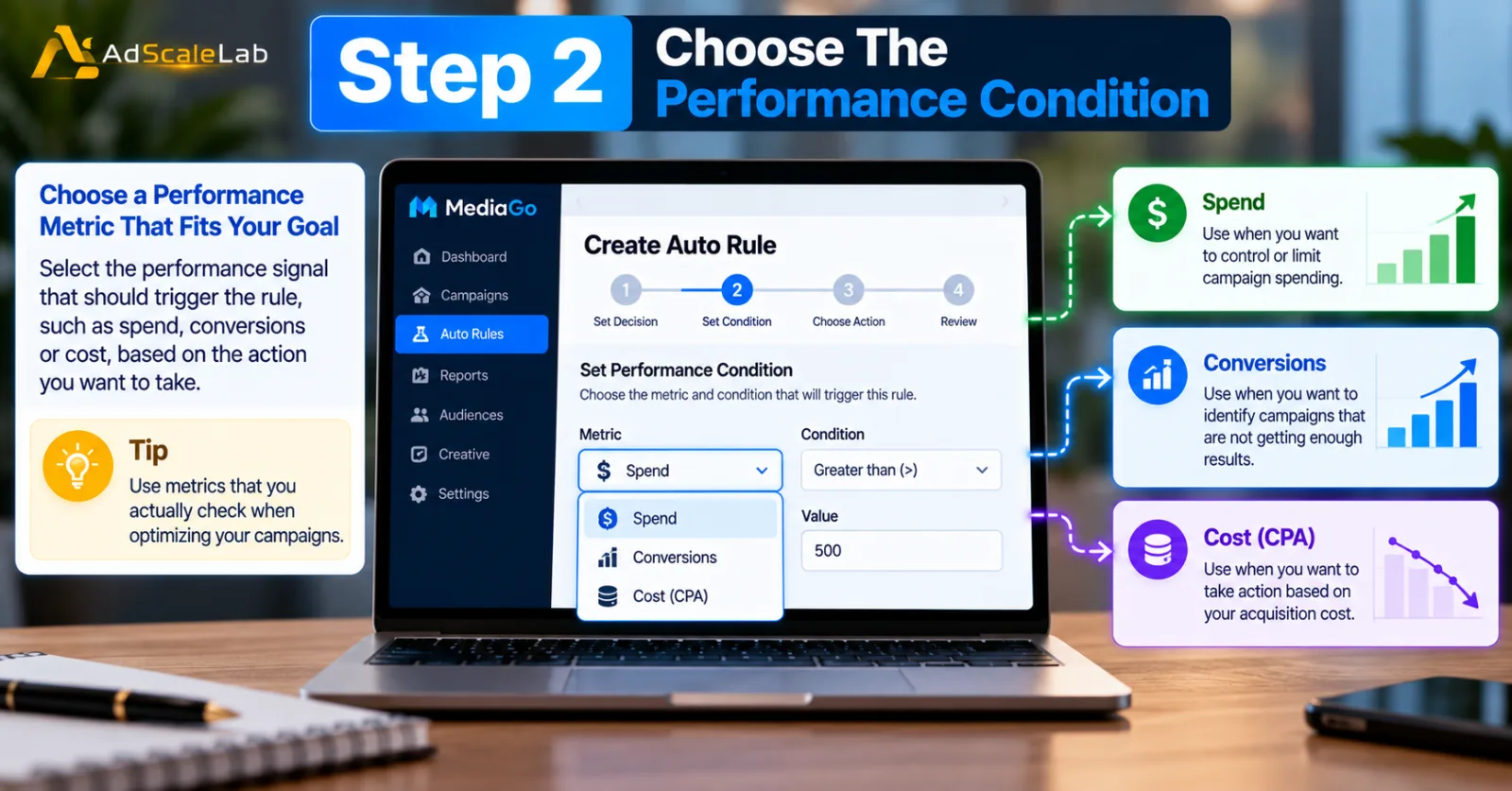
The next step is to decide which performance signal should trigger the rule. MediaGo's official announcement gives examples such as spend, conversions and cost.
Choose a metric that is directly connected to the action you want to take. If the purpose of the rule is to control spending, spend may be the most direct trigger. If the purpose is to identify campaigns that are not producing enough results, conversions or cost may be more relevant.
Avoid creating rules around metrics that you do not regularly use when making optimization decisions. The rule should reflect how you actually manage the campaign.
Step 3: Add More Than One Condition When Necessary
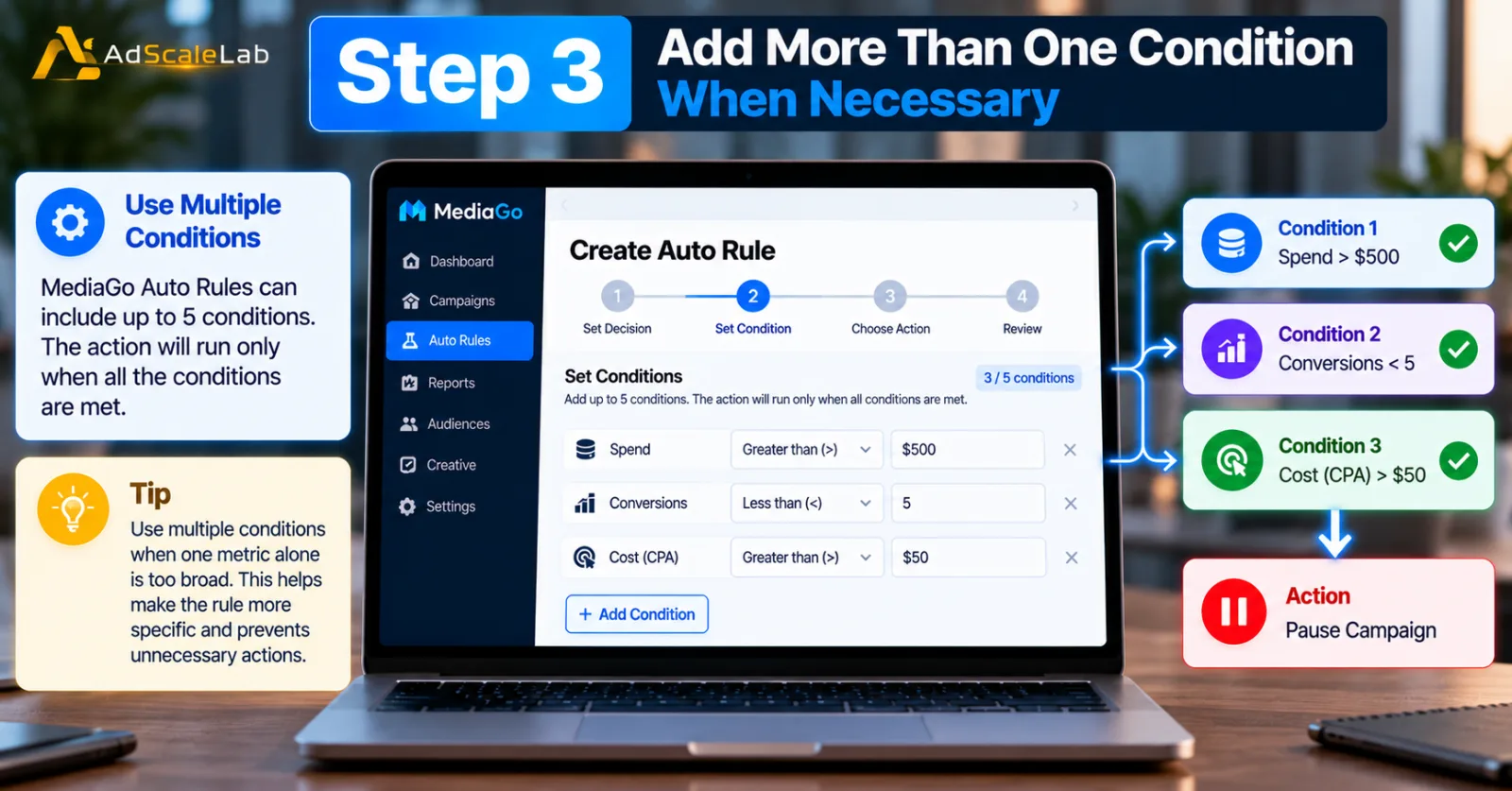
MediaGo Auto Rules can use multiple conditions. MediaGo says a rule can contain up to five conditions, with the action executing only when all conditions are met.
This can be useful when one metric by itself is too broad. For example, you might want a rule to act only when spend is above a threshold and conversions remain below a certain level. That is more specific than pausing a campaign whenever spend alone crosses a limit.
The important point is to keep the logic understandable. Adding conditions simply to make a rule look more advanced can make it harder to troubleshoot later.
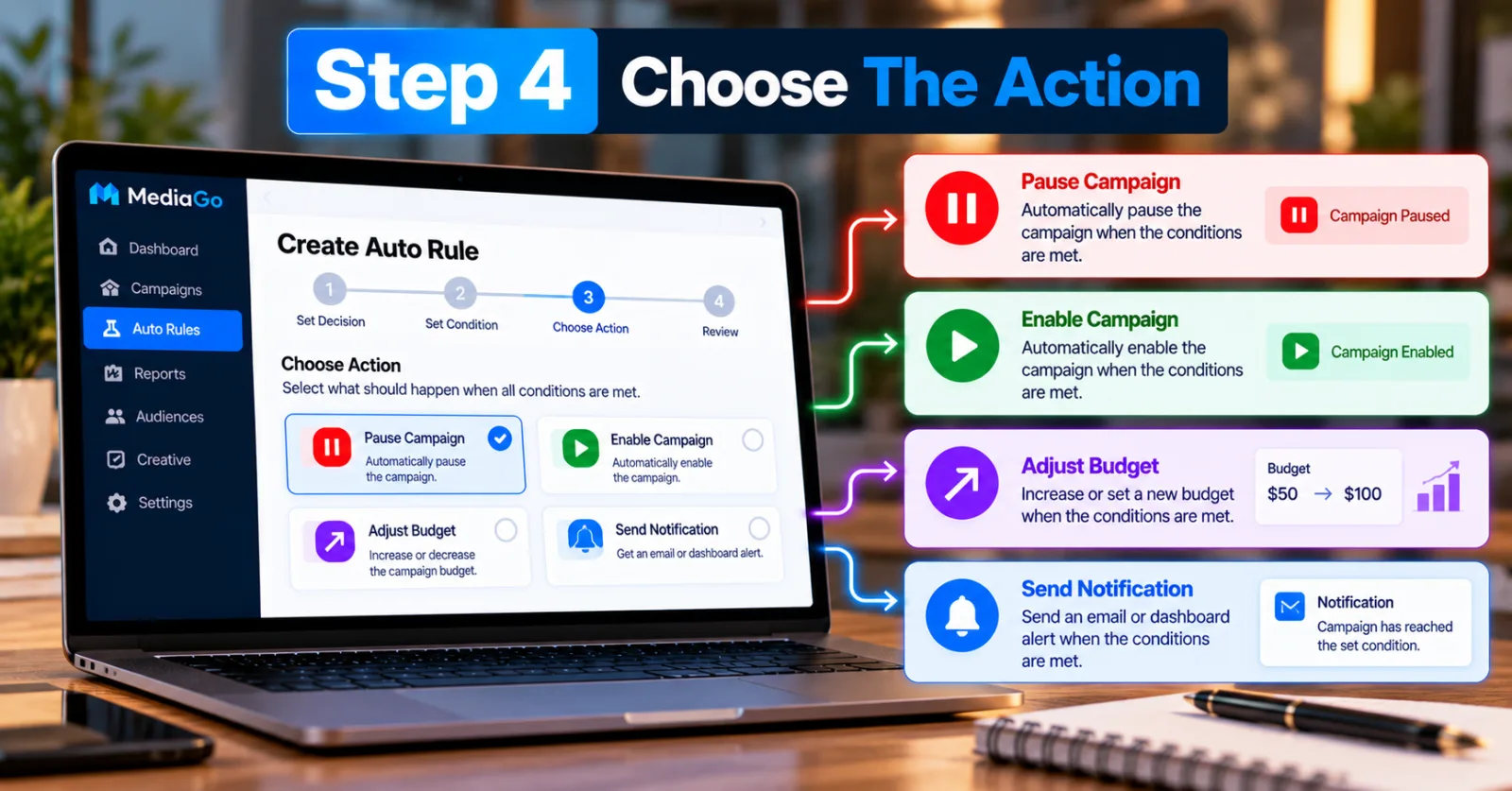
Step 4: Choose The Action
After defining the trigger, choose what should happen when the conditions are met. MediaGo describes actions such as pausing or enabling campaigns, changing or setting budgets, and sending notifications.
Notifications are a useful starting point because they can automate monitoring without immediately changing campaign delivery. Once you understand how a rule behaves, you can decide whether a direct action such as pausing or changing a budget is appropriate.
For high-impact actions, make sure the threshold is based on a decision you would be comfortable allowing the system to make automatically.
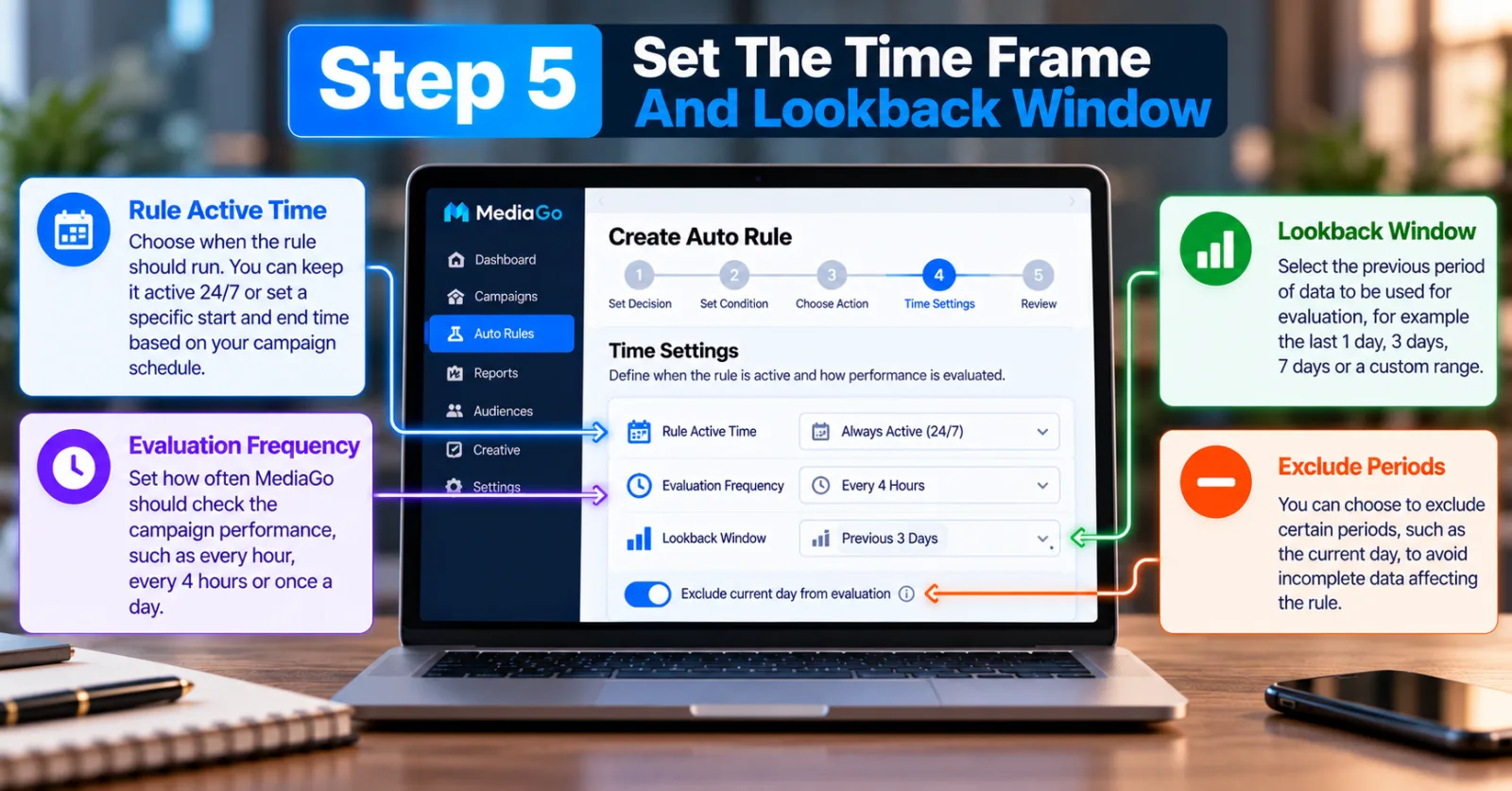
Step 5: Set The Time Frame And Lookback Window
MediaGo's Auto Rules setup includes a time frame for when the rule is active, an evaluation frequency and a lookback window. For example, a rule can evaluate performance on a recurring schedule while looking at data from a defined previous period.
These settings matter because the same threshold can mean different things over different time periods. A rule based on today's data may behave differently from one that evaluates several days of performance. MediaGo also describes the ability to exclude periods such as the current day when defining the lookback. Use the time settings that match the way you normally evaluate campaign performance.
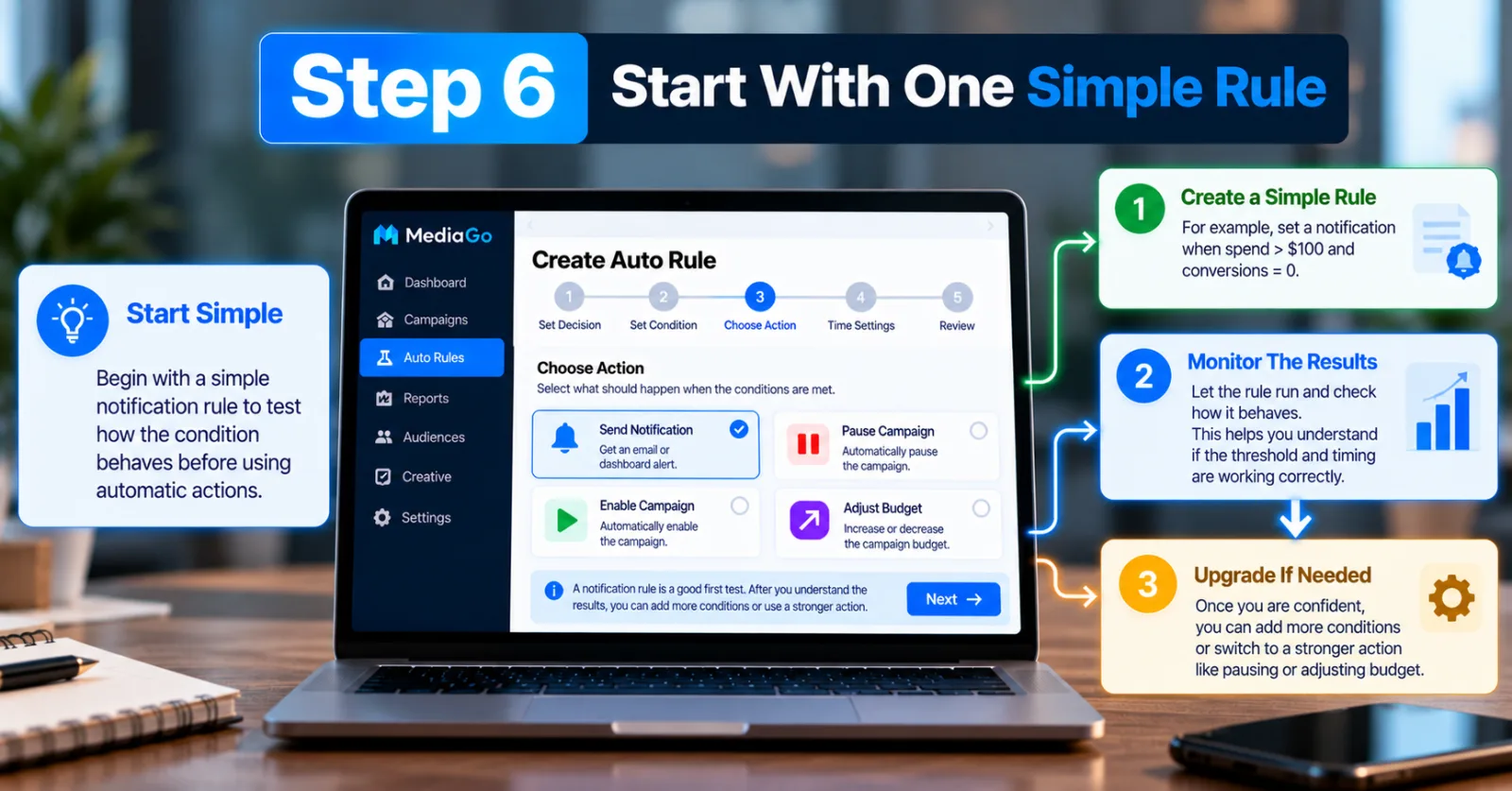
Step 6: Start With One Simple Rule
If you are using Auto Rules for the first time, start with a rule that is easy to understand. A simple notification rule can be a useful first test because it lets you see how the condition behaves without automatically changing campaign delivery.
After the rule has been running and you understand the results, you can add more conditions or move to a stronger action. This gradual approach also makes it easier to find mistakes in thresholds, lookback windows or evaluation frequency.
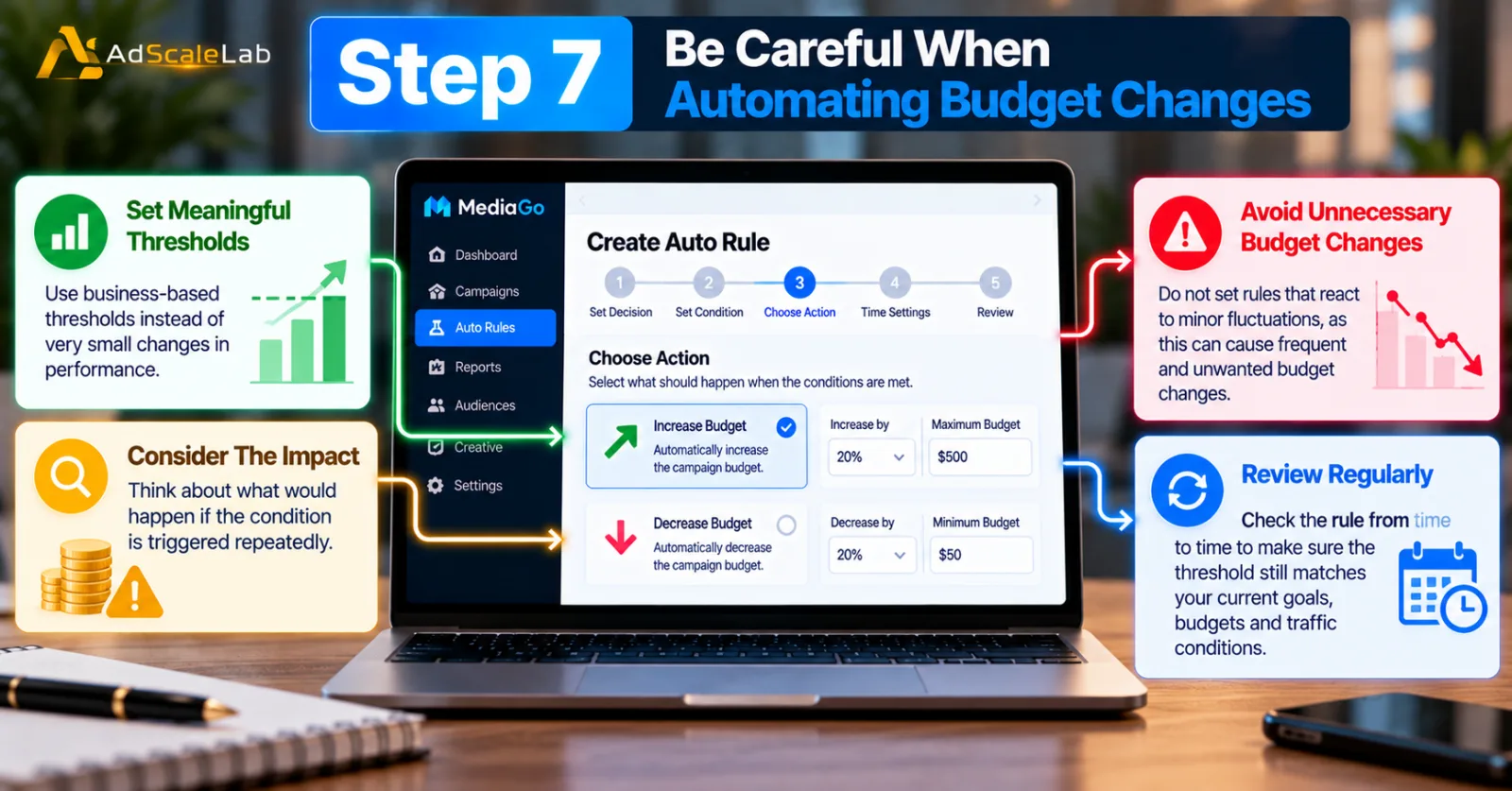
Step 7: Be Careful When Automating Budget Changes
Budget automation can have a direct effect on campaign spending, so it deserves more attention than a simple alert rule. Before using an automatic budget increase or decrease, consider what would happen if the condition is triggered repeatedly.
Set rules around meaningful business thresholds rather than very small changes in performance. It is also useful to review the rule regularly to make sure the threshold still makes sense as campaign goals, budgets and traffic conditions change.
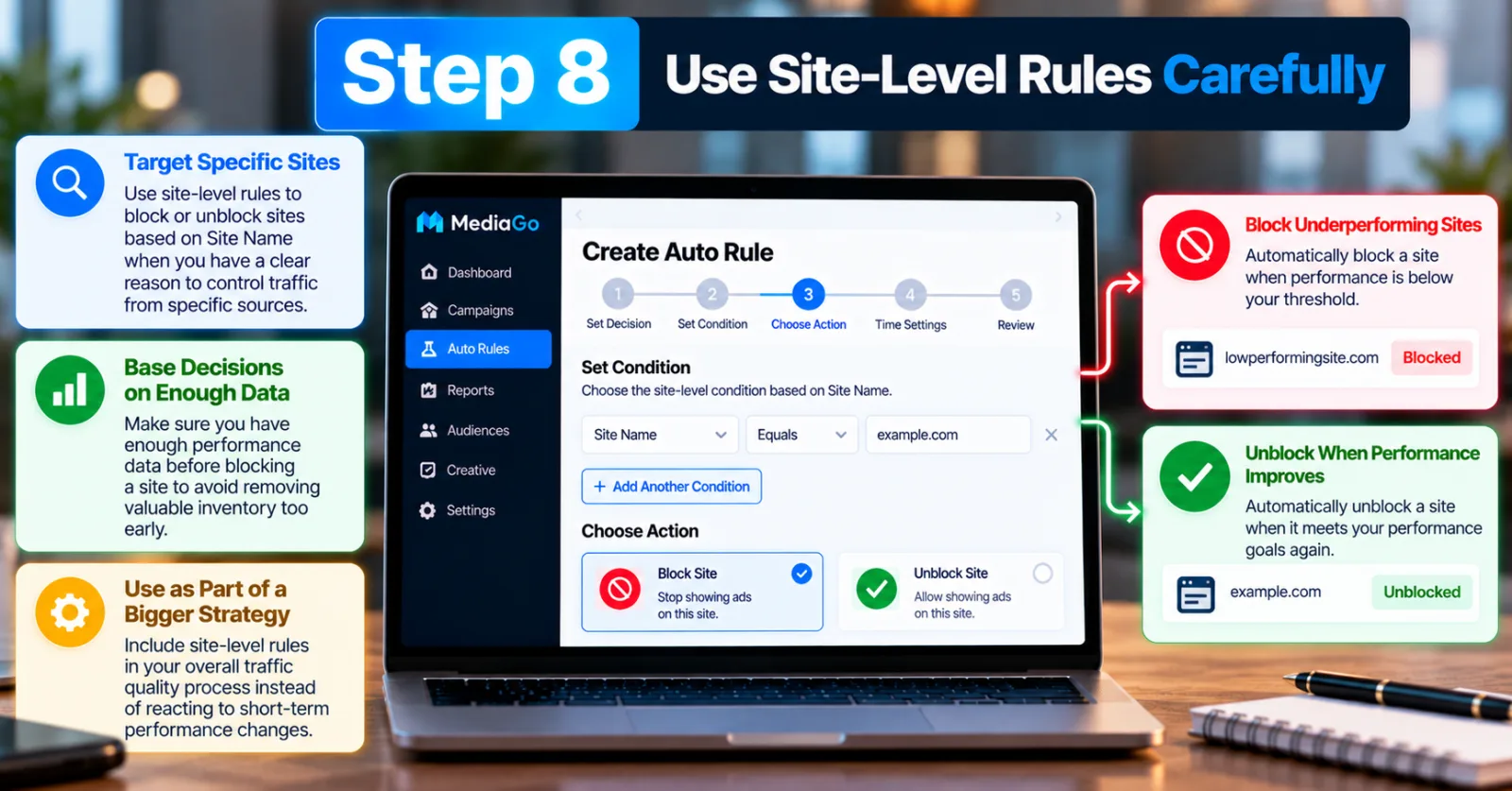
Step 8: Use Site-Level Rules Carefully
MediaGo's official Auto Rules announcement describes site-level actions for blocking and unblocking based on Site Name. This can be useful when advertisers have a clear reason to control specific sources of traffic.
However, site-level optimization should be based on enough evidence to support the decision. Blocking a site after a very small amount of data can remove inventory before there is enough information to understand its real value. Use site-level rules as part of a broader traffic-quality process rather than treating every early performance change as a permanent problem.
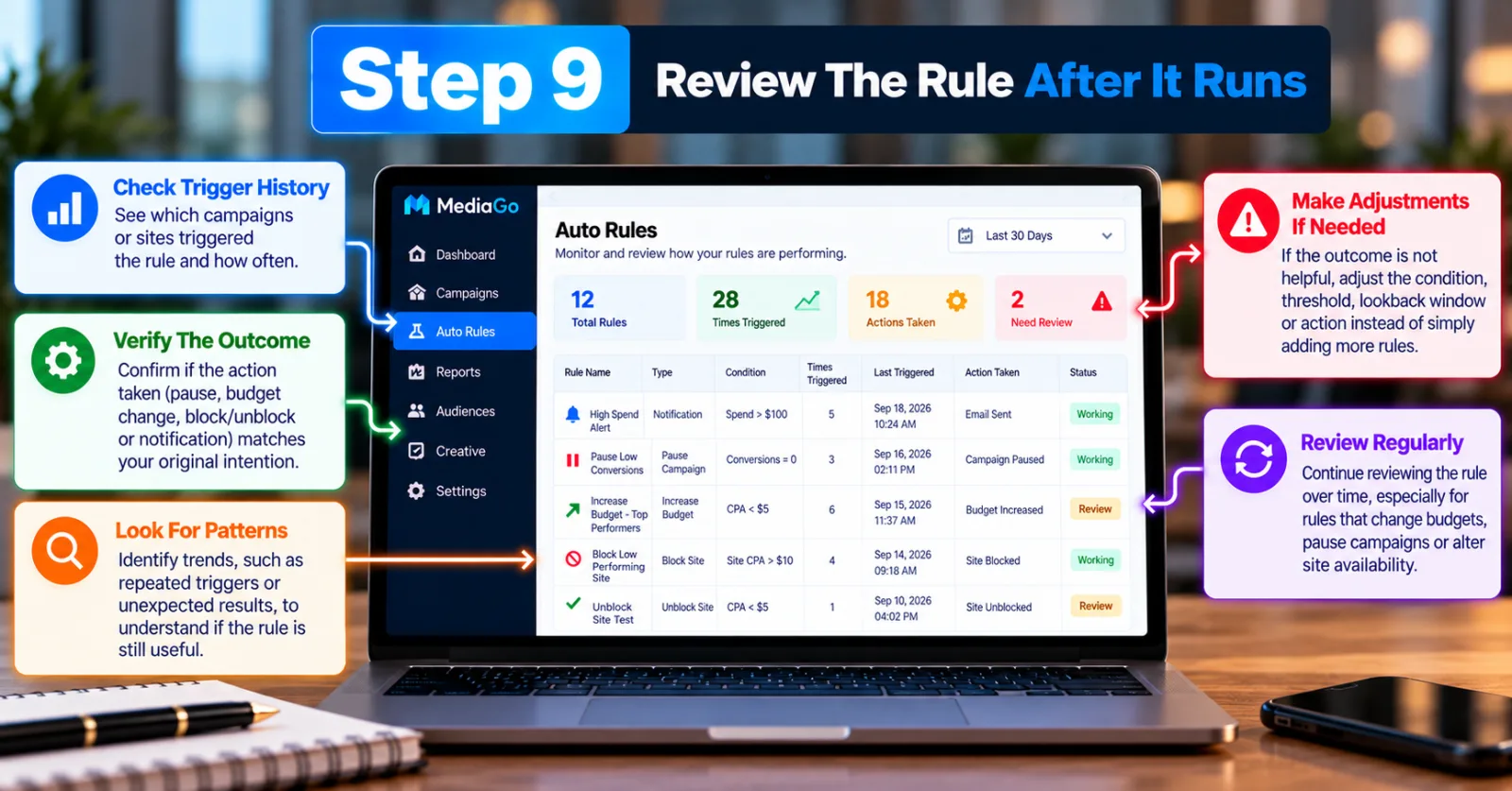
Step 9: Review The Rule After It Runs
Automation still needs human review. After a rule has been active for some time, check which campaigns or sites triggered it and whether the resulting action matched your original intention.
This review is especially important for rules that change budgets, pause campaigns or alter site availability. A rule can technically work exactly as configured and still produce an outcome that is not useful for the campaign. If that happens, adjust the condition, threshold, lookback window or action instead of simply adding more rules.
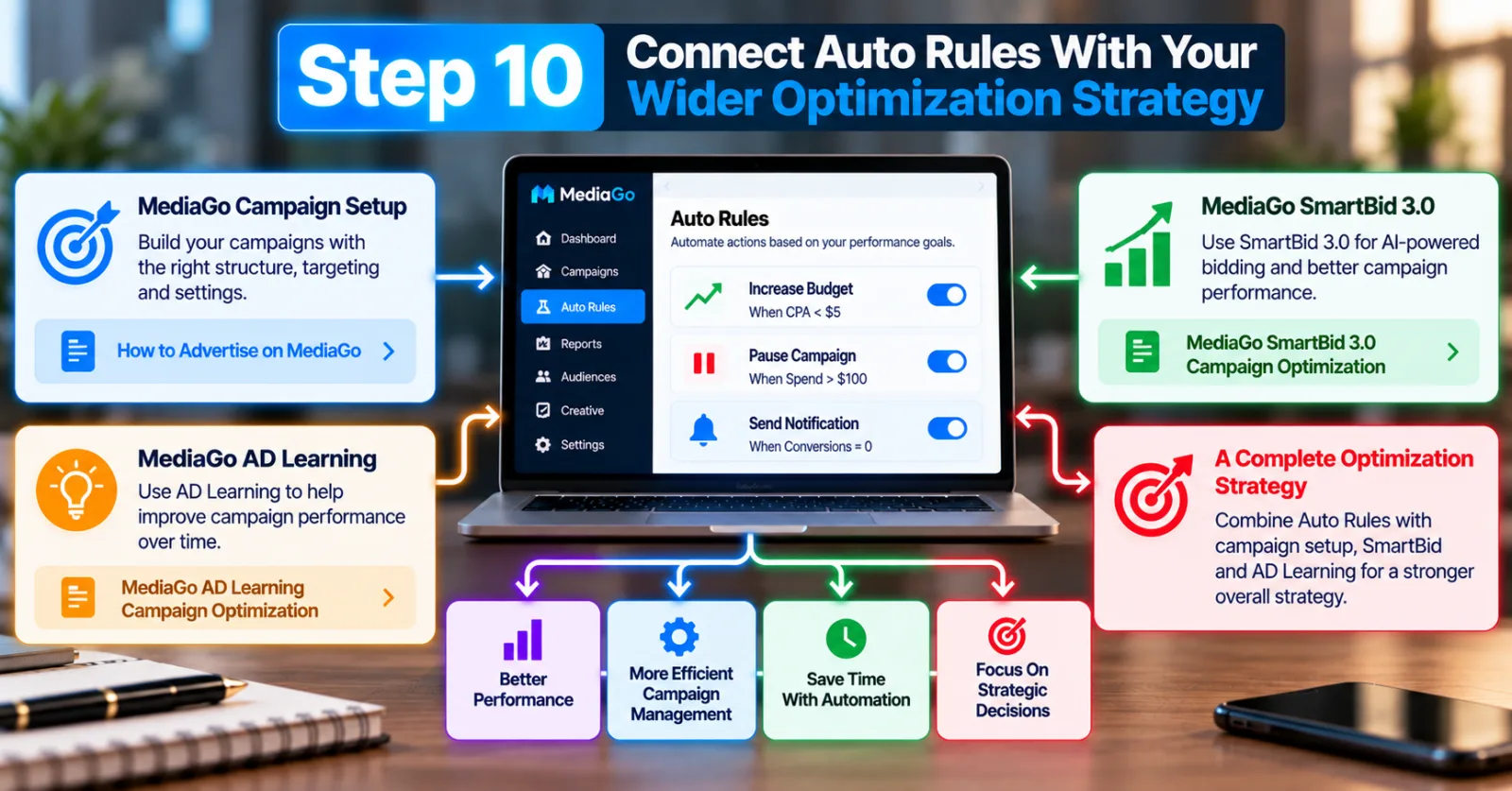
Step 10: Connect Auto Rules With Your Wider Optimization Strategy
Auto Rules works best when it is treated as one part of campaign management rather than a replacement for optimization. MediaGo also offers tools and systems focused on bidding, learning and campaign performance.
For example, you can combine automation with the campaign setup and optimization process covered in our MediaGo campaign optimization with SmartBid 3.0. You can also review our MediaGo AD Learning guide to understand how the wider optimization process fits together.
Practical MediaGo Auto Rules Examples
A useful way to understand Auto Rules is to look at the type of decisions that can be automated. The exact thresholds should depend on the advertiser's budget, conversion volume and campaign goals.
Spend-control alert: Condition: spend reaches a defined threshold. Action: send an email or dashboard notification. This can be used as an early warning before a campaign reaches a budget limit.
Low-performance action: Conditions: spend is above a chosen level and conversions remain below the advertiser's threshold. Action: pause the campaign or notify the campaign manager. This is more specific than using spend alone.
Budget-management rule: Conditions: selected performance metrics meet the advertiser's criteria. Action: adjust or set the campaign budget. This should be tested carefully because it directly changes campaign delivery.
Site-quality rule: Condition: a selected site meets the advertiser's predefined criteria. Action: block or unblock the site. This can support a broader site-quality management process.
What Not To Automate Too Quickly
Not every optimization decision should be turned into an automatic rule. Some decisions require context that a simple threshold cannot capture. For example, a short-term increase in cost does not always mean that a campaign should be stopped. It could be connected to changes in traffic, conversion timing, creative testing or another campaign-level factor.
Avoid building many overlapping rules that can trigger different actions on the same campaign. A complicated collection of rules can become difficult to understand, especially when one rule changes a budget while another rule is evaluating the same campaign using a different time window.
It is also better to review thresholds when campaign objectives change. A rule created for a small test budget may not make sense after the campaign becomes a larger, established program.
MediaGo Auto Rules vs. Manual Optimization
Manual optimization gives the advertiser more context when making each decision, but it also requires regular monitoring. Auto Rules can handle predefined and repeatable situations without requiring someone to perform the same check every time.
The two approaches can work together. Human judgment can be used for strategy, creative direction, targeting decisions and major budget planning, while Auto Rules can handle clearly defined routine actions and alerts.
How Auto Rules Fits Into MediaGo Campaign Management
MediaGo describes its advertising platform as using deep learning, real-time prediction and optimization, dynamic bidding and other automated systems. Auto Rules adds another layer by allowing advertisers to define their own conditions and actions around campaign management. That distinction is important. Auto Rules is not simply another bidding setting. It is a rules-based automation layer where the advertiser decides the trigger logic and the resulting action.
For advertisers building a broader MediaGo workflow, it makes sense to think about the process in stages: campaign setup, tracking and conversion data, learning and bidding, regular performance review, and then automation for repeatable decisions.
Final Thoughts
MediaGo Auto Rules can make campaign management more systematic by turning predefined performance conditions into automated actions. The feature supports conditions based on performance signals and actions such as notifications, campaign status changes, budget adjustments and site controls. The best way to use it is to start with decisions that are easy to define and measure. Test simple rules first, use multiple conditions when they add real value, and be especially careful with rules that change budgets or campaign delivery.
Automation should make campaign management easier, not make it harder to understand. Regular human review is still important because campaign goals, budgets and traffic conditions can change.
Agency ad accounts, without the wait.
Buy and top up Google, Meta, native, and more from one dashboard.
Get started


No comments yet. Be the first to comment.
Comments are open to registered AdScaleLab clients.
Sign in to comment